
Competitor App Listings: Common Patterns to Watch
Analyze top Shopify app listings—optimize titles, screenshots, descriptions, and reviews to boost installs and ranking.
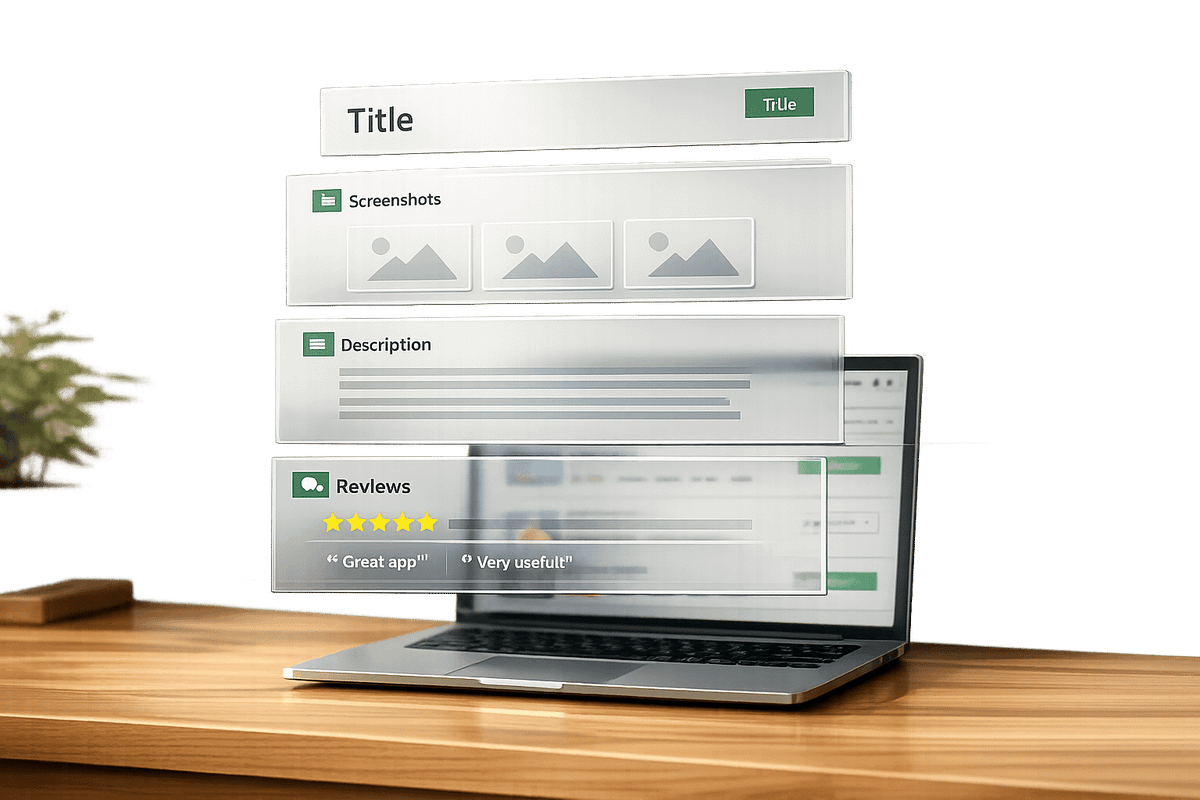
Want your Shopify app to stand out? Here's the key: study your competitors' listings. With over 13,000 apps on the Shopify App Store and 450 new ones added monthly, understanding what works is essential.
Apps with the "Built for Shopify" badge see a 49% boost in installs within 14 days, thanks to optimized titles, descriptions, visuals, and reviews. Tools like AppJubilee can help you track competitor strategies, from keyword rankings to review trends.
Quick Takeaways:
- Titles: Use a "Brand + Core Keyword" format for clarity and searchability.
- Descriptions: Start with a pain point, explain how your app solves it, and focus on readability.
- Visuals: Highlight workflows and benefits with detailed screenshots or demos.
- Reviews: Prioritize quality and relevance over sheer quantity.
Pro Tip: Apps with strong visuals and consistent review updates outperform competitors. Fine-tune your listing to highlight value and build trust.
1. AppJubilee
Title and Subtitle Patterns
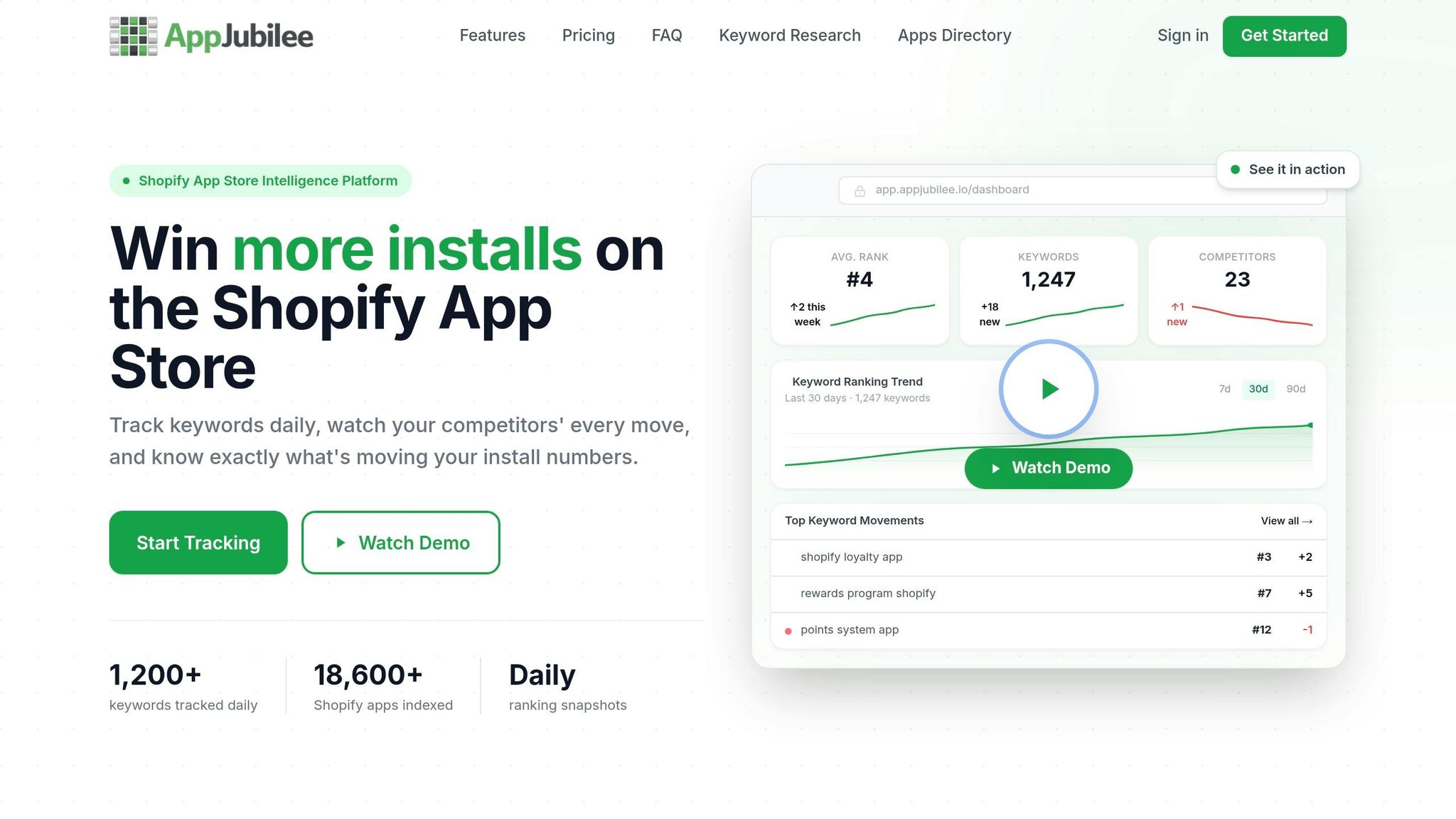
AppJubilee uses a proven "Brand + Core Keyword" strategy for its titles. This approach combines a recognizable brand name with a clear, searchable term that directly highlights the tool's purpose. It’s a smart move - this not only reinforces brand recognition but also aligns perfectly with what users are searching for.
Description Structure
AppJubilee’s descriptions take a user-first approach. They kick off by addressing a specific pain point merchants face, which is a hallmark of high-performing listings. Instead of starting with vague claims like "a powerful dashboard", the description dives into the real issues developers encounter - like the need for better visibility, staying competitive, and accessing actionable insights or comparing Shopify app optimization tools. It lays out the problem, explains how the app solves it, and gives readers a compelling reason to keep exploring.
Visual Assets
With half of users basing their purchase decisions on visuals, AppJubilee makes good use of its visual assets. The listing walks users through the app’s functionality step by step, showing how it transitions from setup to delivering competitor alerts. By highlighting a "before-and-after" scenario, the visuals quickly communicate the app’s value and make its benefits crystal clear.
Review and Social Proof Presentation
Social proof plays a key role in AppJubilee's listing. Instead of just relying on the number of reviews, it focuses on reviews that highlight tangible results. This approach helps potential users zero in on the app’s real-world benefits and performance. By emphasizing measurable outcomes, AppJubilee builds trust and credibility, ensuring customers see exactly how the app can make a difference.
sbb-itb-ce93587
#105 Optimizing Your Shopify App Listing With App Store Analytics | Daniel Sim
2. Competitor App A
Essential ‑ Back In Stock Pro is a free Shopify app with an 83/100 listing health score as of May 2026.
Title and Subtitle Patterns
This app uses a "Brand + Function" naming format, a strategy commonly found among successful Shopify apps. Its title is 29 characters long, just shy of the 30-character limit, making excellent use of the available space. The dash separator effectively separates the brand name from the app's purpose. Based on listing data, 28.3% of top Shopify apps use either a colon or dash in their titles to connect brand and function. Essential ‑ Back In Stock Pro aligns well with this trend.
Description Structure
The app's description is a standout feature, earning a 100/100 score for content. Its 85-character introduction includes 6 unique keywords, while the overall description uses 489 out of 500 characters, incorporating 36 unique keywords naturally. Striking a balance between keyword optimization and readability is no small feat, and this description nails it, making it a clear asset for the listing.
Visual Assets
Visual assets are where this app could improve. It only includes 4 screenshots, which results in a 75/100 score for Visual Assets. For comparison, apps with the "Built for Shopify" badge typically average 8.3 screenshots. Fewer visuals mean fewer chances to illustrate the app's features and benefits, potentially impacting a merchant's decision-making process.
Review and Social Proof Presentation
The app has a 4.9-star rating from 19 product reviews, which signals high quality but lacks volume. Without the "Built for Shopify" badge and with only 19 reviews, its social proof trails behind more established apps. For instance, apps like Judge.me, where 43.4% of listings have over 1,000 reviews, set a much higher benchmark.
Next, we’ll analyze how another competitor approaches these strategies.
3. Competitor App B
Competitor App B, known as Vitals, combines 40 conversion tools into a single installation. Its app listing effectively showcases this extensive functionality while keeping the presentation clear and approachable for potential users.
Visual Assets
Vitals leverages its visual gallery to highlight its all-in-one solution. Key features like Visitor Recordings and AI-powered video ads are prominently displayed through screenshots. Additionally, a live "View demo store" link allows users to explore the app interactively. These visuals not only explain the app's capabilities but also lay the groundwork for strong social proof.
Review and Social Proof Presentation
Vitals boasts an impressive 4.9-star rating from 2,592 reviews, with 97% of those being 5-star ratings. The "Built for Shopify" badge further reinforces its credibility, correlating with a 49% boost in installs within the first 14 days. The app listing emphasizes visual reviews, featuring photos and videos from real merchants as a primary trust-builder. One merchant shared:
"The fact that it doesn't slow down your store while doing all of this is the biggest win. Highly recommend for any Shopify store owner." - Bigk, Merchant
This blend of compelling visuals and strong social proof demonstrates how Vitals effectively enhances its app's visibility and appeal.
Pros and Cons
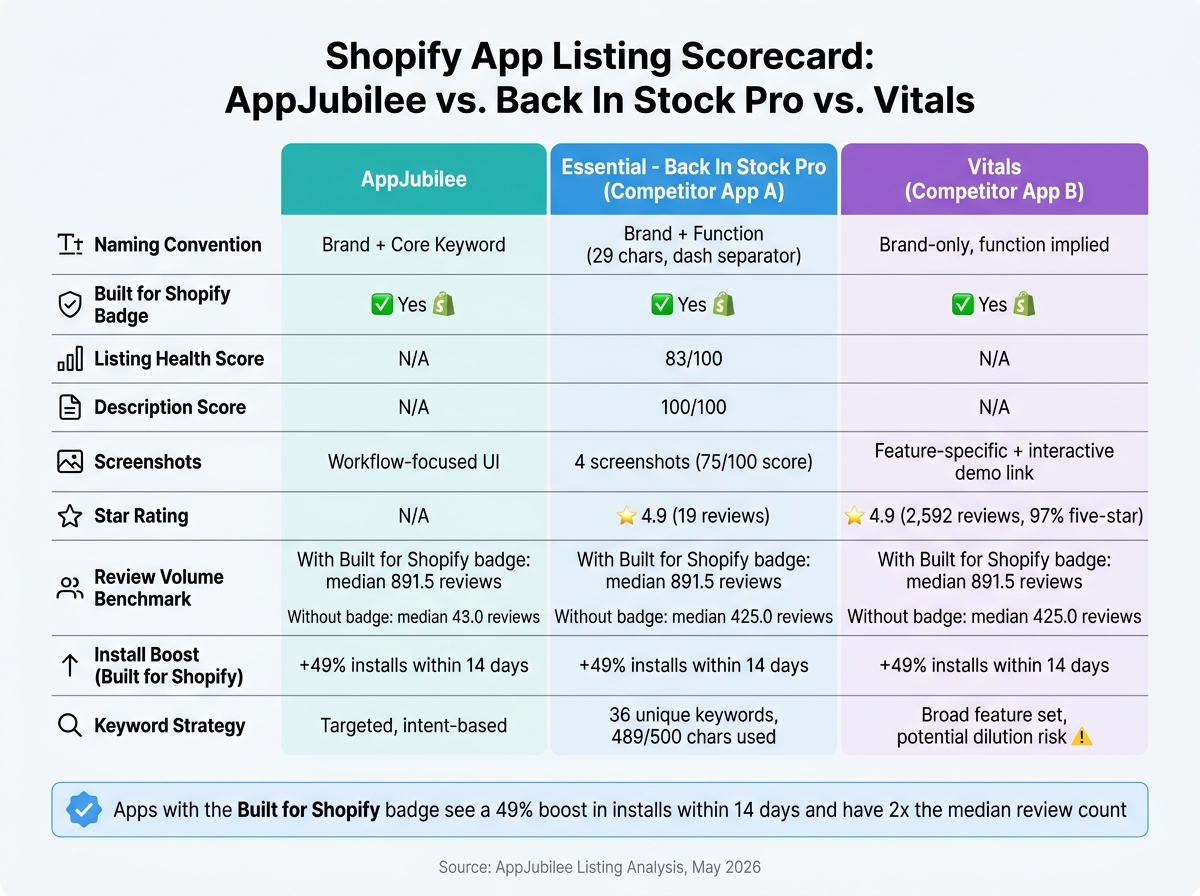
Shopify App Listing Comparison: AppJubilee vs. Competitor Apps
The three app listings each come with their own set of trade-offs:
| Listing Element | AppJubilee | Judge.me (Competitor App A) | Vitals (Competitor App B) |
|---|---|---|---|
| Naming Convention | Brand-first, functionally clear | Brand + exact function ("Product Reviews") | Brand-only; function implied by context |
| Trust Signals | Built for Shopify badge | Built for Shopify badge; 38,206 reviews at 5.0/5 | Built for Shopify badge |
| Screenshot Strategy | UI-focused, workflow-oriented | Annotated screenshots showing merchant workflow | Interactive demo link with feature-specific screenshots |
| Review Recency | Consistent review cadence | High review recency with strong signals | Strong ratings velocity |
| Keyword Approach | Targeted, intent-based | Functional keywords without stuffing | Broad feature set with a potential risk of diluted focus |
This comparison highlights the strengths and weaknesses of each approach. A shared advantage across all listings is the Built for Shopify badge, which correlates with a median of 891.5 reviews (compared to 425.0 for listings without it) and a 49% boost in installs over 14 days. This badge also provides a clear edge in ranking.
However, stale reviews can harm credibility, even if the total count is high. Regularly receiving fresh reviews is critical for maintaining algorithmic favor.
Another key takeaway: avoid using the subtitle solely for keyword stuffing. Instead, it should help merchants make informed decisions. While all three listings avoid this pitfall, focusing on too broad a feature set can still dilute keyword impact.
Balancing these trade-offs is essential to creating a listing that stands out while maximizing visibility.
Conclusion
These three listings reveal a straightforward formula for success: a concise, brand-focused name under 30 characters, the Built for Shopify badge, screenshots emphasizing workflow advantages rather than plain UI visuals, and a review strategy prioritizing steady growth over sheer quantity. Each of these elements works together to create a stronger overall presence.
The numbers back this up: apps with the Built for Shopify badge see higher install rates and boast a median review count that's more than double compared to those without it. This highlights just how crucial well-thought-out listing details are. As the StoreInspect team aptly put it:
"The category term gets you considered. The workflow term gets you chosen."
Fine-tune your subtitles and screenshot captions to boost your app's ranking potential.
FAQs
How do I choose the best keyword for my app title?
To craft the perfect keyword for your app title, focus on three key elements: relevance, clarity, and smart placement:
- Highlight functional keywords that clearly describe what your app does best.
- Position crucial keywords at the start to improve search visibility.
- Opt for a Brand + Keyword formula to strike the right balance between branding and discoverability.
- Steer clear of keyword stuffing or repeating terms. Instead, use separators like colons or hyphens to make the title easier to read and more searchable.
What screenshots should I include to boost installs?
Screenshots are a powerful way to communicate your app's value and user journey. To make the most impact, structure them strategically to tell a story: the problem users face ("Before"), how your app addresses it ("During"), and the results they achieve ("After"). Here’s how to arrange them effectively:
-
Start Strong with a Bold First Screenshot
Make the first image grab attention. Use high contrast, bold text, and social proof (like user ratings or testimonials) to immediately highlight why your app stands out. For instance, if your app simplifies budgeting, show a cluttered "Before" scenario next to your app’s clean, intuitive dashboard. -
Highlight Key Features in Action
Use 2-3 screenshots to showcase your app solving the problem. For example:- A step-by-step process of how users interact with your app.
- Unique tools or features that make your app effective.
- Visuals of the app’s interface to demonstrate ease of use.
-
End with Results-Oriented Screenshots
Wrap up with screenshots that display the "After" state. Focus on outcomes like improved productivity, saved time, or achieved goals. Use captions to reinforce the benefits, such as “Track expenses effortlessly and save hours each month.”
Tips to Maximize Impact
- Use Outcome-Focused Captions: Pair each screenshot with a short, benefit-driven caption like “Easily organize tasks in one place” or “See your progress at a glance.”
- Showcase Unique Features: Each image should highlight a different selling point to keep the story engaging and informative.
- Keep It Clean: Avoid clutter - ensure screenshots are crisp, clear, and easy to understand.
By arranging screenshots thoughtfully and emphasizing the user journey, you can effectively communicate your app’s value while keeping the viewer engaged.
How can I get more recent reviews without violating Shopify rules?
To collect recent reviews while staying within Shopify's guidelines, time your requests wisely. Reach out after merchants achieve a positive experience, such as completing a setup or hitting a significant milestone. Avoid asking during onboarding or immediately after installation, as it may feel premature.
Use subtle methods like in-product messages or opt-in emails to make your requests. It's important to steer clear of offering incentives for reviews - this ensures the feedback remains genuine. Always ask for honest opinions rather than solely seeking positive reviews. Lastly, make it a habit to publicly respond to reviews to demonstrate professionalism and active engagement with your users.