
How category rankings work in Shopify App Store
Explains signals that drive Shopify App Store rankings: listing relevance, review momentum, and post-install merchant behavior.

Shopify category rankings seem to move on three main inputs: listing relevance, recent reviews, and merchant behavior after install. If I want to understand why an app moved, I should track the same keywords and categories every day or week, log every listing edit, and compare my data over 7 to 30 days instead of reacting to a 1–2 spot daily shift.
Here’s the short version:
- Category rank and search rank are different.
- Public listing fields like title, description, pricing, screenshots, and reviews are the clearest inputs I can see.
- Behind-the-scenes signals like installs, uninstalls, retention, CTR, and activation likely affect placement too.
- Recent review activity often lines up with movement more than old review totals alone.
- High installs mean less if uninstalls also climb.
- One edit does not prove cause. I need dated logs, competitor checks, and repeat patterns.
A simple way to read category movement is this:
- Track keyword positions daily
- Track category placement weekly
- Log reviews, pricing, screenshots, and copy edits
- Watch conversion rate with this formula: (Installs ÷ Listing Views) × 100
- Compare results after 7, 14, and 28 days
- Check whether competitors changed at the same time using Shopify App Store optimization tools
If I had to focus on just a few things first, I’d watch:
- Title, subtitle, and description match
- Review velocity and rating trend
- Installs vs. uninstalls
- Competitor listing changes
- Traffic-to-install conversion
Here’s the main point: ranking data shows what happened, not the exact reason why. So the best way to learn what works is to run small changes, keep clean records, and judge trends over time instead of single-day swings.
How to rank high in the Shopify AppStore - App Store Optimisation
sbb-itb-ce93587
The inputs most likely affecting category rankings
The strongest signals seem to be listing relevance, review momentum, and merchant adoption. In plain English, category rankings look like they come from a mix of what your listing says, how merchants respond to it, and how the app performs after install. The next step is to watch those signals against ranking changes over time instead of guessing.
| Signal | Source | What it signals |
|---|---|---|
| App Title & Subtitle | Listing | Primary relevance signal |
| App Description | Listing | Keyword relevance and feature depth |
| Pricing Plans | Listing | Competitive positioning and merchant accessibility |
| Screenshots & Icon | Listing | Visual appeal and conversion potential |
| Review Velocity | Performance | Signals current merchant satisfaction |
| Installs/Uninstalls | Performance | Retention quality and sustained merchant value |
| CTR and impressions | Performance | Listing effectiveness and search relevance |
Listing relevance: title, subtitle, description, and tags
Your app title, subtitle, description, and tags are the clearest relevance signals you can control. These fields help Shopify sort your app into the right category and rank it with more accuracy.
Think of them as your app’s first layer of context. If the title and subtitle line up with what merchants search for, and the description backs that up with clear use cases and features, Shopify has a much easier job understanding where your app fits.
Reviews: quality, recency, and trust signals
Review velocity is a strong sign of recent install growth and often comes before ranking gains. Positive product review bursts often line up with rank improvements, while stretches of negative reviews can show up before drops.
It’s not just about having a high star rating. Recency matters too. A listing with steady new reviews can send a stronger signal than one with old praise and no recent activity.
Merchant adoption and app experience signals
Beyond the listing itself, install and uninstall counts, along with broader merchant engagement, are likely performance signals. Sustained installs and low uninstall rates matter more than short spikes.
That makes sense. A sudden jump in installs can look good at first, but if merchants churn right away, that tells a very different story. The next section shows how to track each input without guessing.
How to track rankings, keywords, reviews, and conversion signals
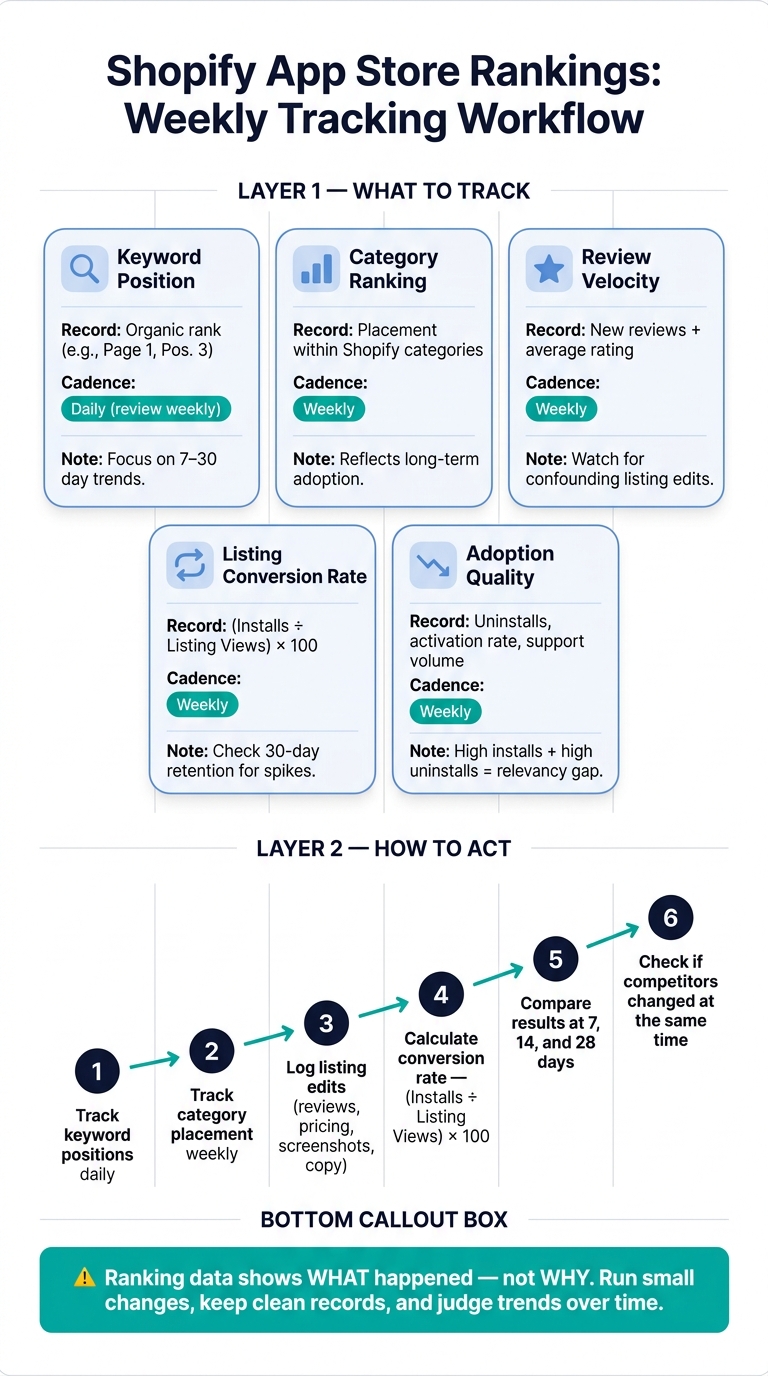
Shopify App Store Rankings: Weekly Tracking Workflow
Once you've mapped the ranking inputs that seem to matter, the next job is simple: track them the same way every time. If your schedule keeps changing, day-to-day noise can drown out the ranking shifts that matter.
Build a keyword and category tracking list
Start with a list built around three layers:
- Broad category terms like "email marketing"
- Specific feature queries like "abandoned cart recovery"
- Branded vs. non-branded terms
AppJubilee keeps a curated set of about 1,200 Shopify App Store keywords. That gives you a good benchmark for the kind of coverage that's worth having.
The biggest structural choice here is separating branded terms from non-branded terms. Branded searches reflect demand that already exists. Non-branded searches show how easy it is for new users to find you. If you lump both into one bucket, you lose the story behind the rankings. A branded jump and a non-branded jump do not mean the same thing.
Set them up as separate tracking groups from day one. Then stick to the same process every week so the data stays comparable.
It also helps to flag your core keywords. These are the terms most of your competitors target too. If you want a short list to watch closely, start there.
Capture ranking snapshots on a consistent schedule
The point of ranking snapshots is to connect movement with the signals that may have caused it. For keyword positions, daily captures are the right pace. But don't get distracted by small swings. What matters is the 7-day or 30-day trend, not today's number compared with yesterday's.
Each snapshot should record:
- Organic rank, such as Page 1, Position 4
- Category placement
- Date in MM/DD/YYYY format
- Any notable competitor listing changes seen that same day
Run each check from the same location and browser setup. If the setup changes from one snapshot to the next, your trend line gets messy fast.
Measure listing conversion and adoption quality
Ranking tells you where you show up. Conversion tells you whether that visibility is doing anything useful.
Track listing conversion rate each week with this formula: (Installs ÷ Listing Views) × 100.
Then pair that with post-install quality signals like uninstall counts, activation rate, and support volume during the same reporting window. That combo matters. High installs can look great at first glance, but if uninstalls are also high, something's off. Usually, that's a sign of a relevancy gap.
Track these signals together, not one by one.
| Metric | What to Record | Recommended Cadence | Interpretation Limits |
|---|---|---|---|
| Keyword Position | Organic rank (e.g., Page 1, Pos. 3) | Daily (review weekly) | Focus on 7–30 day trends |
| Category Ranking | Placement within canonical Shopify categories | Weekly | Changes usually reflect long-term adoption |
| Review Velocity | Number of new reviews and average rating | Weekly | Watch for confounding listing edits |
| Listing Conversion Rate | (Installs ÷ Listing Views) × 100 | Weekly | Short spikes often fade; check 30-day retention |
| Adoption Quality | Uninstalls, activation rate, support volume | Weekly | High installs with high uninstalls indicate a relevancy gap |
How to connect ranking changes to listing edits and competitor moves
Keep a listing change log for every edit
Once you’re tracking rankings and conversion, the next step is simple: keep a change log for every edit. That gives you a way to test which updates may have shifted performance. Log each change before you review rankings so you can look at cause and effect with a clear record.
For each edit, record:
- Date and time
- Field changed
- Old and new copy
- Category or tag changes
- Pricing changes
- Asset filenames and version numbers
- App version
- Related feature or product releases
- Owner
If you updated pricing, record the exact U.S. dollar amounts, free-trial terms, and plan limits.
Then capture the same baseline metrics you already review each week. Compare those numbers at 7, 14, and 28 days after the edit. That rolling view tells you far more than checking the next day and trying to read too much into a tiny swing.
One more thing: don’t change several major elements at once if you’re testing impact. If you rewrite the subtitle, swap screenshots, and update category tags on the same day, you won’t know which change did anything, if any of them did. Space edits out. Watch at least one full comparison window, then move to the next change.
Track competitor category movement and listing changes
Your rank can move even when you changed nothing. A competitor update can shift category positions on its own, which is why competitor tracking belongs in the same system as your own listing history.
Build a fixed set of 5–10 comparable apps and track them on the same schedule as your own snapshots. Keep the setup as consistent as you can: same location, device type, logged-in status, and search terms.
For each competitor, record:
- Category and keyword positions
- Review count and velocity
- Pricing in U.S. dollars, including free-trial terms
- Visible badges or promoted placements
- Changes to title, description, screenshots, integrations, categories, or tags
Also log the date each change was first seen and connect it to a product announcement or version update when you can.
Recent positive reviews can improve visibility in search and category pages. That matters even if it happened on their listing, not yours. Treat it as a competitive event and log it.
Use the same competitor panel in your weekly review. When rank shifts happen, that side-by-side view makes them much easier to read.
Interpret ranking movement without overstating the algorithm
Ranking data shows what happened, not why.
Use three labels to stay precise:
- Observed: A measured event in your records - for example, "Category position moved from No. 9 to No. 5 on October 1, 2026."
- Documented: A fact stated by Shopify directly - for example, that recent positive reviews can improve visibility in search and category pages.
- Inferred: A reasoned explanation that fits the timing and repeated evidence - for example, "The subtitle revision may have contributed because movement appeared across several related keywords after publication."
Before you treat an inferred explanation like a conclusion, check three things. Did the movement show up across multiple tracked keywords, not just one? Did it last beyond a single snapshot? Were there competitor changes in that same window that could explain it instead?
Here’s the trap: if a competitor got a burst of reviews and your position dropped during the same week you also edited your description, the cause is still unresolved. In that case, the honest move is to wait for more data, not rush to revert the edit.
AppJubilee can flag overlapping listing changes and review windows, helping you treat the movement as confounded rather than causal.
Focus on sustained 7–30 day movement across several keywords, along with matching shifts in traffic and installs.
Feed these logs into your weekly review cycle.
Build a repeatable weekly workflow with AppJubilee and key takeaways
Set up AppJubilee for daily visibility and competitor monitoring
Once your ranking, review, and change logs are in place, turn them into a simple weekly rhythm.
Start by connecting Google Analytics 4 and Shopify Partners. That ties visibility to installs and activation, so you’re not stuck looking at rankings in isolation. You can see listing traffic, installs, and activation side by side, which makes it much easier to judge whether a visibility lift is leading to merchant growth.
Next, group your tracked keywords into five buckets:
- Brand terms
- Core category terms
- Specific merchant problems
- Feature-led searches
- Related use cases
Then map both direct competitors and close substitutes. AppJubilee can also spot other rivals through keyword overlap, which helps you catch apps you may not have been watching yet.
Because AppJubilee updates rankings daily, you can spot movement soon after a listing edit or a competitor update. Set alerts for the signals that matter most: rank changes on priority terms, competitor listing edits, pricing changes, and spikes in review velocity.
Run a weekly review cycle and record one action per trend
Review the same metrics in the same order every week. That part matters more than it sounds. If you keep changing the order, it gets harder to tell what’s normal and what’s not.
A simple sequence works well: start with 7-day keyword movement, then check category positions, review activity, listing edits, and conversion metrics. Use the table below to connect each signal to one clear decision.
| Ranking input | AppJubilee feature | Data captured | Decision it supports |
|---|---|---|---|
| Keyword tracking | Daily keyword ranking analysis | Current position, direction of movement, keyword history, competing apps | Which title, subtitle, or description terms to test |
| Ranking snapshots | Ranking snapshots | Daily position snapshots and historical movement | Whether a shift is a persistent trend or a one-day fluctuation |
| Competitor alerts | Competitor mapping and alerts | Rival rankings, keyword overlap, and listing changes such as title, description, pricing, or screenshot updates | Whether a competitor's update coincides with lost visibility |
| Change impact | Listing change impact tracking | Edit date, affected keywords, and before-and-after ranking movement | Whether to keep, revise, or roll back an edit |
| Review intelligence | Review intelligence | New reviews, rating patterns, review velocity, and recurring merchant themes | Which product or support issues may be affecting trust and conversion |
| Paid visibility | Ad monitoring | Competitor or market advertising activity where available | Whether paid placements may be affecting organic movement |
| GA4 + Shopify Partners | GA4 and Shopify Partners integrations | Listing traffic, conversion events, installs, activation, and related performance metrics | Whether improved visibility is producing qualified merchant adoption |
For each trend, write down one hypothesis and one action, plus an owner, deadline, and success metric. Keep it tight. If you change the title, description, screenshots, pricing, and categories all at once, you won’t know what moved the needle. Staged edits give you data you can read without guessing.
Conclusion: what to watch first and what not to assume
After one full weekly cycle, use that same sequence again to judge what changed. Focus first on listing relevance, recent reviews, competitor movement, and conversion quality. Shopify states that reviews affect visibility, and its rating method gives more weight to recent, useful, trustworthy, and relevant reviews than to a simple star average.
A few traps are worth avoiding.
A position gain does not prove that one edit caused it. A higher review count does not promise a higher rank. And a ranking lift without qualified installs may not mean much for the business.
Shopify does not publish a fixed formula for category rankings, so every explanation starts as a hypothesis until repeated evidence backs it up. That’s why disciplined observation matters so much: daily snapshots, a steady change log, competitor tracking, and one testable action each week. That process helps you separate actual ranking movement from noise and improve category visibility over time.
FAQs
How long should I wait before judging a ranking change?
Don’t judge ranking changes based on one day. A small move of 1 to 2 spots is often just noise. It’s better to watch the trend over 7 to 14 days.
Some indexing updates can appear within 7 days. But broader keyword movement often needs 2 to 4 weeks to settle. If you’re looking at listing edits or a spike in reviews, compare the 14 days before the change with the 14 days after it.
What should I track first if I have limited time?
Start with daily keyword ranking snapshots and a weekly review.
Focus first on keywords sitting in positions 8–10. Those terms are often the easiest ones to push onto page 1.
It also helps to keep an eye on your top 20–50 keywords. If any of them move by 3–5 positions, that’s worth a closer look. Small swings can hint at a bigger trend.
And don’t just watch your own listings. Track competitor updates too, especially changes to:
- Title
- Description
- Pricing
Those listing edits can affect rankings fast, so they’re worth monitoring side by side with your keyword data.
Why can rankings drop even when I made no changes?
Rankings can slip even if you didn’t change a thing. That’s because the Shopify App Store is always moving. Small day-to-day shifts of 1 to 2 positions are often normal.
But if the drop keeps happening, there’s usually more going on. In most cases, it points to competitor moves, algorithm changes, or shifts in merchant behavior.
Your ranking can also fall when:
- Competitors improve their listings or pick up review velocity
- Your recent review volume or review quality drops
- Older reviews get archived
- Your install velocity slows compared to other apps
A good way to think about it: app rankings aren’t static. Even if your app stays the same, the apps around you may be gaining ground.