
Shopify App Rank Tracker: Weekly Trend Guide
Consistent weekly rank tracking—fixed keywords, competitors, timing, and actions—turns noisy app ranks into clear, actionable growth steps.
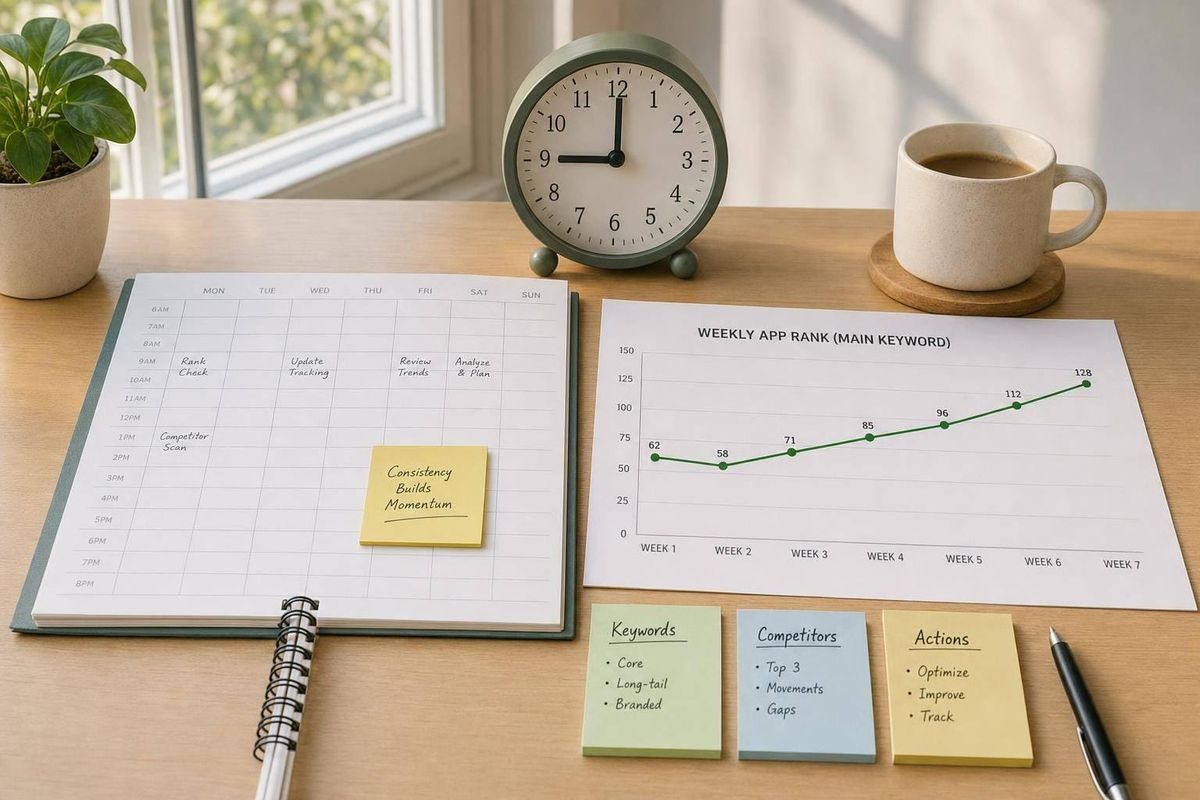
If I want weekly rank data I can trust, I need to keep the process the same every week. That means one cutoff time, one market setup, one fixed keyword set, one stable competitor group, and one raw snapshot saved before I add notes or formulas.
Here’s the short version:
- I track the same 20–50 keywords, then narrow to a core weekly set
- I keep a fixed group of 5–10 competitors for about 12 weeks
- I log one snapshot at the same time each week, such as Thursday at 9:00 a.m. ET
- I record rank, top-3 and top-10 coverage, category position, review shifts, listing edits, and install or conversion data
- I mark missing rankings as NR instead of forcing a fake number like 51
- I separate what happened from why I think it happened
- I turn each report into 3–5 clear next steps with one owner and one due date
A simple example from the guide says one keyword moved from #14 to #8, top-10 coverage grew from 6 to 9 out of 25 terms, and listing conversion moved from 3.2% to 3.8%. That’s the kind of weekly view I need: rank movement tied to business results, not rank data in isolation.
The article also makes one point that matters more than anything else: if I keep changing keywords, competitors, formulas, or timing, my week-over-week trend line stops being useful. So the process is less about comparing Shopify ASO tools and more about consistency, clean records, and clear follow-up actions.
Quick comparison
| Area | What I keep fixed | What I review |
|---|---|---|
| Schedule | Same day, time, time zone | Missed pulls or holiday shifts |
| Scope | Same keyword core and competitor set | New terms in a backlog or watchlist |
| Data | Rank, category, reviews, listing changes, analytics, and installs | Movement, cause notes, benchmark status |
| Reporting | Same layout every week | Gains, losses, gaps, and next actions |
| Tools | Spreadsheet for small sets, platform for larger sets | Time spent collecting vs. time spent analyzing |
If I want clean weekly trend data, this guide gives me the process: lock the setup, log the same fields each week, connect rank changes to installs or revenue where I can, and report only actions the team can finish before the next snapshot.
sbb-itb-ce93587
1. Define Your Weekly Tracking Scope
Once your cutoff is set, lock the scope too. If you keep swapping keywords or changing the competitor set, your week-over-week data stops showing market movement and starts showing changes in your process.
Build a Keyword Set with Labels and Business Value
Start with 20–50 candidate keywords. Then trim that list down to a weekly core set based on relevance, merchant intent, and business value.
Group keywords by:
- Core feature
- Problem
- Use case
- Audience
- Long-tail terms
For each term, add a tracking label: Primary, Secondary, Opportunity, or Defensive. Then assign an intent level and a 1–5 score for relevance, install intent, revenue potential, and difficulty. That score gives you a clear base for the benchmark targets you’ll set in your trend log each week.
Shopify recommends using merchant language and common spellings.
Keep new or untested terms in a separate discovery backlog. Let them stay there until they show stable behavior. That way, they don’t throw off your weekly comparisons.
Those labels also help you decide which competitors belong in your weekly tracking set.
Choose a Stable Competitor Group
Pick competitors based on search overlap, not only category membership. For each Primary keyword, check which apps keep showing up near the top of results. Those are your real competitors, even if they sit in a different category.
Track 5–10 competitors across a mix of:
- Market leaders
- Direct substitutes
- Apps gaining visibility
- Adjacent tools competing for high-value searches
Keep that core group fixed for 12 weeks. If new players show up, put them on a separate watchlist instead of dropping them straight into the main set.
Once the scope is locked, decide exactly what you’ll record in each weekly snapshot.
Set the Fields You Will Record Every Week
Use one row per keyword per snapshot. At a minimum, record:
- Snapshot date and cutoff time
- Market
- Language
- Device/search state
- Exact keyword
- Keyword group and intent level
- Tracking label
- Business-value score
- Current rank
- Previous rank
- Rank change
- Category rank, where available
- Positions of each tracked competitor
- Listing, pricing, review, and ad changes
- Cause notes
- Assigned owner
- Recommended next action
- Data source/snapshot ID
One thing matters here: keep measurement fields separate from cause notes in your sheet.
A move from rank 12 to rank 8 is a measurement. “Likely tied to a title update” is a cause note. Only log that kind of note when you have an event date or some other proof to back it up.
2. Capture the Weekly Snapshot
Once the scope is set, collect each weekly snapshot the same way every time.
Use One Cutoff Time and One Market Setup
Pick one fixed collection time, like Monday at 9:00 a.m. ET, and stick with it. Record the exact date, time, and time zone each week.
Use the same en-US language and U.S. market settings every week. Also, track mobile and desktop as separate segments instead of blending them into one average.
If your app doesn't show up for a keyword, log NR using one fixed threshold, such as "outside top 50." Don't turn that into position 51. That suggests a rank you didn't actually see, and it can skew week-over-week averages.
Record Keyword, Category, and Competitor Positions Together
Once the setup is locked, record keyword, category, and competitor positions in the same pass. Put all three in the same window so you can tell the difference between app-level changes and market movement.
Say your app drops from position 8 to 14 for "inventory sync." Check whether your tracked competitors fell too. If three of them also lost visibility that week, the shift probably points to broader search-result volatility. If only your app slipped, it's time to look harder at listing changes, product review activity, or product changes.
Store category position in its own field, separate from keyword rank. An app can pick up browse visibility in a category without moving up for a given search query. If category rank can't be observed, record "not observable" instead of guessing.
Save a Raw Snapshot Before Analysis
Archive the original export before you add formulas or comments. Keep observations in one file and notes in another. Use a consistent filename like shopify-app-ranks_2026-09-21_US_en-US_weekly.csv, and keep the source timestamp, market, language, device, keyword list version, and visible-range rule. Save the file in a read-only or access-controlled folder when possible.
Keep observed positions, NR statuses, and competitor data in one tab or file. Put commentary, hypotheses, and recommended actions in a separate analysis layer.
3. Log Trends, Benchmarks, and Causes
Use the archived snapshot as your source of truth. Then track weekly changes in a separate analysis layer.
Track Movement Across Keywords, Categories, Reviews, and Listing Changes
A trend log helps you explain why ranks moved and what to do next.
Set up the log with one row for each app-keyword-snapshot combination. Each row should include date/time, market, keyword, label, category, current rank, previous rank, change, visibility bucket, category rank, competitor positions, review and rating, badge changes, listing changes, cause, evidence, confidence, status, and owner.
Tag each row as:
- gain
- loss
- entry
- exit
- shift
- flat
For the cause field, use these labels exactly: Listing edit, Review event, Competitor movement, Category shift, Paid promotion, Seasonality, or Unknown.
Use this compact format:
inventory management: 8→15; cause: competitor title update; evidence: two title changes; confidence: medium; owner: ASO lead.
Keep factual rank movement separate from your cause hypothesis. That matters. A rank drop is a fact. The reason behind it is your best read based on the evidence you have.
If a change happens once and doesn’t repeat, move it into a watch queue until you see a pattern. If the cause isn’t clear, mark it unknown and check again next week.
Track badge, pricing, and review shifts on their own. For example, a rating move from 4.6 to 4.7, a new Built for Shopify badge, or a competitor adding a relevant phrase to their title can all help explain movement. But those items are supporting evidence, not the cause by themselves.
Set Benchmarks That Match App Maturity
One ranking target won’t fit every app. A brand-new app and a market leader should not be judged the same way.
| App stage | Weekly focus | Example benchmark |
|---|---|---|
| New or recently launched | Build discoverability, establish a baseline | Enter the top 20 for a defined set of relevant, high-intent keywords |
| Growing app | Expand coverage, improve top-10 coverage | Add 2 top-10 terms; reduce median competitor gap by 3 positions |
| Established app | Protect visibility, compound gains | Retain 90%+ of top-10 terms; improve 2 strategic terms to top 3 |
| Category leader | Defend core terms, monitor new entrants | Maintain rank stability; protect installs and revenue |
Use the same benchmark formula every week. If you keep changing the method, you can’t tell whether performance changed or the math did.
Alongside stage-based goals, track the same weekly metrics every time:
- priority-keyword coverage
- top-10 count
- top-3 count
- average or median position
- category rank
- competitor gap
- rank stability
Keep the formula, keyword universe, cutoff time, and handling of unranked terms aligned with the snapshot step. Otherwise, week-over-week comparisons start to fall apart.
Connect Rank Trends to Install and Revenue Signals
Rank is a leading indicator, not the business outcome. It shows whether people can find your app. The business side shows up later: listing visits, installs, activation, and revenue.
Build a weekly table that joins rank data with the same date range for listing visits, installs, activation rate, and revenue when that data is available. Use connected rank, visit, install, activation, and revenue data to compare week-over-week impact.
A move from position 14 to 7 with no lift in listing visits can point to keyword-intent mismatch, seasonality, or a measurement gap. On the flip side, if visits go up but installs don’t, that often points to a listing conversion issue or a product-fit problem.
AppJubilee's integrations with Google Analytics 4 and Shopify Partners support this kind of connected view. Keep attribution settings and date ranges the same when comparing periods. And don’t rush the cause call: treat those claims as hypotheses until repeated snapshots back them up.
Carry these weekly trend fields into the reporting template in the next section.
4. Turn Weekly Data Into Team and Client Reports
Turn the weekly trend log into a report people can use, not just file away. The goal is simple: move from rankings to decisions. What changed? Why did it change? What should happen next?
Use the Same Report Structure Every Week
When the format stays the same each week, people can compare reports without stopping to figure out where everything is. Keep the order fixed: period, setup, headline movement, benchmark status, gains and losses, competitor view, change log, and next actions.
In the benchmark section, show whether the app hit its weekly targets: target vs. result.
Keep the summary short. Two or three sentences is plenty. Focus on the numbers that help someone make a call: average or weighted rank, top-10 and top-20 coverage, category position, and competitive share when you have it. Add installs, trials, subscriptions, or revenue only when the date range is long enough to show a pattern worth trusting.
Visibility improved across priority keywords, with 12 gains, 5 declines, and a 4.2-position improvement in average rank. Top-10 coverage increased from 18 to 22 keywords.
That gives a stakeholder enough context to decide whether to skim or dig in. For action items, assign one owner and one deadline to each task. Skip vague language like improve rankings. Be specific instead, like rewrite the first 160 characters of the listing description for the subscription-billing keyword group by October 2, 2026.
Adjust Report Detail for Internal Teams vs. Clients
Use the same data, but change how much detail you show and how you frame it. Internal reports are for diagnosis and action. Client reports are for status and next steps.
Internal reports should include the full keyword list, category positions, listing change notes, investigation ideas, and owner-level tasks. For example: check title-token coverage, review language, competitor entry, and listing conversion before changing metadata.
Client reports should lead with outcomes. The same drop can be framed like this: Visibility declined for one high-priority inventory term, moving the app off page one - we will review the listing and competitor changes this week; overall priority-keyword coverage remains above target.
Keep the full export in an appendix.
Required Fields for the Weekly Report
Every weekly report should use these seven fields from the same raw snapshot. Keep the raw export separate so later formula, label, or benchmark updates don't overwrite the original record. Use the same setup whether the data comes from a spreadsheet or a tracking platform.
| Required field | What it should contain |
|---|---|
| Weekly Status | Reporting period, snapshot timestamp, app and market, and a two- or three-sentence executive summary |
| Ranking Scorecard | Average or weighted rank, top-10 and top-20 coverage, category position, baseline, target, and week-over-week change |
| Movement Highlights | Top gains and losses - keyword, previous rank, current rank, business value label, and interpretation |
| Competitive View | Stable competitor set, shared-keyword comparison, competitor gains and losses, and material listing, pricing, review, or feature changes |
| Change Log | Listing, pricing, review, release, ad, and marketplace changes with dates, owners, and expected impact |
| Benchmark Review | Result vs. target, variance, status (on track / at risk / missed), tolerance, and explanation for any miss |
| Action Register | Prioritized action, rationale, owner, deadline, expected impact, dependency, and completion status |
The action register is what turns a report into work. Limit it to 3–5 specific next steps so the team has a fair shot at finishing them before the next snapshot.
5. Manual Tracking vs. Dedicated Rank Tracking Tools
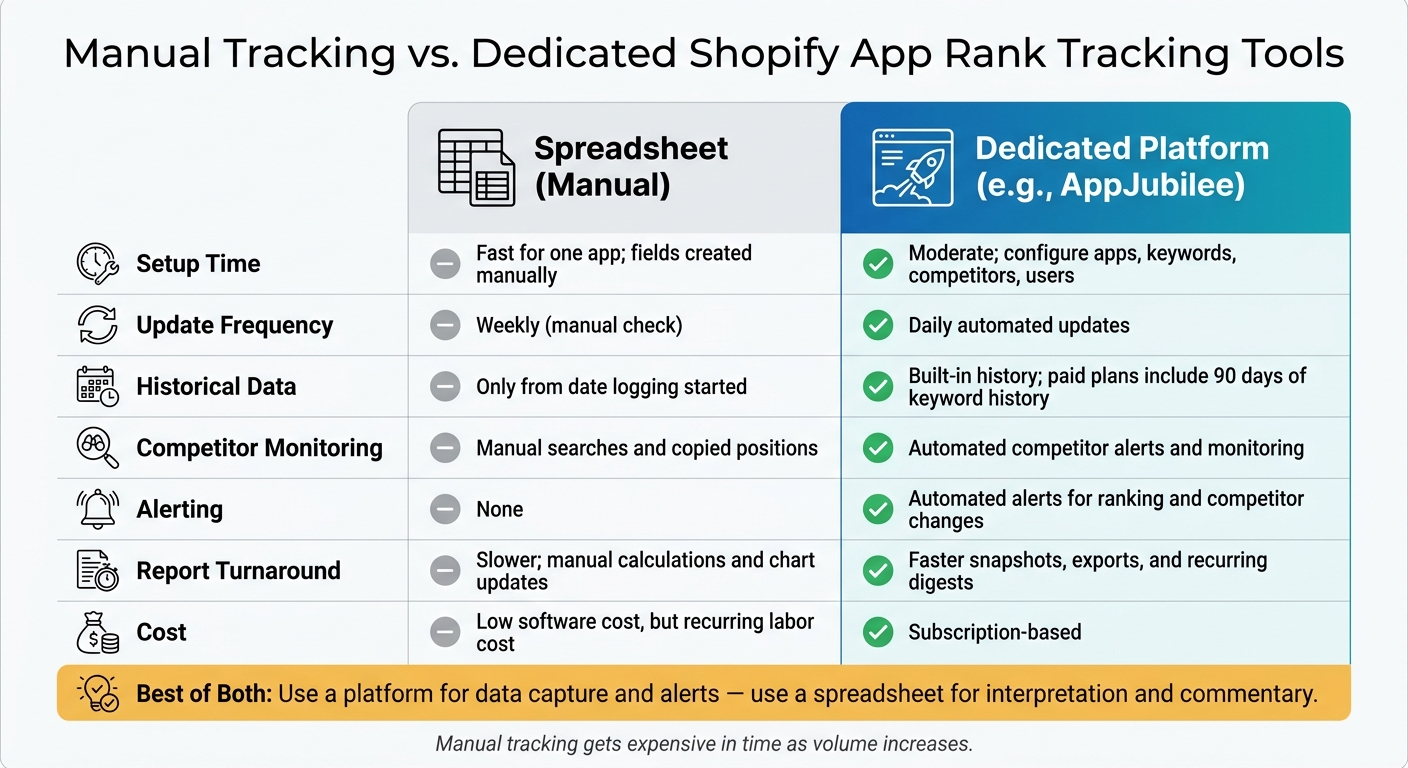
Manual Tracking vs. Dedicated Shopify App Rank Tracking Tools
Once your weekly process is set, the tool choice usually comes down to three things: volume, consistency, and reporting work. The best move is usually the simplest one that can handle your weekly workload without turning into a chore.
When a Spreadsheet Is Enough
A spreadsheet works when the scope is small and controlled. That usually means one person managing one app, tracking about 5–10 priority terms, and watching a short competitor list. In that setup, a spreadsheet can do the job just fine.
The trouble starts when the manual work takes more time than the thinking. If collecting data takes longer than analyzing it, the system is starting to break down. The same goes for cases where multiple people edit the same file and version control gets messy.
When to Use a Dedicated Tracking Platform
A spreadsheet stops making sense once tracking needs grow. If you need daily movement data, manage multiple apps, track a larger keyword set, watch more competitors, or send reports to clients, it’s time to use a dedicated platform.
A dedicated tool also makes sense when you need:
- Consistent crawls
- Automated alerts
- More historical depth
AppJubilee is built for Shopify App ASO workflows. It offers daily keyword tracking, competitor alerts, ranking snapshots, listing-change impact tracking, review intelligence, ad monitoring, and integrations with Google Analytics 4 and Shopify Partners. AppJubilee also states that paid plans include 90 days of keyword history.
Comparison: Manual Tracking vs. Dedicated Tools
| Factor | Spreadsheet | Dedicated platform (e.g., AppJubilee) |
|---|---|---|
| Setup time | Fast for one app; fields and baselines are created manually | Moderate; configure apps, keywords, competitors, and users |
| Update frequency | Weekly, or whenever an owner manually checks | Daily automated updates |
| Historical data | Only from the date you started logging | Built-in history; paid plans include 90 days of keyword history |
| Competitor monitoring | Manual searches and copied positions | Automated competitor alerts and monitoring |
| Alerting | None | Automated alerts for ranking and competitor changes |
| Report turnaround | Slower; manual calculations and chart updates | Faster snapshots, exports, and recurring digests |
| Cost | Low software cost, but recurring labor cost | Subscription-based |
One thing stands out pretty fast: manual tracking gets expensive in time as volume increases.
A practical middle ground is a hybrid workflow. Use the platform for data capture and alerts, then use a spreadsheet for interpretation and commentary.
Conclusion: Keep the Process Stable and Action-Oriented
Weekly rank tracking works best when the inputs don't change. That means using the same keywords, competitors, market, language, and cutoff time every week. When those pieces stay fixed, each snapshot is easy to compare to the last one.
Use the trend log to separate confirmed causes from gut feelings. Before reporting any move, connect it to proof: a listing edit, a competitor change, a review shift, a pricing update, an app update, or campaign and seasonal changes. Then turn each finding into a next step:
- Keep what's working
- Test what looks promising
- Investigate what changed without a clear reason
- Drop what no longer makes sense
Each action needs an owner, a due date, and a target keyword or competitor. Otherwise, it tends to sit there and go nowhere.
Your benchmarks should line up with app maturity. A new app should focus on discoverability. A mature app should protect top-10 positions for its highest-value keywords. Put more weight on terms that bring in qualified installs and retained merchants, not just raw traffic volume.
If manual tracking starts slowing the team down, move the same weekly process into a platform. AppJubilee can support that workflow with daily keyword tracking, competitor alerts, ranking snapshots, listing-change impact tracking, review intelligence, and GA4 and Shopify Partners integrations.
FAQs
How long should I keep the same keyword set?
Do a full keyword research pass and update your listing every 3 to 6 months. Then refresh the listing content every 30 to 60 days to help keep performance steady.
After you make changes, give the data a little room to breathe. Wait 14 days before judging the impact, since broader keyword shifts can take 2 to 4 weeks to settle down. In AppJubilee, check 7-day and 30-day trends instead of getting pulled around by daily swings.
What should I do if my app is not ranking?
If your app isn’t ranking, start by checking the gap in AppJubilee. Look at 7-day and 30-day trends instead of one-day swings. A single day can be noisy. A short trend line gives you a much better read on what’s going on.
Next, zero in on core keyword gaps where 40% or more of competitors rank. Those are usually the terms you can’t afford to ignore. Add them to your title, description, and listing copy so your listing lines up better with what people are searching for.
If you’re sitting on page 2, make page 1 the goal first. That’s often the clearest next step. Then use listing change impact tracking to see whether your edits are moving rankings in the right direction.
How do I know when to switch from a spreadsheet to a tool?
Make the switch when your spreadsheet setup starts to feel cumbersome, scattered, or purely reactive. Once data lives across inboxes, tabs, and dashboards, it becomes harder to tie keyword rankings back to installs and revenue.
A tool like AppJubilee starts to make sense when manual tracking eats up too much time and your team needs one shared, up-to-date record to guide steady weekly action.