
How Shopify Apps Track Search Rivals
Daily keyword-based tracking to map Shopify app search rivals, monitor ranks, listing edits, reviews, and alerts.
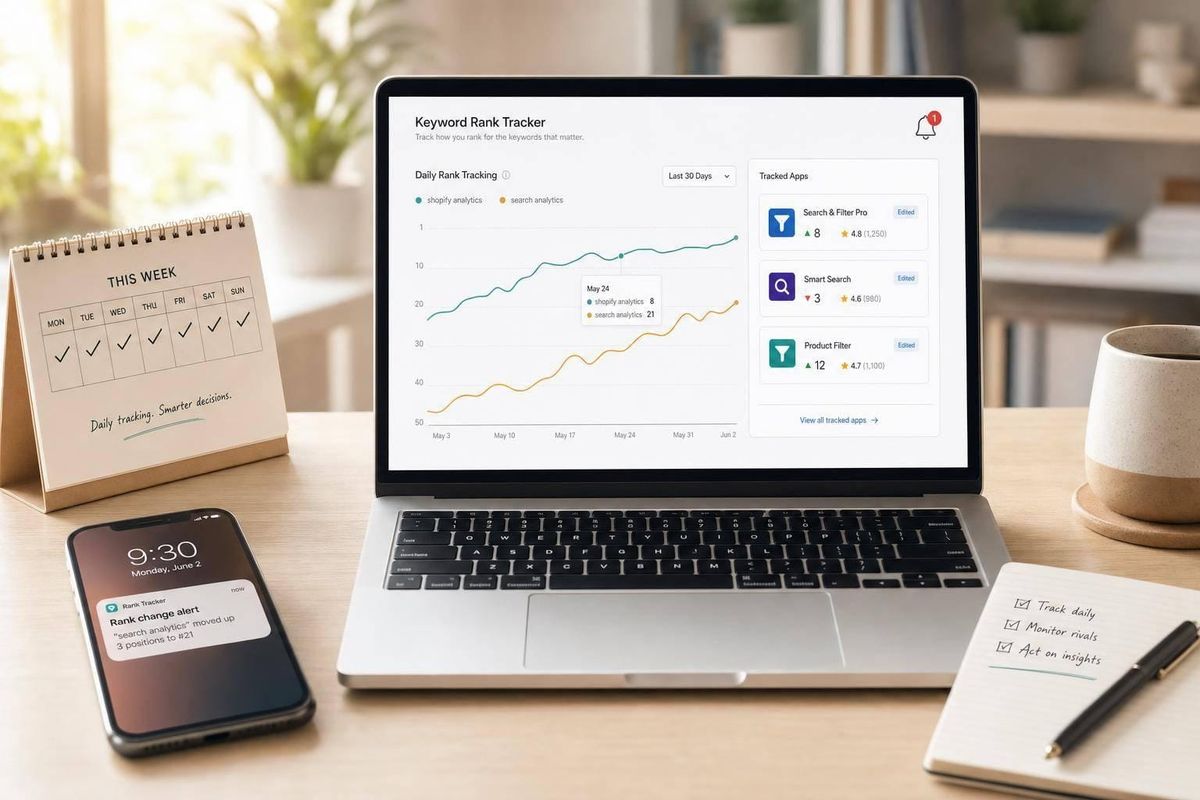
If I want to know which Shopify apps are taking search traffic, I can’t just watch lookalike products. I need to track any app that shows up for the same searches, categories, and merchant problems - every day.
Here’s the short version:
- I start with 25–50 keywords tied to merchant problems, features, integrations, and outcomes.
- I check the same searches daily using the same country, time, and setup.
- I log which apps appear, where they rank, and whether they show up as sponsored or organic.
- I watch for changes in titles, pricing, screenshots, tags, ratings, and review themes.
- I treat small rank moves like noise, but I investigate 3+ position changes, top-10 entries, review spikes, and category shifts.
In other words: search rivals are visibility rivals. An app does not need the same feature set to take clicks from me. If it ranks for my terms, appears in my categories, or wins the same merchant intent, it belongs on my watch list.
A simple daily loop keeps this under control:
- Build a keyword set
- Map rival apps
- Track rank and category placement
- Log listing edits
- Watch reviews and sentiment
- Turn alerts into actions
A few numbers stand out. The workflow starts with 25–50 keywords, checks the top 10–20 results per search, and uses 7-day and 30-day trend views to avoid overreacting to one-day swings. For alerts, I usually ignore 1–2 spot moves and dig into 3+ position changes.
What this article shows is simple: daily baselines beat guesswork. If I track the same keywords, the same rivals, and the same listing signals each day, I can spot who is moving up, why that may be happening, and what I should do next.
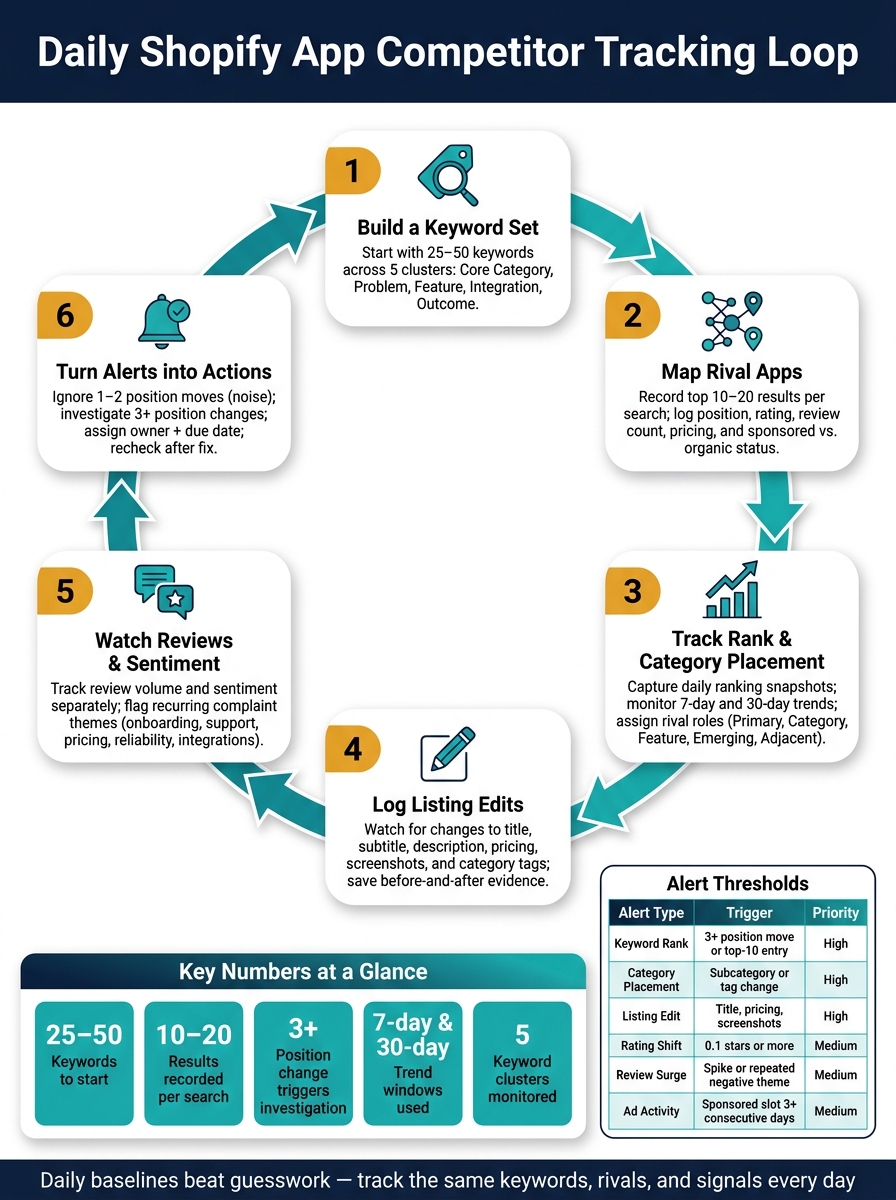
Daily Shopify App Competitor Tracking Loop
Build a keyword set before tracking rivals
Your rival list is only as good as the keywords behind it. Start with the wrong terms, and you'll end up tracking the wrong apps and staring at rankings that don't matter.
Collect keywords from merchant problems, features, integrations, and outcomes
Use your daily baseline to build the keyword set that decides which rivals you watch. A simple way to do that is to write one sentence:
"This app helps [merchant type] achieve [outcome] by [mechanism]."
Then pull keywords from the merchant type, outcome, mechanism, and close variations.
For an inventory app, that might lead you to terms like "inventory management" for the core category, "overselling" for the problem, "real-time inventory sync" for a feature, "Shopify POS inventory" for an integration, and "prevent stockouts" for the outcome. Those terms don't all mean the same thing, and that's the point. Each one reflects a different kind of merchant intent and shows you a different part of the market.
Use App Store autocomplete, top-ranking listings, and merchant reviews to find the phrases merchants use in their own words.
Group keywords into clusters you can monitor consistently
Once you have the raw list, sort it into five clusters so your daily checks stay clean and easy to compare:
| Cluster | What it covers | Example terms |
|---|---|---|
| Core category | Broad discovery terms | "email marketing", "product reviews" |
| Problem | Pain points merchants describe | "reduce cart abandonment", "prevent overselling" |
| Feature | Specific capabilities | "bundle builder", "bulk product editor" |
| Integration | Connected platforms or tools | "Shopify POS", "Klaviyo integration", "QuickBooks sync" |
| Outcome | Business results or workflow gains | "increase average order value", "save time on fulfillment" |
Add an intent label to each keyword, such as informational, solution-seeking, integration-specific, or high-conversion. This matters because rivals often win in different pockets of the market. One app may dominate broad category searches, while another shows up again and again on integration-specific queries.
Also keep a variant field. US English matters here: use "fulfillment" instead of "fulfilment" and "customize" instead of "customise." Track singular and plural versions separately too.
These clusters make it easier to map which rivals appear for each query.
Build a keyword tracking table for daily baselines
A keyword tracking table should be a living document, not a one-off snapshot. You're trying to record today's rank and the apps around you so you can spot changes over time. Start with about 25–50 keywords tied to your main use cases, then add more after you review early ranking patterns and rival overlap.
Run the table every day under the same conditions: same country, same browser session, and same time of day. Record dates as MM/DD/YYYY and include a clear time zone, such as ET.
| Keyword | Cluster | Intent | Your rank | Rival apps | Date checked | Change from previous check |
|---|---|---|---|---|---|---|
| inventory management | Core category | Solution-seeking | 12 | Stocky - 3; Katana - 7 | 09/25/2026 | -2 |
| low stock alerts | Problem | High-conversion | 5 | Back in Stock - 2; rival B - 8 | 09/25/2026 | +1 |
| Shopify POS inventory | Integration | Integration-specific | 9 | Rival C - 4; rival D - 6 | 09/25/2026 | New |
| prevent overselling | Outcome | High-conversion | Not ranked | Rival E - 3; rival F - 11 | 09/25/2026 | - |
Pick one change convention and stick with it. +1 means the app moved up one position. -1 means it moved down one. Keep every past check so you can tell the difference between steady movement and random one-day noise. If a rival keeps showing up above you for the same keyword, that's a clear signal for the rival-mapping step that comes next.
AppJubilee can automate daily keyword tracking, competitor mapping, and alerts. These baselines feed the rival-mapping step next.
sbb-itb-ce93587
Map rivals by query, category, and visibility surface
Use repeated search appearances to turn your keyword table into a daily rival map.
Record the apps that appear across your target searches
Start by mapping the apps that show up again and again across your target searches.
Search each tracked keyword in the Shopify App Store using the same query, location, device, filters, and result depth every time. For each high-priority query, record the first 10–20 visible apps, along with:
- position
- rating
- review count
- pricing model
- whether the placement is sponsored or organic
That last point matters more than it may seem. An app that wins a sponsored slot is not the same kind of rival as one that earns that spot organically.
Track an overlap count for each app too. In plain English, that means the number of tracked searches where the app appears. This helps you split recurring rivals from one-off results.
It also helps to watch keyword-cluster overlap. If an app keeps showing up across your core keyword cluster but never appears in your feature or integration clusters, it's competing in a narrower way than an app that follows you across several clusters.
Track category placement and assign each rival a role
Next, check whether those same apps also appear in category and subcategory browsing.
Category pages matter because apps can get traffic there even when keyword rankings move around. Shopify's taxonomy includes seven top-level categories - Sales channels, Finding products, Selling products, Orders and shipping, Store design, Marketing and conversion, and Store management - each with subcategories and tags beneath them.
Once you have that data, give each rival one primary role based on what you actually saw in current search results:
- Primary rival: repeatedly ranks for your top keywords and solves the same problem
- Category rival: appears again and again in the same category or subcategory
- Feature rival: wins searches for one key capability
- Emerging rival: recently started appearing or is climbing fast
- Adjacent rival: reaches the same outcome through a different workflow
Upgrade an emerging rival after three straight daily checks, top-10 rank on five relevant keywords, or a clear review spike.
Use a rival mapping table to prioritize monitoring
Use the repeated-app list to build a priority map you can update daily.
The table below links each tracked app to the evidence behind its inclusion and gives you a clear monitoring priority.
| App name | Rival type | Shared keywords | Shared category | Rating | Review count | Listing URL or internal reference | Monitoring priority |
|---|---|---|---|---|---|---|---|
| Example Bundle Pro | Primary rival | product bundles; bundle builder; mix and match | Selling products → Product bundles | 4.8 | 1,240 | BND-01 | High |
| Example New Bundles | Emerging rival | bundle builder; quantity breaks | Selling products → Product bundles | 4.6 | 95 | BND-03 | High |
| Example Upsell Suite | Adjacent rival | increase average order value; product upsell | Marketing and conversion → Upselling | 4.7 | 860 | UPS-02 | Medium |
| Example Inventory Tools | Category rival | inventory bundles | Orders and shipping → Inventory | 4.5 | 2,100 | INV-04 | Low |
Set high priority for apps with strong keyword overlap, repeated top-result appearances, or recent momentum. Use medium for category or feature rivals that may matter more soon. Keep low for adjacent apps you're mainly watching for messaging changes.
Keep the internal reference or listing URL in every row. Apps with similar names are easy to mix up, and a stable identifier makes later review comparisons much cleaner.
AppJubilee's competitor mapping and ranking snapshots can surface the initial evidence for this table automatically. Still, check category placement, sponsored status, and visible tags directly in the Shopify App Store, because those can shift even when keyword rankings stay the same.
Track rankings, listing edits, reviews, and alerts in one system
After you map your rivals, keep their rankings, listing changes, reviews, and alerts in one daily log. Track 7-day and 30-day trends, not random spot checks.
Log ranking snapshots, category position, and listing changes
When a rival’s ranking moves, check their listing right away. Start with the parts most likely to explain the shift:
- Title and subtitle
- Description and feature copy
- Pricing and trial terms
- Screenshots or video
- Category tags
A new title or subtitle should go to the top of your list because it can change query relevance in a direct way.
Save before-and-after text or screenshots. Don’t write vague notes like “listing updated.” That kind of note won’t help much when you’re trying to tie an edit to a ranking move later.
A simple change log keeps everything in one place:
| Date/Time | Keyword or Surface | Rival | Prev. Position | Current Position | Category Position | Change | Listing Edit Detected | Action |
|---|---|---|---|---|---|---|---|---|
| 09/25/2026, 9:00 AM ET | "inventory forecasting" | Rival A | 6 | 3 | 2 | +3 | New subtitle | Review copy changes |
| 09/25/2026, 9:05 AM ET | Marketing and conversion | Rival A | 4 | 2 | 2 | +2 | Screenshot swap | Compare tags and screenshots |
Classify each edit as metadata, copy, pricing, media, or review-related so you can filter by type fast. If a subtitle change is followed by a one-day ranking jump, treat that as a hypothesis, not proof. Check again in seven days.
Once ranking changes and listing edits sit side by side in the same log, review shifts can tell you whether merchants are reacting too.
Monitor review shifts to spot sentiment and feature demand changes
A lot of teams miss this: track review volume and review sentiment as separate signals. A rival might add 20 new reviews in one week and stay at 4.8 stars, while another adds 10 reviews and falls from 4.7 to 4.3 because several are one-star complaints.
Don’t stop at the star average. Look at the words merchants keep using. If reviews repeat phrases like “QuickBooks sync” or “real-time inventory alerts,” you may be looking at search terms that never show up in your listing today. Tag the themes that come up again and again - onboarding, support, pricing, reliability, and integrations - and watch how they change over time.
One odd complaint is just noise. The same complaint showing up across several recent reviews? That’s a signal. Shopify’s rating system gives more weight to recent, useful, and trustworthy reviews than older ones, so a small batch of fresh negative reviews can move a rival’s rating faster than the raw count suggests.
Route repeated complaints and alert spikes into the daily follow-up routine.
Use AppJubilee to automate daily tracking and alerts
Doing this by hand across even five or six rivals gets messy fast. AppJubilee tracks daily keyword rankings, saves ranking snapshots, monitors listing changes within 24 hours, runs review sentiment analysis, and sends alerts you can compare with GA4 and Shopify Partners data. Use those alerts to decide what deserves a closer look next.
Turn alerts into a daily follow-up routine
Alerts work best when they feed a short daily follow-up habit. Once your alerts are live, the work is no longer just watching. It's responding.
Set alert thresholds that trigger investigation
Not every movement matters. Some rank changes are just day-to-day wobble. Others are a sign that something changed and needs a closer look.
A simple way to handle this is to use one set of rules for daily noise and another for shifts that matter. In most cases, treat 1–2 position moves as noise. Start digging when you see a 3+ position change.
| Alert Type | Trigger | Priority |
|---|---|---|
| Keyword rank | Rival moves 3+ positions on a priority term, or enters/exits the top 10 | High |
| Category placement | Rival changes subcategory or tag grouping | High |
| Listing edit | Any change to title, description, pricing, or screenshots | High |
| Rating shift | Rating moves 0.1 stars or more | Medium |
| Review surge | Review spike or repeated negative theme | Medium |
| Ad activity | Rival appears in a sponsored slot for 3+ consecutive days | Medium |
For your top keywords, it's smart to tighten the trigger to a two-position move. For lower-priority discovery terms, a five-position shift over several days is usually a better signal.
Keep an alert log and assign next actions
An alert should turn into an action item, not sit there as a note nobody comes back to.
When something changes, log enough detail so someone can act on it later. That usually includes the detection date and time, the affected app, the keyword or category, the old and new position, the type of change, the priority, the owner, and the next step.
For example:
"September 25, 2026; Rival App B; 'email marketing'; rank 8 to 3; new title and screenshots detected; high priority; ASO owner; compare integration copy and update screenshots; due September 26."
When an alert comes in, use this five-step loop:
- Review all alerts from the previous business day
- Verify each change with a fresh search and current listing snapshot
- Compare it with the previous snapshot and your baseline
- Assign an owner with a due date
- Recheck after the fix
One small habit makes this process much cleaner: log facts and interpretations separately. A title change is a fact. Thinking that title change caused a rank jump is your read on what happened. Keep those apart.
Final checklist: keep the tracking loop running
At the end of the day, do a quick check to make sure the loop is still moving:
- Keyword set still reflects merchant problems, features, integrations, and outcomes
- Rival map updated when new apps repeatedly appear across target searches
- Ranking and category snapshots captured for the day
- Listing edits logged with before-and-after evidence
- Review changes reviewed for volume, rating shifts, and recurring themes
- High-priority alerts processed, owned, and scheduled for recheck
Teams often miss the early signs because the changes look small at first. A listing edit here. A review spike there. A category shift that lines up with a rank jump. In the Shopify App Store, those signals tend to show up before a rival pulls ahead. The teams that spot them early and move fast are usually the ones that keep their ground over time.
FAQs
How do I choose the right keywords to track?
Prioritize keywords that fit your app’s category and the search terms other apps in your space rank for. AppJubilee can automatically surface related terms based on where your app already shows up in search, so you’re not staring at a blank page.
Focus on core keywords where lots of competitors rank, opportunity keywords where they rank and you don’t, and high-impact terms around positions #8–#15. You can also manually add any keywords you want to track.
Which apps count as search rivals?
Search rivals are mostly apps that show up for the same search terms as your app. In AppJubilee, the platform finds these rivals on its own by looking at keyword overlap. The more keywords you share, the tougher the competition tends to be.
You can also mark apps as rivals yourself with the Watch App feature. That’s handy when you want to keep a close eye on new entrants, apps from nearby categories, or any app that’s on your radar.
What ranking changes are worth investigating?
Ignore single-day ranking swings. They’re often just noise caused by timing or personalization. Instead, focus on 7-day and 30-day trends if you want signals you can trust a lot more.
Pay close attention to ranking moves of 3 to 5 positions. That range is often big enough to mean something. This matters even more when the shift lines up with competitor listing edits, feature launches, or spikes in negative review themes.
It also helps to check whether the ranking change shows up in your other numbers. Look at clicks, installs, and engagement side by side. If those metrics move in the same direction, the ranking shift is more likely to reflect a real change instead of a random blip.