
Shopify App Install Tracking with GA4
Track app installs end-to-end with browser intent plus server-confirmed events, UTM attribution, and webhook-driven uninstall tracking.
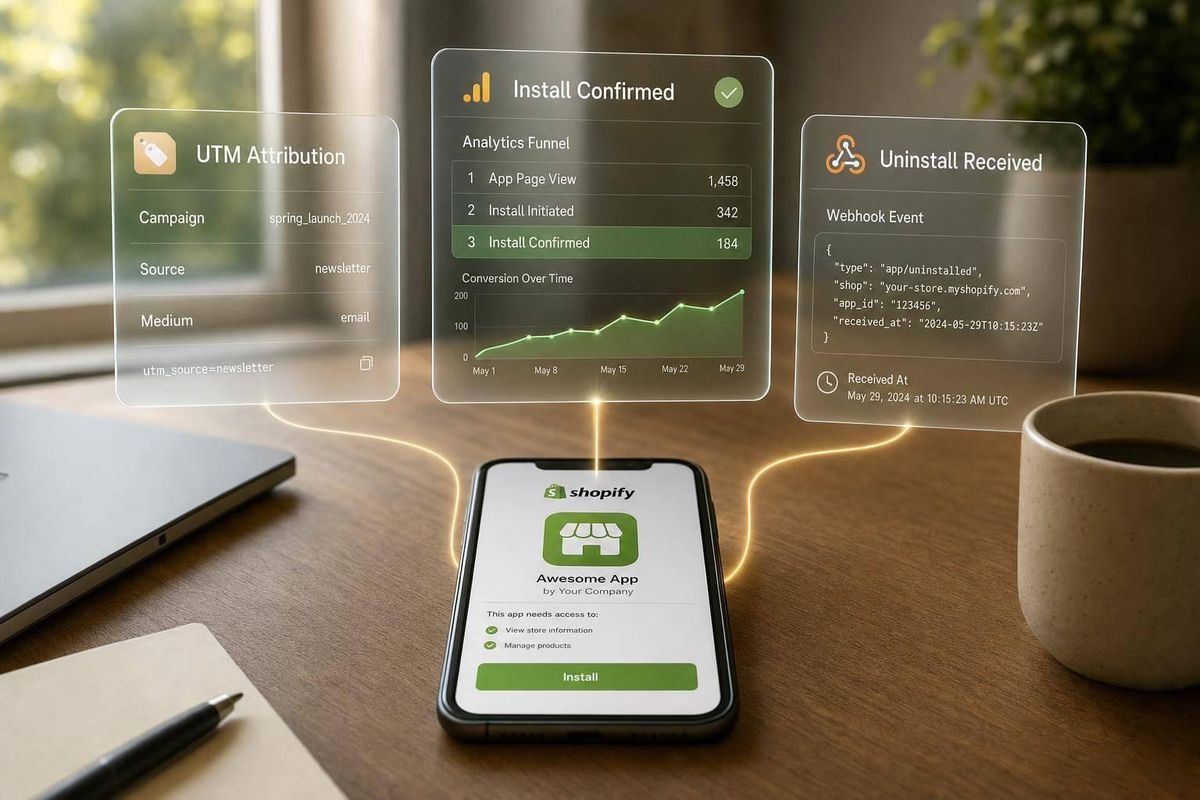
If I track only app listing clicks, I do not know how many merchants actually installed my app. To measure installs the right way, I need two things: a browser event for install intent and a server event for the completed install after Shopify OAuth finishes.
Here’s the short version:
- I send
click_install_ctawhen someone clicks Install or Add app - I send
shopify_app_installonly after the install is confirmed - I track post-install steps like:
app_onboarding_startapp_onboarding_completefeature_usedapp_uninstall
- I pass UTM tags through the install flow so I can tie installs back to source and campaign
- I keep PII, tokens, and secrets out of GA4
- I validate everything in Realtime and DebugView before I trust the data
That setup lets me see the full path from first click to uninstall instead of stopping at traffic numbers. It also helps me spot where merchants drop off: before install, during onboarding, or after first use.
One more thing: if event names and parameters are inconsistent, reporting breaks fast. So before I compare Shopify App Store Optimization Tools and touch GA4, I lock the naming plan, decide which events are browser-side vs. server-side, and make sure each funnel step maps to one clear event.
Below, I’ll walk through the setup in a simple way so I can track installs without double-counting or bad attribution.
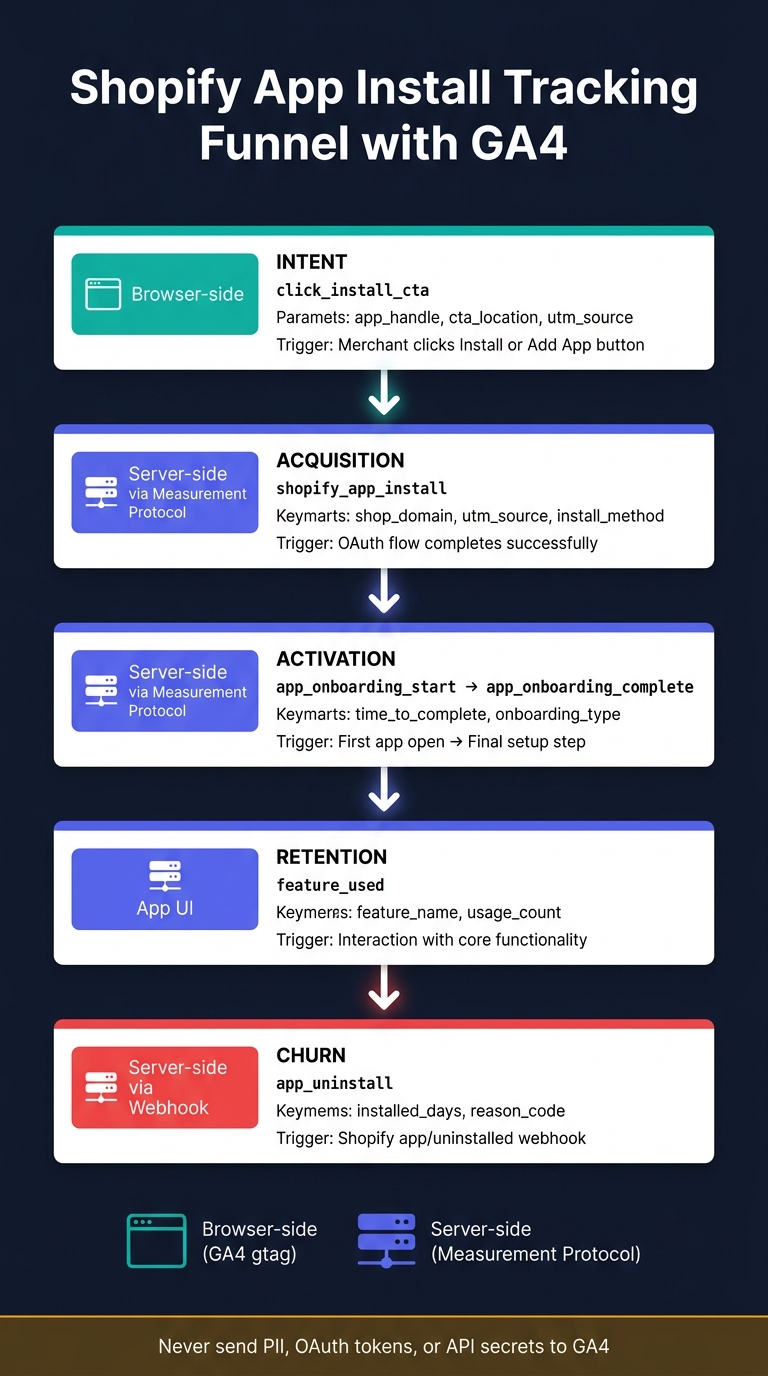
Shopify App Install Tracking Funnel: From Click to Uninstall with GA4
Define Your Tracking Plan Before Touching GA4
A tracking plan links each GA4 event to its trigger, parameters, source, and funnel stage. Put simply, it turns the funnel above into a GA4 event map.
The goal is simple: map each funnel stage to one event, one source, and only the parameters you need. Do this before you connect GA4 to your app listing and install flow. If you lock your event names early, you avoid a mess later.
| Funnel Stage | Event Name | Key Parameters | Data Source |
|---|---|---|---|
| Intent | click_install_cta |
app_handle, cta_location, listing_surface, utm_source, utm_medium, utm_campaign |
Browser-side (GA4) |
| Acquisition | shopify_app_install |
shop_domain, utm_source, install_method, install_timestamp |
Server-side (Measurement Protocol) |
| Activation | app_onboarding_complete |
onboarding_step |
Server-side (Measurement Protocol) |
| Retention | feature_used |
feature_name, usage_count |
Server-side (Measurement Protocol) |
| Churn | app_uninstall |
installed_days, reason_code |
Shopify webhooks |
Required Event Parameters and Naming Rules
For traffic attribution, include utm_source, utm_medium, utm_campaign, and listing_surface. That way, you can see if a merchant found your app through App Store search, category browse, direct traffic, or an external ad.
For app context, attach app_handle and cta_location where they apply. For merchant context, use shop_domain and keep personal data out of GA4. For acquisition events, include install_method and install_timestamp when available. On uninstall events, include installed_days so you can tell the difference between a short-lived install and one that stayed active for months.
Never send PII, API tokens, or secrets to GA4. No email addresses. No OAuth tokens. No Shopify access tokens. Strip those fields before the event fires on both the browser side and the server side.
Prerequisites for Browser-Side and Server-Side Tracking
Before you write a single line of code, make sure the basics are in place:
- Active Shopify Partner account access
- GA4 Editor or Administrator permissions on the property
- A GA4 web data stream with its Measurement ID ready
- A finalized event taxonomy, with the table above as your starting point
Use server-side tracking for confirmed installs and uninstalls. Don't rely on a browser thank-you page for confirmed installs. Fire confirmed installs from the OAuth callback and uninstalls from Shopify webhooks. Send both server-side through Measurement Protocol.
With the plan fixed, connect the GA4 Measurement ID and UTM tags in the next step.
sbb-itb-ce93587
Connect GA4 to Your Shopify App Listing and Install Flow
Set the GA4 property time zone to match Shopify Partner reporting. That way, daily install counts line up instead of drifting by a day. Once those reports match, connect GA4 and use one clear attribution setup across your app listing and install flow.
Add the GA4 Measurement ID and Set Up UTM Tags
Connect GA4 in AppJubilee's Integrations page and give read-only access to one GA4 property per app. If you manage more than one app, connect a separate GA4 property for each app so the data stays clean and easy to read.
Use utm_source, utm_medium, and utm_campaign to separate where traffic came from. Keep those values consistent across Shopify App Store search, category browsing, external referrals, and documentation pages. If one source is tagged three different ways, reporting gets messy fast. These tags continue through install and onboarding events, which makes source tracking much easier.
Use Measurement Protocol Only for Secure Server-Side Events
After you connect the property, use Measurement Protocol only for server-side events. That includes confirmed installs from the OAuth callback and post-install events like onboarding completion.
Keep the Measurement Protocol API secret on the server at all times. Never place it in browser code. For browser-side tracking, send only install CTA clicks.
How to Implement Install and Post-Install Events
The goal is simple: track the actions that matter without double-counting the same person. A good rule of thumb is to use browser-side events for intent and server-side events for confirmed actions.
Track Install CTA Clicks from Listings, Site Pages, and Campaigns
Send click_install_cta when someone clicks an "Add App" or "Install" button on your Shopify App Store listing, marketing site, or campaign landing page.
Useful parameters include app_handle, cta_location, page_location, listing_surface, and UTM parameters. cta_location matters a lot because it tells you where the click came from, like a header button, pricing table, or feature section.
You should also pass the same attribution fields into the OAuth callback. That way, GA4 can connect the click to the install instead of treating them like separate moments.
Send Confirmed Install Events from the OAuth Callback
Once the click event fires, wait for OAuth success before sending the acquisition event. shopify_app_install should fire only after the Shopify OAuth flow finishes and the app is installed on the merchant's store. Don't send it on the button click.
Send this event server-side. Include app_handle, shop_domain, install_method, utm_source, utm_medium, and utm_campaign. Those parameters help you tie the confirmed install back to the original traffic source.
Add Onboarding, Feature-Use, and Uninstall Events
After install, track a small set of server-side and in-app events to measure activation, engagement, and churn.
| Event Name | Trigger | Key Parameters | Data Source |
|---|---|---|---|
app_onboarding_start |
First time the app is opened in Shopify admin | shop_domain, plan_type |
Server-side |
app_onboarding_complete |
Final setup step finished | time_to_complete, onboarding_type |
Server-side |
feature_used |
Interaction with core functionality | feature_name, usage_count |
App UI |
app_uninstall |
Shopify app/uninstalled webhook event |
shop_domain, installed_days |
Server-side |
For app_uninstall, always include installed_days. That one field makes a big difference. It helps you separate a fast uninstall from a merchant who stuck with the app for a while before leaving.
Validate Your Data and Build GA4 Reports for ASO Decisions
Use Realtime, DebugView, Custom Definitions, and Key Events
After setup, check your events before you trust GA4 for ASO calls.
Start with GA4 Realtime. Trigger a click_install_cta from your listing page, site, and campaign URL. Then go through the OAuth flow in a test environment and watch for shopify_app_install in DebugView. That confirms the OAuth callback sent the event.
Once you’ve verified the events, head to Admin → Custom Definitions and register the parameters that matter most for ASO analysis:
listing_surfaceapp_versionmerchant_geography
Then mark shopify_app_install as a Key Event under Admin → Events. This helps push it to the front in acquisition and traffic reporting.
Build a Funnel from Visit to Onboarding Completion
After the events are working, turn them into a funnel.
In GA4 Explorations, create a Funnel exploration with these five steps, in this order: page_view, click_install_cta, shopify_app_install, app_onboarding_start, and app_onboarding_complete. This gives you a plain view of where merchants drop off between finding your app and getting it live.
Break the funnel down by source/medium, campaign, listing_surface (search vs. category browse), and merchant_geography. This is where things get useful. Top-line numbers can look fine, while the step-by-step view tells a very different story.
For example, merchants coming from App Store search may convert in a different way than merchants coming from other campaign sources. The listing_surface dimension matters most here because it links your ASO work straight to funnel results.
Fix Common Data Issues and Connect GA4 with AppJubilee
Even when the setup looks clean, data gaps still happen. Some are small. Some can throw off your whole read on performance.
| Issue | Likely Cause | Fix |
|---|---|---|
| Missing install events | Measurement Protocol call failing silently | Check API secret, payload format, and server logs at the OAuth callback |
| Duplicate install events | OAuth callback firing more than once | Ensure the OAuth callback only sends the event once |
| Unattributed installs | UTM parameters dropped on external campaign links | Use standard UTM tags on all external campaign links |
| Count mismatch vs. Shopify Partners | GA4 and Shopify Partners are not aligned | Cross-reference daily totals |
| Misleading traffic mix | Traffic sources not categorized correctly | Verify GA4 is classifying search, browse, organic, and direct traffic as expected |
GA4 can show installs and traffic sources. What it won’t show is keyword impact or ranking movement.
That’s why it helps to use GA4 signals to review listing performance by keyword and traffic source. AppJubilee connects GA4 event trends with keyword and listing-change analysis, so you can see whether a listing update changed results. Run this check after each listing, onboarding, or tracking change.
FAQs
How do I connect install clicks to confirmed installs in GA4?
Connect your Shopify Partners account and GA4 property to AppJubilee. That gives AppJubilee access to install and uninstall counts from Shopify Partners, along with traffic and conversion data from GA4.
Once that’s in place, you can match install clicks with confirmed installs and look at the full funnel by traffic source. That includes seeing which keywords and app listing changes lead to actual conversions.
Which Shopify app events should be tracked server-side instead of browser-side?
Track events tied to critical business outcomes or sensitive actions server-side. It gives you better accuracy and cuts down on data loss.
Put the focus on install and uninstall events. These are best tracked through the Shopify Partners API, which makes it easier to match them with ranking and listing performance data in a dependable way.
For browser-side tracking, stick to engagement signals like:
- Scroll depth
- Session duration
That split keeps your setup cleaner: server-side for business-critical actions, browser-side for on-page behavior.
Why don’t my GA4 install counts match Shopify Partner data?
GA4 and Shopify Partner data track different parts of the journey.
Shopify Partner data shows the installs and uninstalls that were actually finalized. GA4, on the other hand, tracks user actions based on how your setup records them.
That gap matters. GA4 can miss events when privacy settings block tracking, ad blockers interfere, or cookies are turned off. So while GA4 is useful for seeing intent and understanding conversion funnels, it shouldn’t be your final source for install counts.