
Rank Drop Analysis for Shopify App Listings
Map rank snapshots, listing edits, reviews, installs and competitor moves to diagnose Shopify app rank drops.
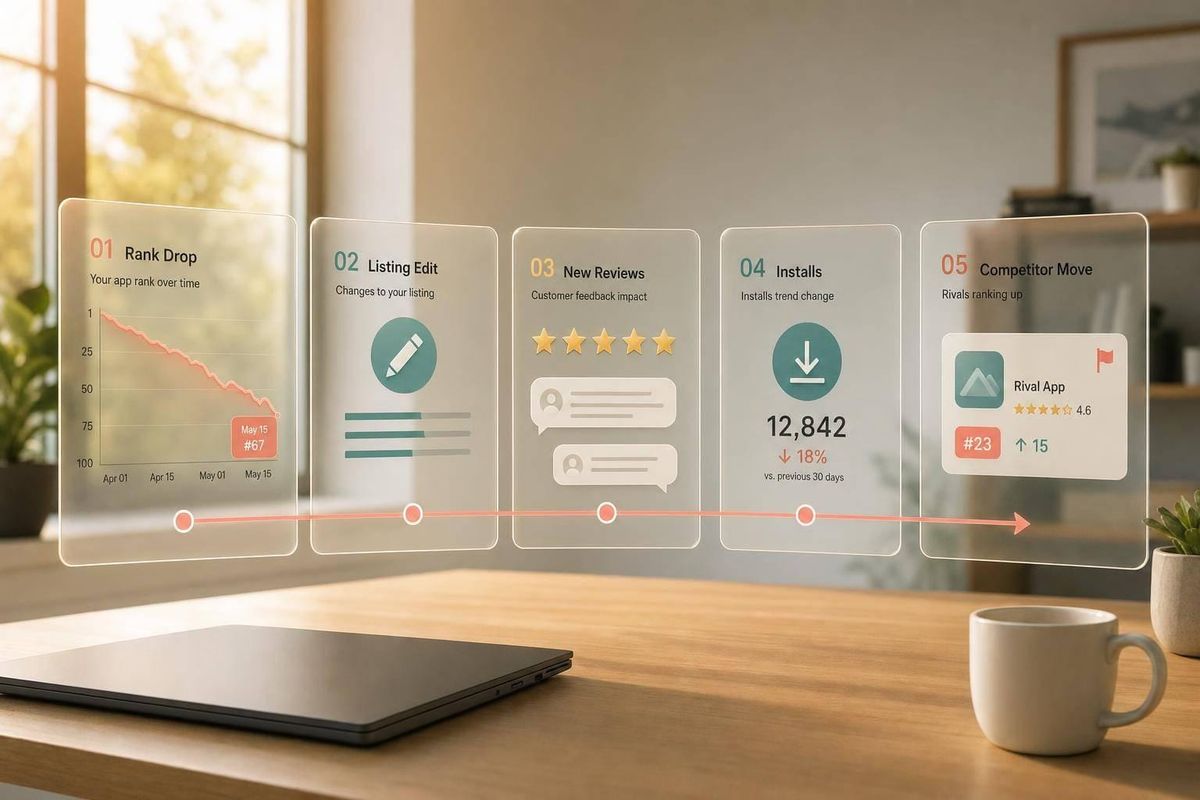
A Shopify app rank drop is usually tied to one of four things: your listing changed, your reviews shifted, your install/conversion data got weaker, or competitors pushed harder. In a store with about 18,000 apps, even a move from #3 to #10 can cut traffic fast.
Here’s the short version of how I’d check it:
- Define the drop first: Was it one keyword, a keyword cluster, or a broad slide?
- Check timing: Compare rank snapshots from before, during, and after the drop.
- Review internal changes: Title, subtitle, description, screenshots, pricing, reviews, and retention.
- Check outside pressure: Competitor listing edits, review spikes, keyword overlap, and ads.
- Rule out noise: Daily movement of ±1–2 spots can be normal. I’d treat it as a real issue only if it lasts 5–7 days and hits core keywords.
A few numbers matter most here: listing edits often show impact within about 7 days, rating drops near 4.5 stars can hurt conversion, and a fall in view-to-install rate like 12% to 7% can line up with rank loss.
If I were diagnosing a drop, I wouldn’t guess or rely on basic Shopify app optimization tools. I’d build a simple timeline, match rank changes to edits and reviews, then compare that against install data and competitor movement.
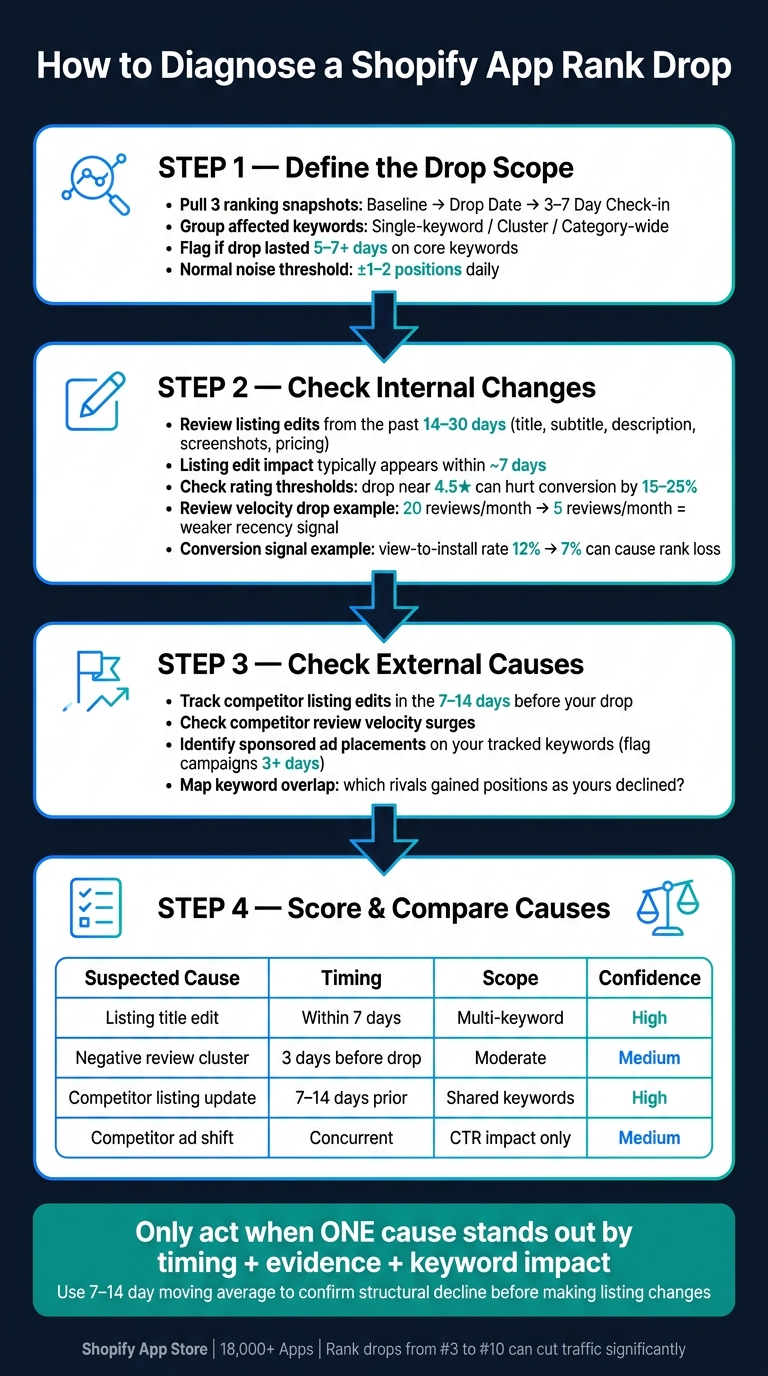
Shopify App Rank Drop: 4-Step Diagnosis Workflow
Step 1: Use Ranking Snapshots to Define the Scope of the Drop
Before you change your listing or point the finger at a competitor, get clear on what fell, where it fell, and when it happened. Snapshots help you map the drop to a timeline. And that timeline usually points you in the right direction: an internal change, outside pressure, or plain rank swings.
Compare Keyword Positions Before and After the Drop
Pull three snapshots:
- Your baseline
- The day of the drop
- A check-in 3–7 days later
For each keyword, look at the rank change and see whether the new position stayed in place for 3–7 days. If a high-intent keyword like "Shopify recurring billing" drops from rank 3 to rank 25, that's a serious warning sign. If a broad term like "marketing app" moves up or down by 2 spots, that's much less dependable as a signal.
Keyword type matters. If branded terms stay put but high-intent functional keywords slide, the issue is often relevance or pressure from competing apps in that keyword group, not a store-wide quality problem. If branded and generic terms both fall at the same time, you're likely dealing with something broader, like review velocity, install velocity, or an algorithm update.
Once you've confirmed which rankings moved, group them by scope so you can tell whether the drop is narrow or broad.
Group the Drop by Keyword Set, Category, and Date
After you have the before-and-after positions, sort the affected keywords into:
- Single-keyword drops
- Cluster drops
- Category-wide drops
Then note the date range and the shape of the decline. Did it happen overnight between two back-to-back snapshots? Or did it drift over 7–30 days?
Overnight drops often link back to a listing edit, a competitor push, or an algorithm update. Slower declines usually point to building pressure from competitors or shifts in ratings.
Use AppJubilee to Build the Initial Timeline
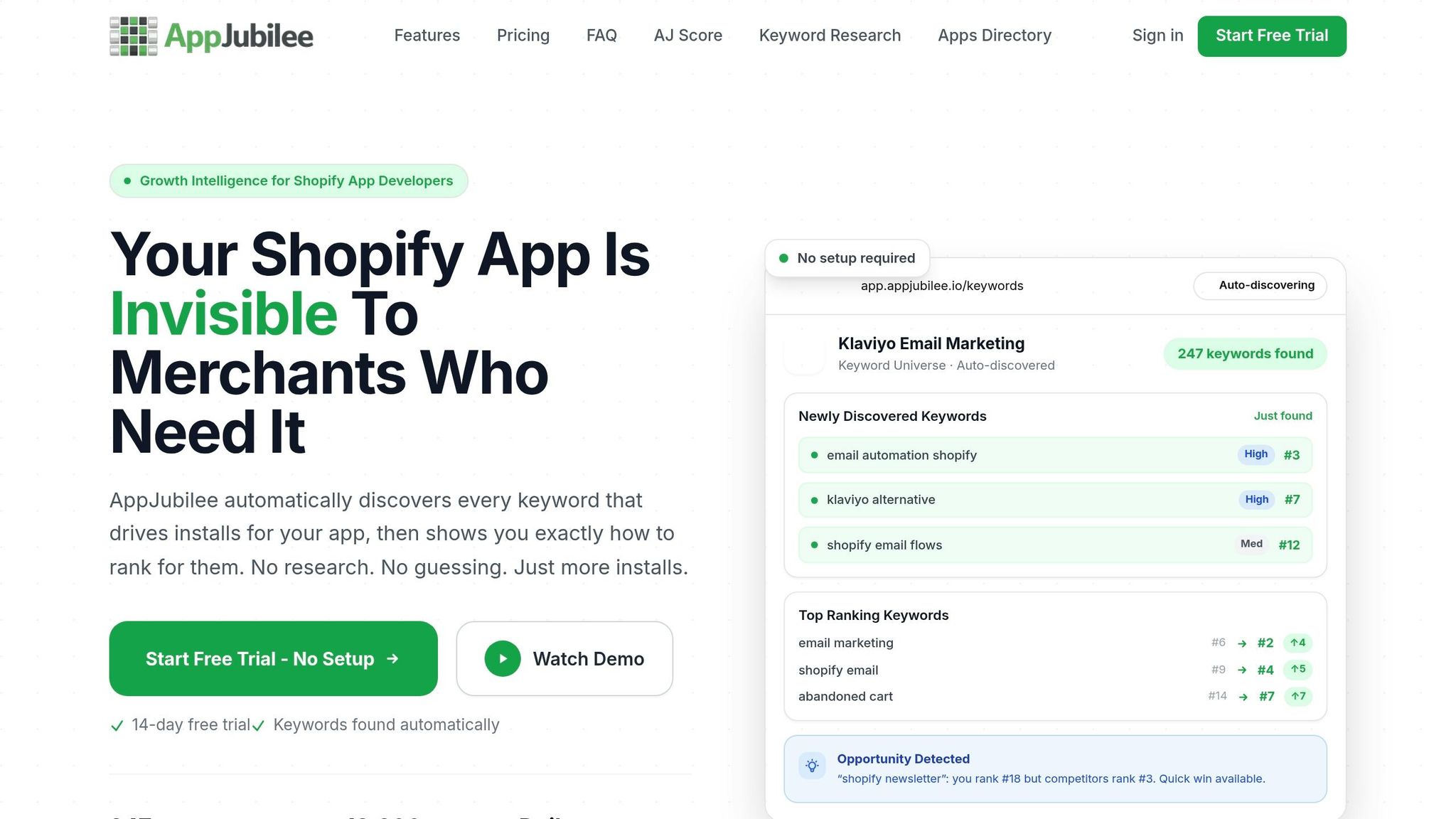
AppJubilee tracks daily keyword snapshots across core Shopify App Store terms and backfills 90+ days of ranking history the moment you add your app. Start with your top 20–50 U.S. high-intent priority keywords and review the 30-day change to spot terms that dropped out of the top 10 or top 25.
AppJubilee also flags listing changes next to rank movement. So if you updated your title or description in the same window as the drop, you can see that overlap right away.
With the timeline in place, you can then compare it against listing edits, review shifts, and performance changes in the next step.
sbb-itb-ce93587
Step 2: Check Internal Changes That May Have Caused the Drop
Once you’ve mapped the drop timeline, the next move is simple: find the internal change that lines up with it.
Start with the things you control. Look at your edit log first. Then check product review data. After that, move into performance data.
Match Listing Edits to the Drop Timeline
Pull a change log for everything you updated in the 14 to 30 days before the drop. That includes your title, subtitle, description, keyword tags, screenshots, pricing, and positioning. Then line up each edit against the rank movement you found in Step 1.
The edits that tend to do the most damage are the ones that remove high-intent keywords from key fields. Say you changed a title from "Abandoned Cart Recovery & Email" to "Customer Engagement Suite." That can weaken relevance for abandoned cart searches - only when those edits also change conversion or install velocity. Ranking impact from listing changes usually shows up within about 7 days of the edit.
Pricing changes also deserve a close look. If you moved a plan from $29/month to $49/month and didn’t update your value messaging, conversion and install velocity can drop. And when that happens, rank can slide too. If a pricing change happened in the same window as the drop, treat it like a main suspect until the data rules it out.
Use AppJubilee's Listing Changes & Impact Analysis to place those edits directly on top of the ranking timeline.
Check Rating, Review Volume, and Sentiment Around the Drop Date
If no listing edit matches the timing, reviews are the next place to look.
Plot weekly rating, review volume, and sentiment for the 60 days around the drop. Pay close attention to threshold changes, especially near 4.5 stars. A drop from 4.8 to 4.4 stars matters. Even a half-star swing can change conversion rates by 15% to 25%.
Average rating is only part of the story. Review velocity matters too. If new review volume fell from 20 reviews per month to 5 reviews per month around the same time rankings dropped, that weaker recency signal is likely part of the problem.
AppJubilee's review intelligence can help you track review-to-rank correlation. That makes it easier to spot whether a cluster of 1- to 2-star reviews or a slowdown in review volume came right before a change in keyword positions.
Review Install, Conversion, and Retention Trends
If edits and reviews don’t explain the drop, move to performance data.
Sometimes rankings don’t fall because of a listing edit or a wave of bad reviews. Sometimes conversion slips first, and rankings follow. If your listing view-to-install rate dropped from 12% to 7% in the weeks before the rank decline, that behavior signal alone can push you below apps with stronger install momentum - even if your metadata stayed the same.
Use GA4 for sessions, click-throughs, and funnels. Use Shopify Partners for daily installs, uninstalls, and active stores. Compare the dates closely. Did conversion fall before rank? Or did rank drop before installs did? That sequence tells you what to fix first.
If uninstall rates jumped or 30-day retention fell for cohorts acquired just before the drop, that points more to a product or onboarding problem than a listing problem.
Step 3: Look at External Causes Like Competitor Moves, Ads, and Keyword Overlap
If internal changes don't explain the drop, the next place to look is outside your app. In many cases, rankings slip because competitors changed their listings, stepped up ad spend, or started overlapping with you on the same terms.
Track Competitor Listing Updates and Review Momentum
Start with the apps that climbed while you fell. Look at whether nearby competitors moved high-intent keywords into their titles or subtitles in the 7–14 days before the drop.
Reviews matter here too. A competitor with stronger recent review velocity can outrank an app with more static review volume. So if a nearby rival's review pace picked up while yours stayed flat, that bump may explain part of the displacement.
And if a competitor didn't update its listing at all, paid traffic may be the reason it started pulling clicks away.
Check Ad Activity on Key Searches
If listing changes don't explain the decline, look at paid placements. Sponsored results can change the click path even when your organic rank stays the same. And when several competitors bid on the same keyword at once, the impact can stack up fast.
AppJubilee's Ads Intelligence tracks when sponsored placements show up on your tracked keywords and flags campaigns running 3+ days that are most likely to affect organic performance. Match those timestamps against your install and session data to see whether ad activity lines up with the drop.
Map Keyword Overlap to Find Where Relevance Was Lost
Once you've checked competitor edits and ads, compare keyword overlap. For each keyword that dropped, look at which competitors also rank for that term and whether their positions improved as yours declined.
This helps you spot where relevance shifted. AppJubilee's competitor mapping and keyword ranking analysis show which rivals gained ground while yours slipped.
Step 4: Compare Possible Causes and Rule Out Weak Explanations
Use the timeline from the earlier steps to weed out weak explanations and put the strongest one at the top. At this point, you're moving from collecting evidence to comparing evidence.
The goal is simple: take each likely cause and line it up against the timeline from Steps 1–3. Then use the ranking snapshots and history data for analytics to see which explanation fits best.
Score Each Likely Cause by Timing and Evidence
Score each cause using three factors:
- Timing: How close the suspected event is to the drop
- Scope: How many tracked keywords moved
- Signal alignment: Whether rankings, CTR, installs, reviews, and competitor data all point in the same direction
| Suspected Cause | Supporting Evidence | Conflicting Evidence | Confidence |
|---|---|---|---|
| Listing title edit | Drop within 7 days of edit; affected keywords match edited terms | Unrelated clusters also moved slightly | High |
| Negative review cluster | Review posted 3 days before drop; net delta negative, installs fell | Listing edit in same 7-day window | Medium |
| Competitor listing update | Rival gained 8+ positions on shared keywords after updating listing | Own listing and review velocity stayed stable | High |
| Competitor ad shift | Sponsored placements appeared on key searches; organic CTR declined in GA4 | Organic position unchanged; only click share dropped | Medium |
Use High when timing, scope, and the supporting signals all line up. Use Medium when the evidence points in that direction, but the case isn't fully settled. Use Low when the timing is loose, the impact is narrow, or the conflicting evidence is hard to ignore.
When a listing change and a review cluster happen in the same 7-day window, treat the review signal as a confounder until the timeline separates them. Otherwise, it's easy to blame the wrong thing.
AppJubilee's listing change impact tracking and keyword ranking analysis help by putting those overlapping events in one view. That means you don't have to bounce between separate spreadsheets just to compare dates.
Avoid False Positives from Short-Term Volatility
Once you've scored the likely causes, the next step is to separate a true drop from normal rank noise.
Not every ranking move means something is wrong. In the Shopify App Store, daily rankings often shift by ±1–2 positions because of personalization, geographic variation, and small demand swings. That's normal.
Treat a drop as real only when it does two things:
- Lasts 5–7 days
- Hits a meaningful share of your core keywords
If competitors moved in a similar way during the same stretch, the cause is more likely a seasonal demand shift or a category-wide change. If rankings hold steady but traffic drops, the issue is demand, not ranking.
Only move to corrective action when the 7-day or 14-day moving average confirms a structural decline.
Use this filter before moving into the final investigation workflow.
Conclusion: Build a Repeatable Rank Drop Investigation Workflow
Use the same sequence every time you see a rank drop. A set process helps you avoid bad guesses and cuts down on listing edits you didn't need to make.
Document everything as you go. Write down the drop date, affected keywords, before-and-after positions, listing edits, review changes, install trends, conversion shifts, and competitor or ad activity. That log gives you a baseline for the next drop. Then, when rankings move again, you can run the same check against the same record.
A 5-Step Workflow to Reuse After Every Drop
When a rank drop shows up, go through this sequence before you change anything in your listing:
- Identify affected keywords using Shopify app keyword research: Pull ranking snapshots and note which keywords lost positions. Group them by theme, category, and date.
- Compare before-and-after listing snapshots: Use a side-by-side view of your title, description, screenshots, and pricing.
- Review listing and review history: Check for edits made in the 7–14 days before the drop.
- Check install and conversion signals: Confirm whether the ranking drop came with weaker performance data, like lower installs, reduced CTR, or higher early churn.
- Analyze competitor updates, review surges, and ad shifts on shared keywords.
Only move to a fix when one cause stands out above the rest based on timing, strength of evidence, and keyword impact.
AppJubilee brings this workflow into one place. Its daily snapshots, listing-change tracking, review intelligence, competitor alerts, ad monitoring, and GA4/Shopify Partners data all sit together, so it's easier to run the same investigation each time.
FAQs
How do I know if a rank drop is real?
Don’t react to a one-day drop. Most of the time, that’s just noise.
Instead, look at 7-day or 30-day trends to see if the change is actually happening.
In AppJubilee, check your Listing Changes page for recent edits. Then look at the App Watch feed for competitor listing updates or review spikes. After that, compare what you find with your GA4 or Shopify Partners data to confirm whether installs were actually affected.
Which data should I check first after a drop?
First, check the Listing Changes page in AppJubilee and see if a recent edit to your title, description, or screenshots matches the timing of the rank drop.
Then look at your review velocity and recent competitor activity. That includes things like listing updates, price changes, or a spike in reviews. This can help you narrow down what's behind the drop.
How can I tell if competitors caused the drop?
Use AppJubilee to check the competitive landscape when your rankings drop. Head to the App Watch feed and look for competitor listing updates, pricing changes, or sudden review spikes.
You can also set up email alerts so you know when a competitor starts outranking you for terms that matter. From there, compare listing change impact and keyword gaps to see whether that competitor pulled in traffic that used to go to your app.