
What Media Changes Move Shopify App Rankings?
Media doesn't directly change Shopify app rankings—improve screenshots, icons, or video to boost CTR, installs, and retention; test with 14-day windows.
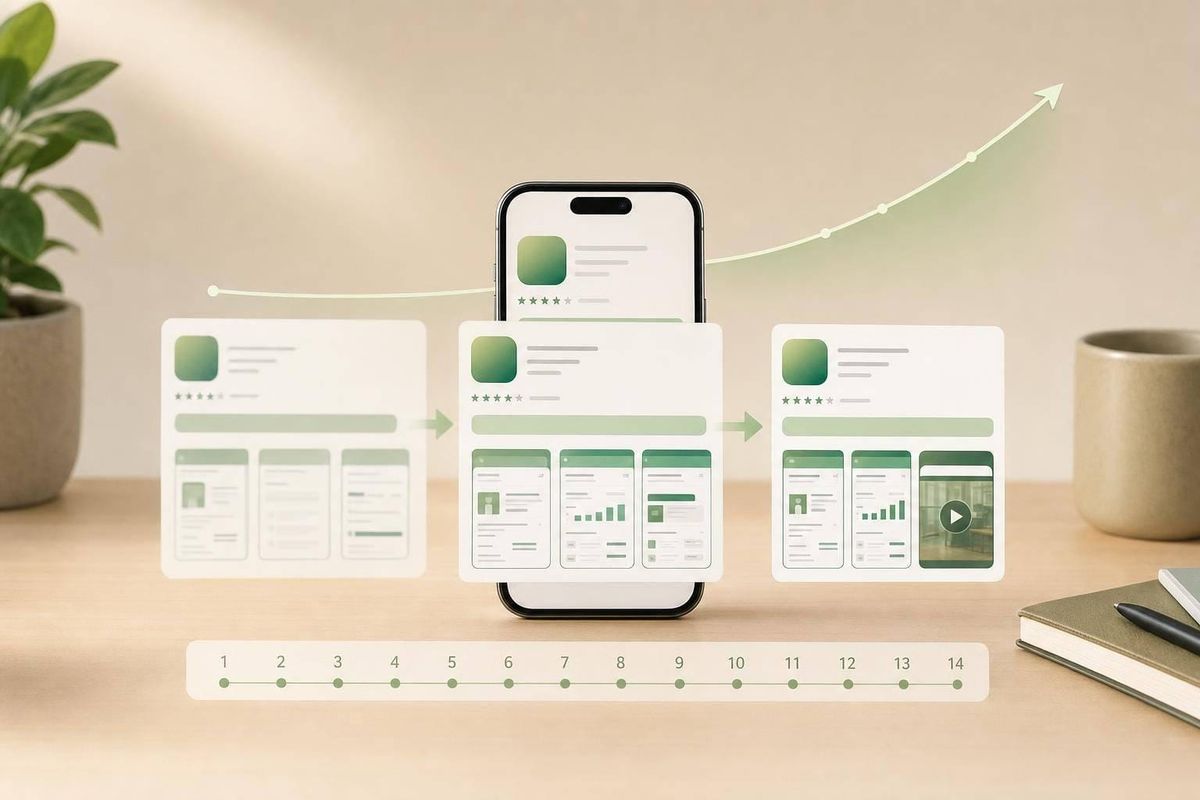
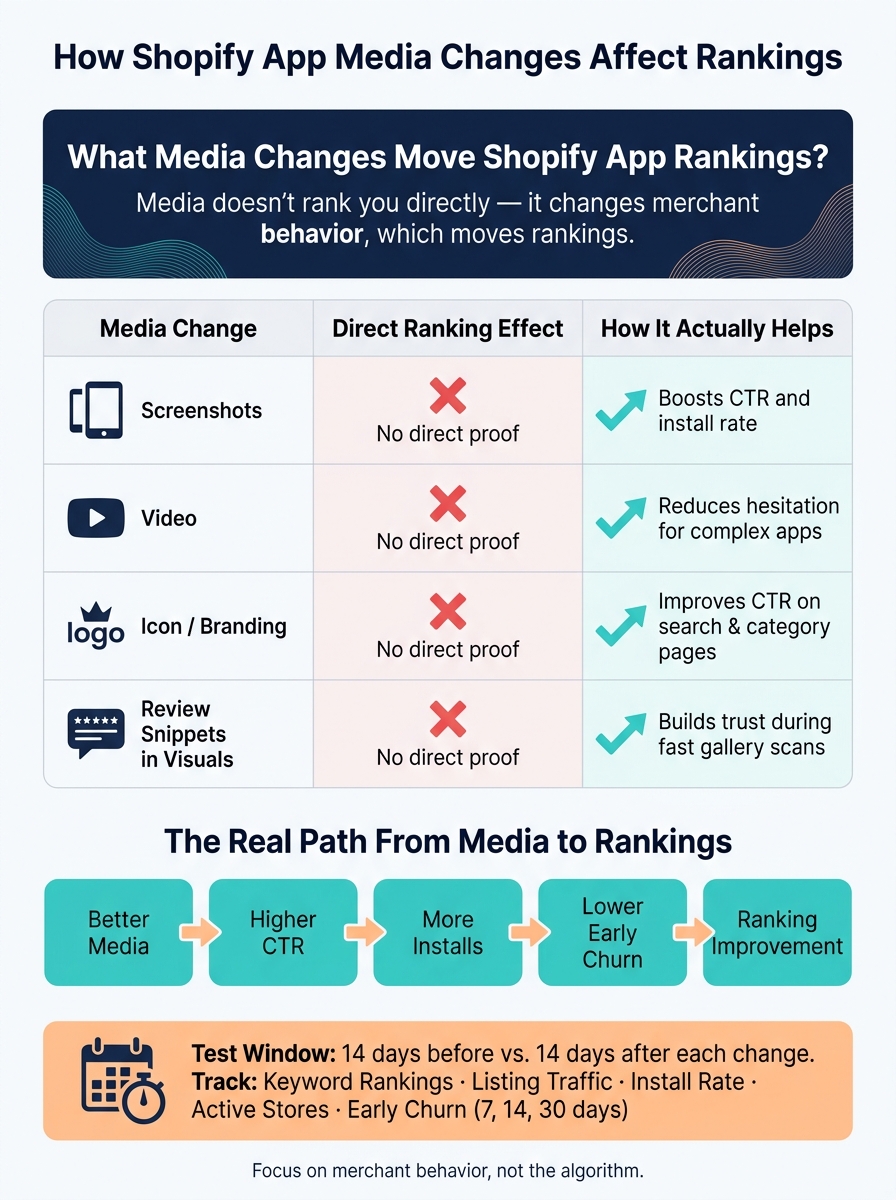
Most media edits do not change Shopify app rankings on their own. From what I see in this article, rankings usually move only when visuals lead to better behavior: more clicks, more installs, and lower early churn.
If I had to boil it down, the article says four things:
- Screenshots are the first thing I’d test. They often have the biggest effect on click-through rate and install rate.
- Video, icon, and review text in visuals work indirectly. They help when they make the listing easier to judge and trust.
- The first screenshot matters most. If it shows the app UI, the use case, and the result fast, more merchants may keep going.
- I should measure each change in a clean before-and-after window using Shopify app store optimization tools. A simple setup is 14 days before vs. 14 days after, while keeping other listing edits to a minimum.
Here’s the short version: media does not act like ranking magic. It acts like a conversion lever. If a new screenshot set lifts CTR by even a small amount, and that turns into more installs over 2–4 weeks, rankings may improve as a side effect.
A quick way to think about it:
| Media change | Direct ranking effect | Main way it can help |
|---|---|---|
| Screenshots | No clear proof | More clicks and installs |
| Video | No clear proof | Less hesitation for harder-to-show apps |
| Icon/branding | No clear proof | Better CTR in search and category pages |
| Review snippets in visuals | No clear proof | More trust during fast scans |
So if you want the short answer: change media to improve merchant behavior, not to chase the algorithm. The rest of the article explains which edits are most likely to help and how I’d track whether they worked.
How Shopify App Media Changes Impact Rankings
How to Create App Store Screenshots That Get More Downloads
sbb-itb-ce93587
Screenshot Changes: The Media Update Most Likely to Affect Installs
Screenshots are often the first place merchants look when they want proof that a Shopify app is worth their time. In a few seconds, they can show what the app does, who it’s for, and what kind of result a merchant can expect. They’re the first proof point on a listing. That’s why screenshots are the first media change worth testing.
How Screenshot Refreshes Influence Clicks and Conversion
A weak opening frame makes it harder for merchants to size up the app fast. The first screenshot should show real product UI and current outcomes, not logos or abstract graphics. If that first frame falls flat, the rest of the gallery has to carry more weight.
Better screenshots can lift CTR and install conversion, which can increase install velocity. That jump in installs is what can help move rankings.
Which Screenshot Edits Are Most Likely to Improve Performance
A simple flow works well: promise, UI, outcome, workflow, proof. Each frame should answer a different merchant question. Every screenshot should show something new.
Shopify's listing requirements specify that screenshots should show real UI and distinct views - different features, views, or states, not repeated images. Distinct screenshots help keep merchants moving through the listing and cut down on doubt.
Video, branding, and review-snippet edits can help too, but they usually work through that same conversion path.
Video, Branding, and Review Snippets: Indirect Effects on Rankings
If screenshots do most of the selling, video, icons, and review snippets help clear the last bit of doubt. Each one can lead to more installs by improving trust and making the listing easier to understand.
When Video Edits Improve Listing Performance
Video tends to work best when the app’s value is hard to explain with screenshots alone, like analytics, subscriptions, or automation. If still images can already make the workflow clear, video usually doesn’t add much.
The best approach is simple: start with the merchant’s problem, then show the app in action right away. Add captions because many people watch on mute. And focus the script on one use case, not a full feature tour. The goal isn’t to game the algorithm. It’s to lower hesitation.
How Icon and Branding Updates Affect Listing Traffic
On search and category pages, merchants make snap decisions. A clean 1,200 × 1,200 icon with bold colors, simple shapes, and no text can increase CTR before anyone even reads the app name.
The icon does not push rankings on its own. It matters when it gets more people to click. The chain looks like this:
- Better icon
- More clicks
- More installs
- Higher ranking potential
When the icon, screenshots, and video all look like they belong together, the listing feels more legitimate. That matters because merchants are often cautious about installing an app they haven’t seen before.
To tell whether a branding update worked, track CTR and install conversion for at least 2–4 weeks before and after the change. Try to keep the rest of the listing steady during that test window.
Do Review Snippets in Visuals Help Rankings
Review text inside screenshots, like a merchant quote, a star rating callout, or a results claim, can build trust during a quick gallery scan. But the listing’s actual review count, rating, and recency matter more for ranking than review text placed inside an image.
So review snippets in visuals help conversion, not ranking in a direct way. In practice, recent review growth matters more than a big review base that has gone quiet.
If you add review snippets to visuals, keep every claim accurate and restrained. Shopify’s listing guidelines prohibit reviews and testimonials in unapproved placements, and exaggerated results claims often lead to more uninstalls.
How to Measure Whether a Media Change Worked
Once a media change goes live, the job shifts from shipping the update to proving it did anything useful. The goal is simple: find out whether it increased installs, not just traffic. To do that, compare one media change against a clean baseline.
Track Rankings, Traffic, Conversion, and Install Velocity Together
Look at the full picture at the same time: keyword rankings, listing traffic, install rate, active stores, and early churn at 7, 14, and 30 days. One number on its own can fool you.
If installs go up but early churn climbs too, that’s a red flag. The new visual may be pulling in the wrong merchants instead of better-fit ones.
A solid test window is 14 days before and 14 days after the change - Aug. 1–14, 2026 vs. Aug. 15–28, 2026. Pay more attention to trends than to single-day jumps. A lift that holds for two weeks means more than a spike that shows up once and disappears the next day.
Use Change Logs and Controlled Test Windows
Keep a simple log with the timestamp, edit type, and expected effect. Also note any campaigns, launches, or seasonal spikes during that same period.
Don’t push major edits on the same day. Space changes out by at least a week or two, and keep the rest of the listing steady during each test window. That makes it much easier to see whether the lift came from better clicks, better installs, or neither.
Where AppJubilee Fits in the Workflow
AppJubilee tracks keyword rankings, logs listing changes, and overlays screenshot, video, or icon updates on traffic and install trends; GA4 and Shopify Partners integrations tie those shifts to merchant behavior. That keeps the before-and-after comparison tied to actual listing behavior instead of memory.
Conclusion: Media Changes Move Rankings Through Behavior, Not Magic
After you test media updates, the main question isn’t what changed. It’s what changed in merchant behavior. Rankings move only when media changes lead to more clicks, more installs, and better retention.
Screenshots tend to drive the biggest lift. Video, branding, and product review snippets usually play more of a support role by building trust and helping conversion.
That leaves a few clear priorities:
- Use the first screenshot as your main test variable. It gives you the most leverage.
- Replace outdated UI as soon as the product changes. Stale screens chip away at trust and can drag down conversion.
- Add video only when screenshots can’t show the workflow clearly. If still images already make the flow easy to grasp, video usually won’t do much.
- Keep the icon, screenshots, and video visually aligned. Consistent branding can improve CTR in search results without changing a word of copy.
- Never assume a design refresh helped rankings. Check every change against keyword rankings, listing traffic, CTR, installs, and retention before you make that call.
Treat listing media like a growth lever you can test: make a change, measure CTR and installs, then keep refining.
FAQs
How long should I wait before judging a media change?
Avoid judging a media change by day-to-day swings. Small moves of 1–2 ranking spots are often just noise.
Instead, watch the trend over 7–14 days. Indexing for key fields like Titles and Search Terms often happens within 7 days, but broader keyword shifts can take 2–4 weeks before you see measurable changes in rankings and installs.
Can better screenshots raise installs without improving rankings?
Yes. Better screenshots can increase installs by improving listing conversion. Put simply, you get more install intent from the same traffic, even if keyword rankings stay flat.
AppJubilee can snapshot screenshot changes and compare them with keyword positions and install counts. That makes it easier to spot cases where installs go up without any ranking movement.
What should I change first if my listing traffic is flat?
First, audit keyword alignment in your App Name, Search Terms, introduction, and App Details. Your App Name should follow a brand + function format, and all five Search Terms slots should go after high-intent phrases.
Then use AppJubilee to spot keyword gaps and put your energy into pushing page 2 keywords onto page 1. To keep the listing active, update your description or screenshots every 30 to 60 days.