
Shopify App Review Reply Checklist
Fast, owned, private-first review replies turn app-store complaints into product signals and retain merchants.

A public review reply can help win installs - or push merchants away. If I want a reply process that works, I need the same flow every time: log the review, find the merchant owner, tag the issue, write a short public reply, move details to private support, track the fix, route urgent cases, and check what changed after the reply.
Here’s the article in plain English:
- Start with intake: log the product review date, rating, store, app version, and support history.
- Check account context: confirm whether the merchant is active, in trial, or no longer installed.
- Tag the issue: use one main label like bug, billing, UX, support, policy, or praise.
- Set severity: urgent cases like checkout failures need a reply within hours.
- Write short replies: aim for 3–5 sentences with empathy, ownership, and a next step.
- Move account details off the review page: send merchants to private support for store-specific help.
- Track the issue internally: use a status flow from New to Closed.
- Escalate by rule: route P1 bugs to engineering, billing cases to billing, and policy cases to Shopify moderation.
- Measure outcomes: log reply time, resolution status, and whether the merchant changed the rating.
A few rules stand out. Do not share private account details in public. Do not trade discounts or free months for review edits. And if 3 or more merchants report the same severe issue within 24 hours, treat it like a larger incident.
If I had to reduce the whole piece to one line, it would be this: reply fast, take ownership, move sensitive help to private support, and track every case until it’s done.
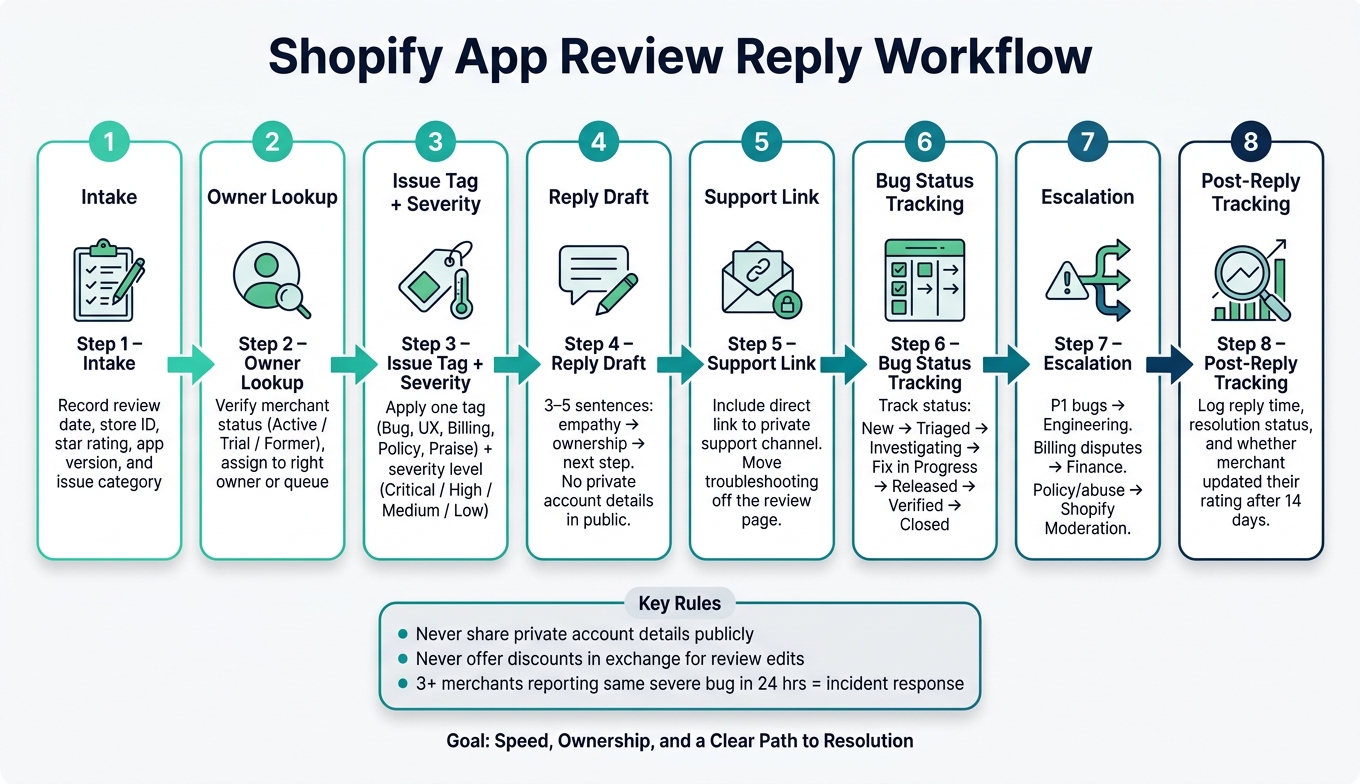
Shopify App Review Reply Workflow: 8-Step Checklist
This AI System Auto-Responds to Shopify Reviews - And Knows When NOT To

sbb-itb-ce93587
Step 1: Intake the review and identify the merchant owner
Before you write a reply, pull the key details from the Partner Dashboard: the review text, star rating, date, app version, and the store name or URL. This becomes your working record. It gives you the facts you need to tag the issue and shape the public response.
Check merchant status and account context
Match the store name or domain to your merchant records. Then check install status and look at recent account activity around the review date. That helps you sort the issue into the right bucket: bug, UX, billing, pricing, or policy. You can also compare Shopify app store optimization tools to see how different platforms categorize these merchant signals.
Next, use status and severity to set both priority and tone.
- Active blocker: same-day senior review
- Trial confusion: patient education
- Minor issue: collaborative tone
Don’t put store URLs, billing amounts, internal IDs, or ticket references in a public reply. Say "your store" or "your account" instead.
Once status and severity are clear, capture everything in a shared intake record.
Create a simple internal intake record
Use a lightweight record with these fields:
| Field | What to Capture |
|---|---|
| Review date | mm/dd/yyyy (e.g., 07/22/2026) |
| Star rating | 1–5 |
| Merchant ID / Store URL | Internal ID and store URL |
| Account owner name | Internal reference only |
| Merchant status | Active, trial, or former |
| App install status | Installed, uninstalled, or trial |
| Recent support history | Recent tickets, last contact date, and open issues |
| Source channel | Shopify App Store public review |
| Assigned owner | Support rep or product owner |
| Issue category | Bug, UX, billing, onboarding, feature request, or pricing concern |
| Severity | Critical, major, minor, or info |
| Short issue summary | 1–2 sentences max |
A complete intake record helps the team assign one owner and act fast without losing context. Assign that owner during intake. They handle the investigation, the reply, and any follow-up.
After the owner is set and the record is complete, tag the issue and draft the public reply.
Step 2: Tag the issue and prepare the public reply
Before you write anything, classify the review. Tag it first. That way, the reply fits the problem instead of sounding generic. The tag should guide the tone, how fast you respond, and what you ask the merchant to do next.
Apply issue tags and severity before replying
Give each review one main issue tag. For Shopify apps, a simple setup works well: Bug, Usability, Feature Gap, Pricing/Billing, Support Experience, Praise, and Security and Policy Concern. Then pair that tag with a severity level - Critical, High, or Medium or Low - so your team knows how urgent the reply needs to be.
| Severity | Definition | Example |
|---|---|---|
| Critical | App-breaking; blocks checkout or core operations | Orders not syncing, checkout errors |
| High | Core feature broken; significant merchant friction | Bulk action failing, recurring configuration reset |
| Medium or Low | Minor friction, UX confusion, or cosmetic issue | Confusing dashboard label, missing tooltip |
A Critical bug needs a reply within a few business hours, and the public response should make that urgency clear. A Medium or Low usability issue usually needs a calm, helpful reply with a link to docs or setup steps. In plain terms: use the tag to decide whether you should confirm a bug, explain setup, or send the merchant to support.
Draft the reply with empathy, ownership, and next steps
Use a simple structure: greeting → acknowledgment → brief context → next step. Keep it tight at 3–5 sentences.
Say clearly that you own the problem. Instead of “This is a rare edge case,” say “This is on us - we're investigating what went wrong.” That lands better, and it sounds like a real person wrote it. If the issue ends up being a setup problem instead of a bug, treat it as a clarity problem on your side: "The setup can be confusing here, and we should have made that clearer."
One hard rule: never offer discounts, credits, or free months in exchange for a review edit. That goes against Shopify's review policies and can lead to enforcement action. If the problem gets fixed, you can say the merchant is welcome to update their review. Just keep it optional and tied to the result - not a trade.
Include a direct support link and move troubleshooting to private support
Every non-trivial reply should include a private support path. Add support@yourdomain.com or a help desk link, and ask the merchant to send account-specific details there. Say it plainly: you can't handle sensitive information in a public review thread.
After the reply is posted, move the case into bug tracking and route any escalation.
Once the reply is live, log the bug status and send escalations to the right team.
Step 3: Log bug status and follow the escalation path
Once the reply is live, move the case into your internal system so the team can fix the issue.
Track bug status from New to Closed
Every review-based issue needs a clear status that moves forward. A simple flow is: New → Triaged → Investigating → Fix in Progress → Released → Verified → Closed. Each step should include an owner, a timestamp, and the next action.
At the New stage, log:
- Merchant ID
- Shop domain
- Plan type
- App version
- A short issue summary
- A link to the original review
When the issue moves to Triaged, confirm that you can reproduce it on the merchant's store, a consented Partner test, or a matching internal test store. Then log the affected feature, note whether the issue is limited to one store or showing up across multiple stores, and assign a technical owner.
Use severity to decide where the case goes and how fast it needs attention.
| Severity | Criteria | Example |
|---|---|---|
| P1 – Critical | Install blocked, checkout broken, data loss, sitewide outage | "App crashes our checkout; customers can't pay." |
| P2 – High | Major feature broken, urgent billing dispute, serious performance degradation | "We were double-charged for several months; this is hundreds of dollars." |
| P3 – Medium | Feature bug with workaround, non-blocking usability issue | "Widget doesn't display on one theme but works on others." |
| P4 – Low | Cosmetic glitch, outdated docs, minor UI issue | "Text overlaps on the settings screen." |
When the issue reaches Released and Verified, add the release version, date and time, rollout scope, verification notes, and merchant confirmation before you close the record.
Once the status is in place, send the case to the right owner.
Escalate critical issues and policy cases to the right team
Use the status and severity above to decide the next handoff. A tiered path helps keep things clean and avoids the "who owns this?" mess.
For technical bugs and outages, frontline support should handle triage and collect logs first. From there, engineering takes over for investigation and the fix. Engineering leadership should step in for P1 incidents, like install blockers, payment failures, or issues hitting a large group of stores.
For billing disputes, routine cases can stay with Tier 1 support. But if the account is high-value or the same error keeps happening, move it to a billing specialist before any refund or credit is promised in a reply.
For policy violations - reviews with hate speech, personal data, or other violations - don't argue in the reply thread. Flag the case inside your team and use Shopify's formal reporting path, "Report a Listing or Review" through Partner Support, to send it to Shopify's moderation team.
The triggers for escalation should be objective. No guesswork. If install or activation is blocked for multiple merchants, alert engineering leadership. If three or more merchants report the same severe bug within 24 hours, treat it as a possible widespread issue. If a review looks fake or incentivized, route it to moderation, not the public reply thread.
Put these triggers in a shared runbook so the whole team applies them the same way, no matter where they are or what shift they're on.
Step 4: Track the reply after publishing and measure outcomes
Once the reply is live, log the result and assign the next follow-up owner.
Update post-reply fields for every review
For each review you replied to, update the record as soon as the reply goes live:
- Reply date and time in
MM/DD/YYYYformat with a 12-hour time and time zone, such as07/22/2026, 3:42 PM ET. This keeps response-time math consistent. - Internal reply owner - a specific name or role like
CX – Sarah W.so you can review quality and performance by agent. - Resolution status - use a fixed set like Unresolved, In-Progress, Resolved – no rating change, Resolved – rating improved, or Resolved – merchant churned.
- Follow-up status - mark whether outreach is scheduled, completed, or not required.
- Rating/comment update status - note whether the merchant changed their rating or comment after the reply, such as Rating increased, Comment updated only, or No change after 14 days.
Shopify has noted that replies can be followed by updated star ratings. That makes the rating/comment update status field one of the most important columns in your tracking system. It shows, in plain terms, whether your replies are leading to change.
Use an internal tracking table to monitor results
Use the same fields for every review so your data stays sortable. A simple internal table gives the team one shared view of what’s open, what’s resolved, and where patterns are starting to show. Here’s a blank template:
| Review ID | Date (MM/DD/YYYY) | Rating (★) | Issue Tag | Severity | Response Time (hrs) | Bug Status | Resolution Status | Rating/Comment Update Status | Reply Owner |
|---|---|---|---|---|---|---|---|---|---|
Over time, this table can show patterns that are easy to miss when you look at reviews one by one. For example, you may find that Performance reviews often sit above 24 hours before getting a reply. Or that Onboarding issues don’t often lead to rating increases even after the problem is fixed.
Track reply rate and median response time by star rating.
Conclusion: The copy-and-use Shopify app review reply checklist
Use the checklist below as the workflow your team follows for every review.
The goal is simple: speed, ownership, and a clear path to resolution. Merchants care more about fast replies, clear next steps, and someone taking responsibility than polished wording.
Here’s the full checklist your team can copy and use every time:
| Step | Action |
|---|---|
| 1. Intake | Record the review date, store identifier, and issue category |
| 2. Owner lookup | Verify merchant status, then assign the review to the right owner or queue |
| 3. Issue tag + severity | Apply one standard issue tag and severity level |
| 4. Reply draft | Acknowledge the experience, accept responsibility where appropriate, avoid arguing, and state the next step clearly |
| 5. Support link | Include a direct link that moves troubleshooting into a private support channel |
| 6. Bug status | Link the review to an internal ticket and track status from New → Triaged → Investigating → Identified → Fix in Progress → Ready for Verification → Closed |
| 7. Escalation | Route critical issues to engineering or incident response, billing disputes to finance or operations, and policy-sensitive or abusive reviews to trust, safety, or marketplace support |
| 8. Post-reply tracking | Update reply date (MM/DD/YYYY), responder name, issue tag, bug status, escalation status, support case link, merchant follow-up, review change, and resolution status |
Once this is in place, review replies stop feeling like random one-off tasks. They become a repeatable system your team can run without guessing what to do next.
It also gives you more than a better reply process. Review responses start acting like product and support signals, which makes it easier to spot recurring issues and close the loop faster. If your team uses AppJubilee for review intelligence, AppJubilee can connect tagging and outcome data to keyword trends and listing performance.
FAQs
Who should own each review reply?
Review replies should usually sit with your support or customer success team. That keeps replies consistent and helps make sure the details are right.
The best people for this work are the ones who can quickly connect user feedback to bug fixes and internal follow-up. It also helps when review management fits into your broader app store optimization plan, including tracking sentiment and reply speed with AppJubilee.
When should a review be escalated?
Escalate a review when it points to:
- a technical bug
- a security concern
- a repeat issue that needs help from engineering or the product team
- a possible platform policy violation
- a case that needs more than a standard support reply
It also helps to watch for patterns in review feedback. If the same complaints show up around the time rankings drop, that’s a strong signal to move fast and push the issue up the chain.
What should never be included in a public reply?
Never include sensitive personal information, private support ticket details, or internal account data.
Also avoid unprofessional language, proprietary technical details, and internal communications that aren't meant for public disclosure. Keep the reply helpful, professional, and focused on the merchant’s concern while protecting privacy and internal operations.