
How to Track Ad Impact on App Rankings
Measure whether ads drive lasting organic rank using baselines, ad ON/OFF tests, install splits, and competitor logs.
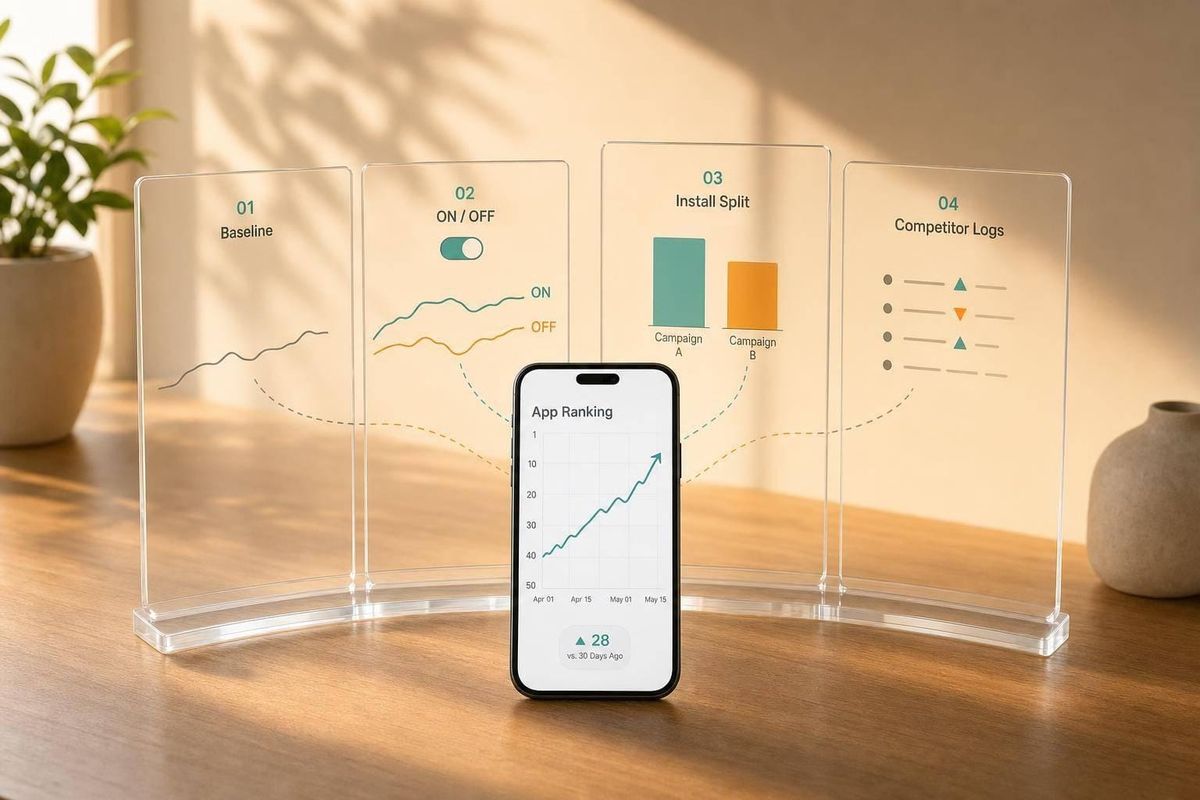
Ads do not move app rankings by themselves. What I’d track is simple: baseline rankings, paid vs. organic installs, listing changes, and competitor moves. If those four line up, I can tell whether ads helped ranking movement or just bought short-term traffic.
Here’s the short version:
- I’d set a 14–28 day baseline before ads start
- I’d treat small rank shifts like ±1–2 spots as normal noise
- I’d compare an Ad OFF → Ad ON → Ad OFF window
- I’d split installs into paid and organic
- I’d mark any listing edit or review swing near the test as a confounder
- I’d check whether organic lift lasts 7–14 days after ads stop
- I’d only call a keyword ad-responsive if rank gains and organic install growth happen together
A simple way to think about it: if rankings jump during ads, but organic installs stay flat and the gains fade after spend stops, the ads likely did not change organic visibility in a lasting way.
| Signal | What I’d look for | What it tells me |
|---|---|---|
| Keyword rankings | Gains that hold for days, not one-day spikes | Whether visibility moved |
| Install mix | Organic installs up, not just paid installs | Whether ads had spillover |
| Listing/review log | Title, screenshots, pricing, ratings, review shifts | Whether another change explains the move |
| Competitor activity | Promo surges or ranking jumps from others | Whether the market changed at the same time |
My goal would be attribution, not guesswork. I’d use fixed dates, fixed spend, and the same reporting format after each test so I can judge whether the ad impact claim is supported, partly supported, or not supported.
That’s the core idea of the article, in plain English.
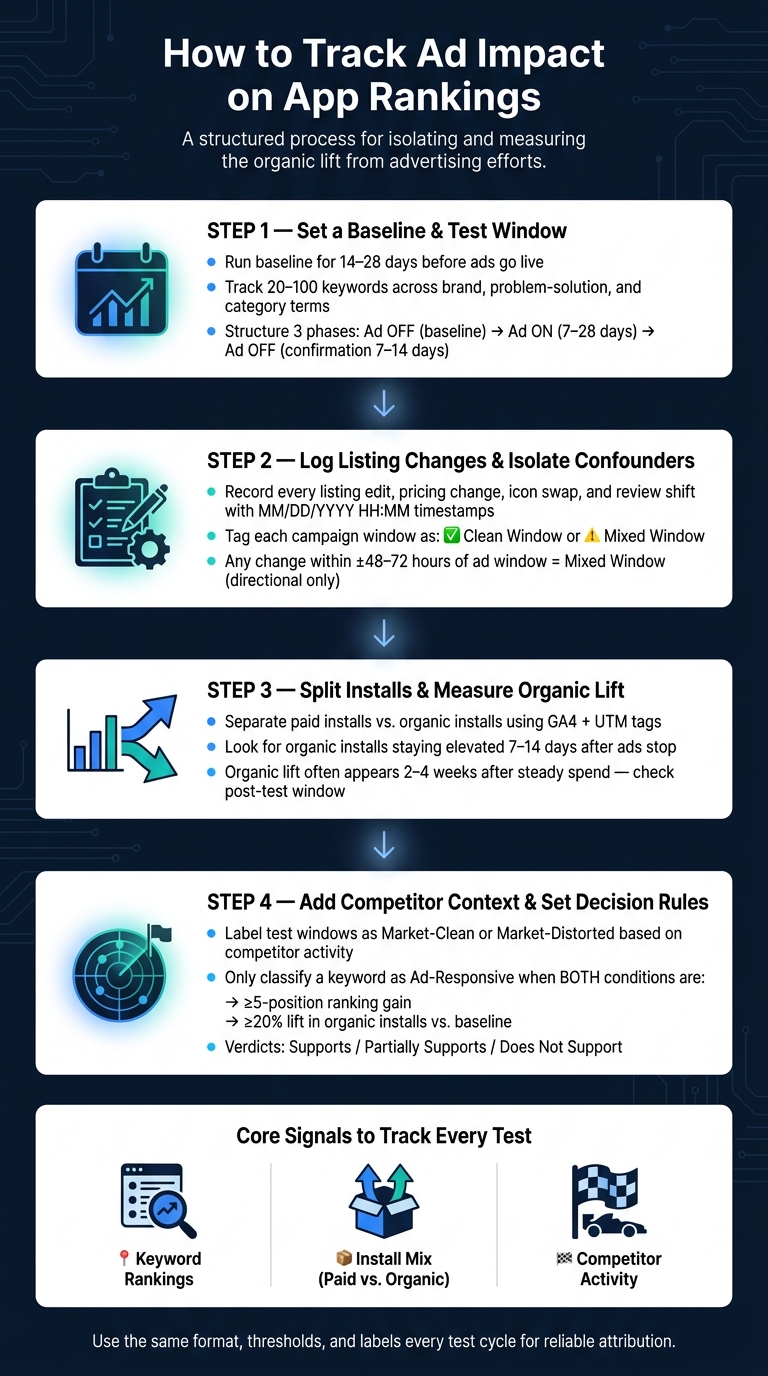
How to Track Ad Impact on App Rankings: 4-Step Framework
Step 1: Set a baseline and test window
Before you run a single ad, get a clean read on where your app stands today. If you skip that step, you can't tell whether a ranking bump during the campaign came from the ads or from normal market noise.
Build keyword snapshots for your baseline period
Run your baseline for 14–28 days before any ads go live, and keep your listing, pricing, and promotions as steady as possible. A 14-day window is usually enough if your app already gets steady traffic, around 20–50 installs per day, and rankings don't move much. If your app is newer, installs bounce around, or your category gets hit by seasonal swings - like retail apps around Black Friday or tax apps near April 15 - use 28 days to smooth out the noise.
Group your tracked keywords into three buckets:
- Brand terms: your app name and close variants
- Problem-solution terms: phrases like "subscription billing app" or "abandoned cart recovery"
- Category terms: broad labels like "email marketing" or "loyalty program"
Aim for a tight set of 20–100 keywords total. That's usually enough to spot a pattern without turning tracking into a mess. Put extra focus on terms where you already rank somewhere in the top 50.
"Single-day position data should be treated as a point-in-time snapshot. Trends over 7 or 30 days are more reliable signals of actual ranking movement." - AppJubilee
Capture rankings at the same time every day - say, 10:00 a.m. ET - to cut down on intraday noise. For each keyword, log the daily rank position, whether it shows up in the top 3, top 10, or top 30, and any days when you don't rank at all. If anything odd happens during the baseline, mark those days as "dirty" so they don't skew your pre-ad averages.
Design a simple ad ON and OFF test structure
Once your baseline is set, build your test in three phases and lock the dates before you begin:
| Phase | Duration | Purpose |
|---|---|---|
| Baseline (Ad OFF) | 14–28 days | Capture organic ranking stability and daily install averages |
| Ad ON | 7–28 days | Measure ranking and install lift from paid traffic |
| Ad OFF (Confirmation) | 7–14 days (optional) | Check whether gains hold after spend stops |
During the Ad ON period, keep three things locked: creative (the same ad copy, images, and call-to-action the whole time), targeting (the same audience, country focus, and placements), and budget (steady daily spend, with no more than one small adjustment under 20–30% if you have no other choice). A 7–10 day window can work if your daily budget is driving 50–100+ incremental installs. If you're working with a smaller budget or a niche audience, run 21–28 days so you have enough data points. Most teams land on 14 days because it matches the baseline length and covers two full weekly cycles, including weekday and weekend behavior.
Write down your dates in MM/DD/YYYY format, note the time zone, such as ET, and match those windows inside your analytics tools. In AppJubilee, you can mark campaign windows so keyword snapshots are grouped automatically as pre-campaign, during, and post-campaign. That makes the later comparison much easier to pull.
sbb-itb-ce93587
Step 2: Separate ad effects from listing changes and review shifts
Once you lock your baseline and test window, document every change that could affect rankings. That's how you tell the difference between movement caused by ads and movement caused by something else.
With the test window fixed, isolate every non-ad factor that can move rank: listing edits, pricing changes, and review shifts.
Keep a listing change log with timestamps
Track changes to your title, subtitle, description, creative, icon, pricing, and reviews.
For each entry, record:
- the date and time in MM/DD/YYYY HH:MM ET format
- the exact field that changed
- a short note on what changed
- the locale or store affected
Use minute-level timestamps so you can line changes up with keyword snapshots and campaign logs. If a title change was logged at 9:10 AM, don't lump it in with ranking data from 8:00 AM if you're trying to pin down cause and effect.
Any review or listing change that overlaps with the ad window should be treated as a confounder.
In AppJubilee, the Listing Changes & Impact Analysis feature ties your change history to daily keyword tracking and ranking snapshots. That makes it much easier to match ranking moves to listing edits or campaign timing. It also keeps keyword snapshots, listing logs, and install trends on the same timeline.
Label clean ad windows versus mixed-impact windows
Once the log is in place, tag each campaign period as either a clean window or a mixed window.
A clean window is a period when nothing ranking-sensitive changed. That means no indexed metadata edits, no icon or first-screenshot swaps, no pricing changes, and no major review or rating shifts.
A mixed window is any period when at least one of those changes happened while ads were running.
Here's the practical rule: if any logged change falls within ±48–72 hours of your ad window's start or end date, mark that period as mixed. Use clean windows for attribution. Treat mixed windows as directional only.
| Window Type | Criteria | How to Use the Data |
|---|---|---|
| Clean Window | No indexed metadata edits, icon changes, first-screenshot swaps, pricing changes, or major rating/review shifts during the ad period | Attribution only |
| Mixed Window | Any listing edit, visual change, pricing change, or meaningful rating shift overlaps with ads | Directional only |
| Baseline (Ad OFF) | No ads running and the listing held stable | Use as the comparison benchmark for both window types |
With the windows labeled, compare install trends next to isolate organic lift.
Step 3: Measure installs and organic lift during the campaign
Once your windows are labeled, the next step is simple in theory and a little messy in practice: match ranking changes to install changes.
Raw install totals won't tell you much on their own. You need to split installs by source and watch how each one changes over time.
Compare baseline installs to ad-period installs
Start with the baseline daily average from Step 1. Then compare it with the ad window. For each period, break installs into paid installs and organic installs.
Use GA4 with UTM tags to separate paid installs from organic installs. Then match that with Shopify Partners referral data. At a minimum, track:
- Date
- Paid installs
- Organic installs
- Total installs
- Listing-view-to-install conversion rate
Those columns make it much easier to see whether ad lift is spilling over into organic traffic or if paid traffic is doing all the work.
Here’s a clean example: your baseline is 40 installs/day made up of 10 paid and 30 organic. During the ad period, that jumps to 90 installs/day with 50 paid and 40 organic. Paid installs grew by +400%, while organic installs rose by just +33%.
That’s a big clue. The campaign drove paid volume, but the organic gain was modest.
AppJubilee's GA4 and Shopify Partners integrations let you pull that attribution data into the same view as your daily keyword rankings, so you’re not stuck piecing together spreadsheets by hand.
Look for sustained organic lift, not just paid spikes
A short paid spike usually has a pretty obvious shape. Total installs jump when ads start, then slide back close to baseline a few days after ads stop. Meanwhile, organic installs barely budge. When you see that pattern, the campaign likely bought temporary traffic without changing ranking behavior in a lasting way.
A sustained organic lift looks different. Organic installs move up during the ad window and stay above baseline for at least 7–14 days after spend pauses. Core keyword rankings hold steady or improve over that same stretch. Conversion rate doesn’t drop. Install velocity can lift rankings even before reviews catch up.
There’s often a delay here, and that’s where people get tripped up. Organic lift may not show up right away. It often appears 2–4 weeks after steady spend, not on day one. So if you run a 10-day test and only check in-window data, you can miss the whole thing.
Build a post-test check into your process. Compare organic installs in the two weeks after ads stop with your original baseline. If rankings fall in a material way within about two weeks of pausing spend, paid support was likely holding up visibility instead of creating real organic momentum.
If rankings move but installs don’t follow, the next place to look is competitor activity.
Step 4: Add competitor alerts and turn findings into decision rules
Use competitor alerts to explain market-wide ranking shifts
If ranking and install trends still don't match up, look at what competitors were doing at the same time.
Here's why that matters: your app might climb during an ad window, but if several competitors also move up on the same keyword, the campaign is only part of the story. The shift could come from seasonal demand, an algorithm update, or some other market-wide change.
Use timestamps to match competitor events with your keyword snapshots. That makes it much easier to see whether a ranking change was specific to your app or part of a broader swing across the market. AppJubilee puts those events on the same timeline as your keyword data, so you can review both in one place.
Give each test window one of two labels: "market-clean" or "market-distorted."
A market-clean window means no major competitor events overlapped with your test. A market-distorted window means at least one major competitor promo surge or ranking jump happened during that same period.
If competitor activity overlaps your window, don't treat the outcome as fully attributable to your ads. Mark it as market-distorted instead. Those results can still help, but they're better used as directional signals. If you can, run the test again in a market-clean window.
Set simple thresholds for future ad-impact reporting
Once competitor context is in place, turn what you found into rules you can use again and again.
Only flag a keyword as ad-responsive in a market-clean window when you see both:
- a ≥5-position gain
- a ≥20% lift in organic installs vs. baseline
Use the labels below to make reporting more consistent:
| Classification | Criteria | Next Step |
|---|---|---|
| Ad-responsive | ≥5-position gain + ≥20% organic install lift, market-clean window | Increase bid/budget by about 25% next cycle; prioritize in creative testing |
| Moderate response | 2–4 position gain, no meaningful install lift | Hold or slightly reduce bids; test listing improvements instead |
| Non-responsive | No significant ranking or install change across two tests | Reduce budget allocation; reclassify as low-priority |
| Inconclusive | Multiple overlapping events in the same window | Label as "market-distorted"; re-test in a market-clean window |
Document the threshold, the window label, and the trigger events each time. That way, every test gets scored the same way, and your reporting doesn't drift from one review cycle to the next.
Conclusion: What to report after each ad test
Use a repeatable post-test summary
Every ad test should end with a short, structured summary that answers one core question: did the ads materially change rankings or organic installs? To answer that well, use the same four signals every time: keyword snapshots, listing logs, install trends, and competitor alerts.
Report each test in before, during, and after order. Start with the context: what ran, when it ran, and which keywords you tracked. Then lay out the evidence: ranking changes, install trends, listing edits, and competitor activity. Finish with a clear verdict: supports, partially supports, or does not support the ad-impact claim.
Use this checklist in every report:
| Reporting Element | What to Capture |
|---|---|
| Baseline & ad test dates | MM/DD/YYYY dates for each period |
| Tracked keywords | Baseline rank vs. ad-period rank; note direction of movement |
| Ranking changes | Position shift vs. baseline; note whether it met the meaningful-move threshold |
| Listing edits | Title, description, screenshot, or pricing changes with timestamps; flag as potential confounders |
| Install trends | Organic installs/day vs. baseline; note post-ad persistence |
| Competitor activity | Competitor campaigns or listing changes; mark the window clean or mixed |
Be direct when you state the result. Say whether organic installs, rankings, and window labels support, partially supports, or do not support the ad-impact claim.
If the window included a listing edit or a major competitor shift, call that out plainly. In that case, treat the result as directional, not conclusive. AppJubilee's listing change impact tracking and competitor alerts can log those events alongside your keyword snapshots.
Using the same format, thresholds, and labels each time makes it much easier to spot patterns. You can see which keyword clusters respond in a steady way, which windows get distorted, and which campaigns are worth testing again. Stick with the same format for every test.
FAQs
How do I know if a ranking change is just noise?
Small day-to-day moves of 1 to 2 positions are usually just noise, not a meaningful change. Shopify App Store rankings can shift based on location, personalization, and small algorithm updates, so a single day’s snapshot doesn’t tell you much.
Instead, watch the trend over 7 to 14 days. 30-day change tracking gives you a more reliable signal than looking at absolute day-by-day position changes.
What should I do if I changed my listing during the ad test?
Use AppJubilee to separate listing edits from ad effects. On the Listing Changes page, review saved snapshots and use the diff viewer to see exactly what changed.
Then use Change Impact Tracking to connect those edits to daily keyword ranking movement. Check results after 3, 7, and 14 days, since Shopify usually indexes title and search term changes within a week.
How long should I wait after ads stop to judge organic lift?
Look at trends over 7 to 14 days, not single-day swings.
In the Shopify App Store, small shifts of 1 to 2 positions are usually just noise. Rankings can change based on personalization or even the time of day. That’s why AppJubilee lets you check performance at 3, 7, and 14 days, so you can spot ranking movement that’s more likely to mean something.