
How Competitor Listing Updates Shift App Rankings
Use timestamped snapshots and daily keyword checks to link competitor listing edits to sustained 2+ position app rank drops.
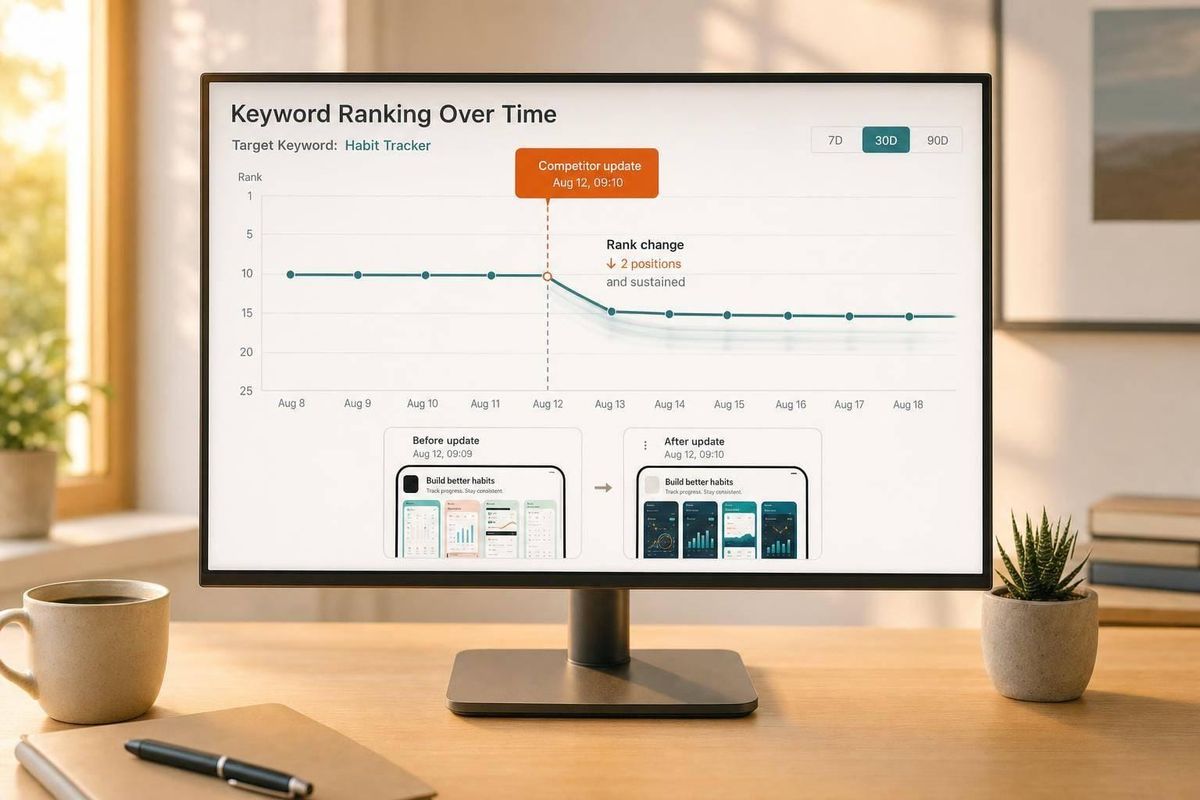
Your app can lose rank even when you change nothing. In many cases, a competitor updates its title, description, screenshots, pricing, reviews, or badges, and that shift affects how the Shopify App Store orders results.
Here’s the short version: I’d tie each competitor edit to Shopify App Store keyword research and daily rank checks, compare before-and-after snapshots, and look for drops of 2+ positions that stick for 3 to 7 days on matching keywords. If the movement is narrow, the competitor edit is a likely cause. If many keywords move at once, it’s more likely a store-wide ranking change or demand shift.
What I’d track right away:
- High-impact edits: title, subtitle, short description, screenshots, pricing, reviews, badges
- Timing: the exact date and time of each competitor change
- Rank checks: baseline, then 1-day, 3-day, and 7-day snapshots
- Pattern checks: isolated keyword drops vs. broad movement
- My own changes first: title edits, screenshot swaps, price changes, releases, review changes
A simple rule helps: ignore small one-day swings. In app search, 1-position changes are often noise. But a 2-spot to 5-spot drop on a keyword that overlaps with a competitor’s new title or subtitle is worth a closer look.
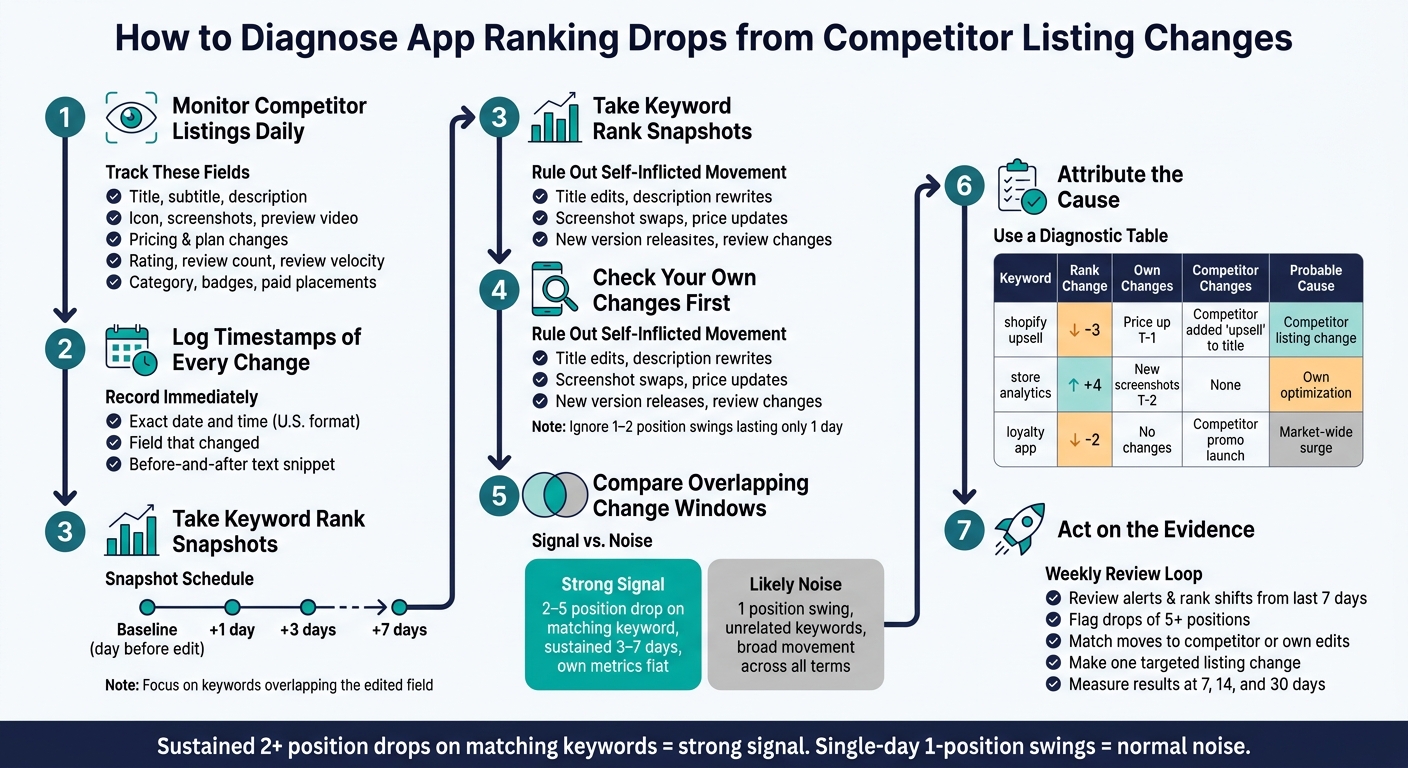
How to Diagnose App Ranking Drops from Competitor Listing Changes
Quick Comparison
| What changed | What I’d expect to move | What it may mean |
|---|---|---|
| Title or subtitle | Exact-match and close-variant keywords | Search relevance shift |
| Description | Long-tail and supporting terms | Broader keyword coverage |
| Screenshots or icon | CTR, installs, then rank | Better click and install rate |
| Pricing or trial terms | Conversion and install intent | More shoppers willing to install |
| Reviews or rating | CTR, installs, trust | More merchant confidence |
| Badge change | Visibility and conversion | More trust at a glance |
The goal is simple: I’d stop guessing and use timestamps, rank history, and side-by-side checks to connect the change to the result.
sbb-itb-ce93587
How to connect competitor changes to keyword rank movement
Once your alerts and snapshots are set up, the next step is simple: line up each competitor edit with the next few days of keyword movement.
Track timestamps and daily rank positions in one view
For each competitor update, log the exact date and time in U.S. format, the field that changed, and a short before-and-after text snippet. For Shopify App Store keyword work, the title, subtitle, and short description tend to matter most for ranking.
Then review your daily keyword ranks for the terms most likely connected to that field. That gives you the first group of keywords to test in your snapshots.
The most useful view puts three columns side by side: current rank, 7-day change, and 30-day change. The 30-day column matters because it shows whether the move stuck or disappeared after a short bump.
Use before-and-after ranking snapshots to isolate movement
Treat the day before a competitor's edit as your baseline. From there, record rank positions 1, 3, and 7 days later for every keyword that overlaps with the edited field. Pay close attention to keywords that match, or closely relate to, the terms added or removed in the competitor's listing.
There are two things to look for in these snapshots:
- How far positions moved, and in which direction
- Whether the movement was isolated or broad
That second point matters more than it may seem. If only a small set of matching keywords moved, the listing edit is a likely cause. If movement shows up across many keywords, you're probably looking at an algorithm update or a market-wide demand shift instead. That's how you separate edit-driven movement from normal keyword noise.
A sustained move of two or more positions on a matching keyword is a strong signal. Single-position swings on unrelated keywords are normal.
Use a ranking change table for attribution
Use the same format for every update so patterns are easy to compare Shopify ASO tools.
| Date/Time | Competitor | Change Type | Keywords Affected | Rank Before | Rank After | Likely Impact |
|---|---|---|---|---|---|---|
This format keeps attribution easy to scan. Each row tells the full story: what changed, when it changed, which keywords reacted, and what happened next. Over time, the table can also show repeat patterns - for example, which competitors tend to move rankings when they update titles versus descriptions.
How to monitor competitor listing updates without missing timing
Check competitor updates every day so you can tie the first ranking move to the exact listing edit that came right before it.
What data to monitor for each competing app
For each competitor, track the same data points on a steady schedule and save every check with a timestamp. That way, you’re not guessing later. You can look back and say, “This changed here, and rankings moved right after.”
The minimum set should cover text metadata like the title, subtitle, description, and keyword coverage. It should also include visual assets such as the icon, screenshots, screenshot captions, and preview video. On top of that, track pricing or subscription shifts, rating and review count changes, category updates and badges, keyword ranking movement on overlapping terms, and whether the app is running paid placements.
The key is to track only the fields that could reasonably affect rankings. Each time you collect a new snapshot, compare it with the last one and log the first visible change.
| Data Category | What to Track |
|---|---|
| Text metadata | Title, subtitle, description, keyword coverage |
| Visual assets | Icon, screenshots, screenshot captions, preview video |
| Pricing | Plan changes, pricing updates, free/paid status |
| Ratings & reviews | Average rating, review count, review velocity |
| Category & badges | Primary category, badge changes |
| Keyword rankings | Daily organic positions for overlapping keywords |
| Ad activity | Paid placements on overlapping keywords |
Use AppJubilee for alerts, snapshots, and ranking history
AppJubilee supports this process by recording timestamped listing snapshots and daily keyword positions.
Its Listing Change Impact Tracking feature lets you open a specific snapshot and see which keywords moved after that update. That matters because a ranking jump by itself doesn’t tell you much. The snapshot history gives you the missing link between the edit and the movement.
The App Watch feed shows competitor changes as they happen, and severity filters help you focus on the edits that matter most. You can also set up email alerts for cases where a competitor passes your position on a target keyword or suddenly shows review spikes. That gives you the timing data you need to trace ranking movement back to one specific change.
How to diagnose the most likely cause of a ranking change
Once you have snapshots and rank data, work through the cause in a simple order: your own changes first, competitor changes second, then supporting metrics.
That order matters. It keeps you from blaming a competitor when the issue may have started on your side.
Check your own changes before attributing movement to competitors
Start with your own listing changes. They’re the fastest way to rule out self-inflicted movement.
Look at any title edits, description rewrites, screenshot swaps, price updates, new version releases, and review changes that happened in the few days around the rank shift. If you changed your title on the same day your ranking fell, that edit is your first suspect.
A simple internal change log helps a lot. Track:
- The date
- The type of change
- The field you edited
Also, don’t chase every tiny fluctuation. Ignore one-day moves of 1–2 positions. Focus on drops that stick around.
Compare overlapping change windows across apps and keywords
If your own edits don’t explain the move, line up competitor changes against the same dates.
For each affected keyword, map out what each close competitor did in the 3 days before and after the rank shift. The clearest signal is timing. Say a competitor added a keyword at T‑1, your rank dropped at T or T+1, and your own metrics stayed flat. That’s a strong clue.
On the flip side, if your CTR and installs went up right after your change, your own edits are more likely behind the movement.
Use a diagnostic comparison table to find the probable cause
Use the same format for every keyword. That way, the likely cause stands out fast instead of getting buried in notes.
| Keyword | Rank Change | Own Changes in Window | Competitor Changes in Window | Most Probable Cause | CTR / Installs / Reviews |
|---|---|---|---|---|---|
| shopify upsell | −3 | Price increased T‑1 | Competitor A added "upsell" to title T‑1 | Competitor listing change | CTR flat; reviews +10; installs −8% |
| store analytics | +4 | New screenshots T‑2 | None | Own visual optimization | CTR +18%; installs +22% |
| mobile app builder | −2 | No changes | Competitor B launched update + promo T | Market-wide surge + competitor promo | Category installs up; own metrics steady |
| subscription app | −8 | Screenshot update | Competitor C updated title | Mixed | High uninstall rate in Shopify Partners data |
Sometimes the cause just isn’t clean. That happens. When it does, label it mixed instead of forcing an answer.
Still record the case. Over time, those messy examples help you spot patterns in later ranking changes. AppJubilee's Listing Change Impact Tracking and GA4 integration can fill the rank and metric columns automatically.
Conclusion: Turn Competitor Updates into Better ASO Decisions
Once you connect changes to timestamps and snapshots, ranking swings stop feeling random. They become choices you can study. Competitor edits can shift keyword rankings, so treat each move like an event: log the timestamp, compare snapshots, check your own changes, then test where competitor overlap may be at play.
Timestamped monitoring, rank snapshots, and a diagnostic table give you evidence you can actually use.
And that evidence should guide your next test - not just sit in a report. If a competitor climbs after a title change, try that pattern in your own title. If new screenshots boost clicks, take a hard look at your visuals or analytics to see where users drop off.
Build a Simple Weekly Review Loop
The easiest way to make this process stick is to run it every week. Strong ASO teams do weekly reviews. The process is simple:
- Review competitor alerts and major rank shifts from the last 7 days.
- Compare current positions with the last baseline and flag drops of 5+ spots.
- Match each move to competitor edits or your own changes.
- Document the cause, make one targeted listing change, and measure results over 7, 14, and 30 days.
AppJubilee supports this loop with alerts, diff views, and ranking impact tracking in one place.
FAQs
How do I tell noise from a real rank drop?
Ignore small day-to-day shifts of 1 to 2 positions. Those often come from search personalization or simple timing issues, not a real change in performance.
Instead, look at 7-day, 14-day, or 30-day trends. That gives you a much cleaner read. A drop is more likely real when related keywords fall together, not just a single term.
It also helps to check what competitors changed around the same time. Did they update a listing? Launch a new feature? If rankings, traffic, and installs all move in the same direction after a competitor change, the drop is probably real.
Which listing changes affect rankings fastest?
Updates to the Search Terms field usually affect rankings the fastest, often within 24 hours. Changes to high-impact elements like your App Name, subtitle, and introduction usually get indexed within 7 days.
Because listing edits can change visibility fast, it helps to track performance at the 3-day, 7-day, and 14-day marks. That way, you can see the effect of even small changes to your title or description.
What should I check before blaming a rival app update?
Before you pin the drop on a rival’s listing update, rule out normal noise and other moving parts first. A one-day swing doesn’t tell you much. Look at 7-day and 30-day trends instead, and see whether the movement holds up over time.
In that same period, check for anything on your side that could muddy the picture. That includes your own listing edits, negative reviews, and changes in clicks, install conversion rates, or GA4 engagement. It also helps to verify that the shift shows up across related keywords, not just a single term.