
How Shopify Partners Data Maps Competitor Gaps
Map app competitor gaps with installs, GA4 traffic, listings, reviews, and ranking checks to prioritize listing and product fixes.

You don’t need more guesswork to find app growth gaps. I can map them by lining up four signals: Shopify Partners data, GA4 traffic data, public app listings, and competitor reviews.
Here’s the short version:
- I use Shopify Partners to check installs, uninstalls, ratings, earnings, and active merchants.
- I use GA4 to see impressions, clicks, CTR, traffic sources, and install intent.
- I use public Shopify App Store listings to compare categories, pricing, features, screenshots, integrations, trials, and positioning.
- I use reviews and listing edits to spot what merchants keep asking for and what rivals are trying to fix.
- I confirm each gap with 7-day and 30-day ranking moves, not one-day swings.
- Then I sort fixes into three groups: listing changes, positioning fixes, and product work.
In plain English, a competitor gap is any place where another app is weak, misaligned, or missing what merchants want. That can mean a feature gap, a category mistake, poor trial terms, bad reviews, weaker support claims, or slipping rankings.
A simple monthly workflow looks like this:
- Check category placement and top rivals
- Compare feature sets and pricing
- Read recent reviews for repeat complaints
- Log listing changes by date
- Match those changes to ranking, CTR, and install shifts
- Ship the highest-impact fix first
What matters most? Not raw product review count. Not one feature list. Not one ranking snapshot. I’d focus on patterns like 30-, 60-, and 90-day review themes, keyword drops around positions #8–#15, and cases where rankings, CTR, and installs all move together.
If I saw a rival move from a 7-day trial to a 30-day trial, add GA4 to listing copy, and then gain rank while my install rate drops, that’s not random. That’s a gap I can act on.
| Signal | What I look for | What it tells me |
|---|---|---|
| Shopify Partners | Installs, churn, ratings, earnings | Whether the issue hits growth or retention |
| GA4 | Impressions, clicks, CTR, engagement | Whether traffic quality or listing appeal changed |
| Listings | Categories, features, pricing, screenshots | How rivals frame their offer |
| Reviews | Repeat complaints, rating drops, review pace | Where merchant demand is not being met |
| Rankings | 7-day and 30-day keyword movement | Whether the gap affects visibility |
So the core idea is simple: I don’t change my listing or roadmap based on hunches. I compare market signals, confirm the gap with data, and then work the items most likely to move installs.
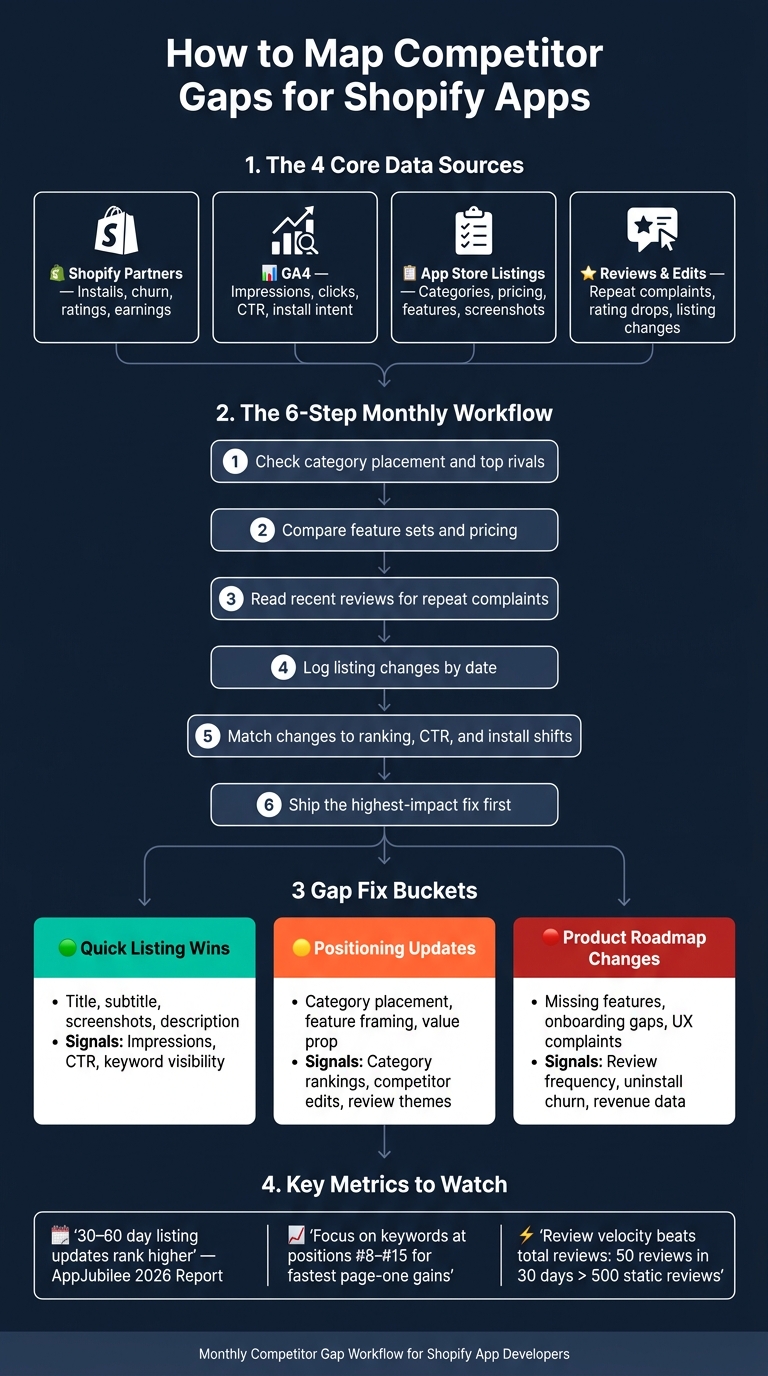
Shopify App Competitor Gap Analysis: Monthly Workflow
Build a competitor gap map from categories and features
Pull installs, churn, and click data from Shopify Partners. From public Shopify App Store listings, log category placement, ranking position, pricing tiers in USD, core features, integrations, onboarding claims, supported languages, and target merchant segments.
Start with category placement. Then check whether the listed features actually back up that placement.
Map category placement to find whitespace and misclassification
Each app has one primary category. It may also show up in secondary categories or collections. That split matters more than it seems. A broad label like Marketing can blur the picture and hide tighter niches like post-purchase upsell, subscription billing, or abandoned cart recovery. And that’s where the fight for attention usually happens.
Search the Shopify App Store for your main use-case keywords and pull the top 20–50 apps that solve the same merchant problem. For each app, record:
- the primary category on the listing page
- any secondary categories
- its rank bucket: top 10, 11–50, or 51+
Then mark the gap: is the app well placed, misclassified, or missing from a category where it clearly belongs?
Misclassification is a gap. If a subscription app sits under Store Design instead of Checkout & Conversion, it misses the right browse traffic. That’s where merchants look, so the wrong category can hide demand in plain sight.
| App Name | Primary Category | Secondary Category | Current Category Position | Gap |
|---|---|---|---|---|
| Your App | Subscriptions | Marketing & Conversion | #12 | Underexposed vs. top 5; no US-focused plan messaging |
| Rival A | Subscriptions | Checkout | #3 | Strong in SMB; no advanced analytics for higher-GMV stores |
| Rival B | Marketing & Conversion | Email & SMS Marketing | #27 | Misclassified; core use case is subscriptions, not email |
Update this table every month. Category positions move, new apps show up, and competitors sometimes switch their own placement. That can open a gap - or shut one down - fast. AppJubilee's ranking snapshots and competitor mapping help you track those shifts without comparing Shopify ASO tools or manually checking every listing each month.
Once the category gaps are clear, compare feature sets to see if the gap is real or if it’s just a labeling issue.
Build a side-by-side feature matrix from listing data
After you map categories, compare what each app actually offers. Pull these details from each public listing: pricing tiers in USD, core feature bullets, integrations, onboarding claims, supported languages, trial length, and any direct references to target merchant segments like small US retailers or high-volume DTC brands.
Build a gap view, not a giant spreadsheet. You’re not trying to collect everything under the sun. You’re trying to spot what changes the buying decision.
A 30-day trial vs. your 7-day trial is a gap. A competitor that loudly mentions GA4 integration while yours supports it quietly is also a gap in positioning, even when the feature is the same. Onboarding claims like US-based 24/7 support or 48-hour migrations can signal tighter targeting and may explain why some apps rank higher even with similar feature sets. Feature differences also show whether a competitor’s category placement matches what the product does - or whether they’re just better at signaling it.
| App Name | Plan (USD/month) | Core Features | Integrations | Trial & Onboarding | Target Segment | Gap |
|---|---|---|---|---|---|---|
| Your App | $29 / $79 / $149 | Subscriptions, bundle builder, basic analytics | Shopify Checkout, GA4 | 7-day trial, US email support | US DTC brands, SMB | Weak analytics vs. enterprise competitors |
| Rival A | $19 / $59 | Subscriptions, churn prediction, cohort reports | GA4, Klaviyo | 30-day trial, live chat onboarding | High-volume US merchants | Strong analytics; no low-tier plan |
The Gap vs. Your App view makes the matrix useful. It pushes you into direct comparison instead of passive note-taking. If the matrix shows rivals offer longer trials, and your Shopify Partners data shows shorter trial windows line up with higher churn, that’s a clear signal to test a longer trial for US merchants. If competitors all mention GA4 in their listing copy and you don’t, even though you support it, that’s a listing fix - not a product fix.
After category and feature gaps are mapped, use reviews and listing edits to confirm demand.
sbb-itb-ce93587
Use reviews and listing edits to spot unmet demand
After you map category and feature gaps, the next step is simple: check reviews and listing edits to see if merchants actually feel the problem.
Category and feature gaps tell you what competitors have. Reviews and edits tell you why it matters.
Read review trends for recurring complaints and unmet demand
Total review count can be misleading. Review velocity matters more. When reviews start coming in fast, that often points to ranking movement and active merchant pain points.
Track these signals for your app and your top competitors:
- review volume
- review velocity
- rating movement
- sentiment themes
Review this data monthly. For priority competitors, or right after a big listing update, check weekly.
Group reviews into 30-, 60-, and 90-day windows. Then tag each review with a theme like missing integration, confusing setup, slow support, pricing friction, or feature request. One complaint by itself is just noise. But when the same issue shows up across 10 to 15 reviews, especially across more than one app, that starts to look like a market gap. Spend extra time on 1-star and 2-star reviews. They often tell you the most.
A 90-day rating drop is worth digging into. It can mean a recent pricing change or a new feature release created friction. And that friction can open up a positioning angle for your app.
If reviews show demand, listing edits show which problems competitors are trying to solve.
Track listing edits to see which gaps competitors are trying to close
Listing edits are a competitor's public response to pressure. If a rival adds "setup in under 2 minutes" to its subtitle, or replaces generic dashboard screenshots with step-by-step onboarding visuals, it's usually reacting to reviews, category pressure, or a feature it just launched.
Monitor these fields across competitor listings:
- title, subtitle, short and long descriptions
- screenshots
- pricing plans and trial length
- badges like "Built for Shopify"
- listed integrations
- supported languages
Log each change with its date. That makes it much easier to match edits with review spikes.
| Date (MM/DD/YYYY) | Field Changed | Before | After | Likely Intent |
|---|---|---|---|---|
| 04/03/2026 | Title | "Email Marketing & SMS" | "AI Email Marketing & SMS" | Meeting demand for AI features |
| 05/12/2026 | Pricing | $15/mo flat | Free to install (usage-based) | Reducing pricing friction |
| 05/20/2026 | Screenshots | Dashboard view | Integration logos (Klaviyo, GA4) | Answering integration requests |
| 06/01/2026 | Subtitle | "Grow your sales" | "14-day free trial - No CC" | Reducing pricing friction |
When several competitors start using the same wording in a short period, the category baseline has shifted. If your listing doesn't reflect that change, you're already behind on positioning, even if your product already supports it.
AppJubilee's competitor alerts notify you when a rival changes its title, description, or screenshots. That gives you a simple way to log the edit and then watch for ranking movement over the next seven days. Use those edit signals to test whether rankings move in the next seven days.
Confirm the gap with ranking checks and traffic signals
Once you've logged review themes and listing edits, use ranking and traffic data to see if the gap is actually there. Reviews and listing changes can point you in the right direction, but they shouldn't be the only reason you change your listing or product roadmap.
Check keyword and category ranking movement before acting
One day of ranking data doesn't tell you much. Look at 7-day and 30-day trends, especially near a competitor launch, review spike, or listing update.
Start with a ranking snapshot for the keywords and categories connected to the suspected gap. Track your position, the competitor's position, and how both changed over the last seven days. The pattern is pretty simple: their rankings go up while yours slip on the same terms around the same time they made a change.
| Keyword / Category | Your Position | Competitor Position | 7-Day Change | Interpretation |
|---|---|---|---|---|
| discount sync | #8 | #3 | You: −2, Comp: +1 | Competitor's new feature is gaining search visibility; the gap is hurting your ranking. |
| bulk price updates | #4 | #6 | You: 0, Comp: +2 | Competitor is improving, but you still lead; the gap exists but isn't critical yet. |
| Shopify – Marketing | #15 | #9 | You: −1, Comp: 0 | Category-level visibility is slipping; your listing may under-emphasize relevant capabilities. |
| upsell bundles | #9 | #11 | You: +2, Comp: 0 | You're gaining momentum; no urgent gap to close here. |
If only the keywords tied to the gap are moving while your other terms stay flat, that's a strong sign the gap is real. Short-term movement happens all the time. But steady drops across a cluster of related keywords usually mean something changed.
If those same terms and categories shift together, check whether clicks and installs changed too.
Connect Shopify Partners and GA4 data for a clearer read of listing performance
Rankings show visibility. But visibility by itself doesn't tell you whether a gap is worth acting on. You also need to see if that shift is affecting installs and on-page behavior.
Check these three signals together:
- impressions and CTR
- install conversion rate from Shopify Partners
- GA4 engagement
Here's how to read it. If your ranking drops and impressions fall on gap-related keywords, fewer merchants are seeing your listing. If CTR drops too, your listing may not be persuasive enough when they do see it. If rankings stay flat but install conversion rate falls, merchants may be choosing a competitor after comparing options. And if GA4 engagement time and scroll depth shrink after a competitor update, people may be leaving faster because your listing no longer answers the questions they care about most.
When rankings, traffic, and installs all move in the same direction - and line up with a competitor's listing edit or feature launch - you've got more than a hunch. The gap is confirmed and ready for the monthly action plan.
Turn the gap map into a monthly action plan
Once your gap analysis is backed by ranking and traffic data, it’s time to turn it into work your team can ship. The goal is straightforward: fix the items most likely to move installs and visibility first.
Sort fixes by impact, effort, and fastest ranking gains
Take the confirmed gaps and turn them into next month’s task list. A simple way to do that is to group them into three buckets: quick listing wins, positioning updates, and product roadmap changes.
| Bucket | What it covers | Key signals to use |
|---|---|---|
| Quick listing wins | Title, subtitle, screenshots, description clarity, search terms | Impressions, CTR, keyword visibility in Shopify Partners |
| Positioning updates | Category placement, feature framing, value proposition, review reply process | Category rankings, competitor listing edits, review themes |
| Product roadmap changes | Missing features, onboarding gaps, recurring UX complaints | Review frequency, uninstall churn, revenue data |
Use the bucket with the clearest ranking upside to decide what ships this month. Start with quick listing wins. These are low-effort updates, like rewriting your subtitle to include a high-intent phrase or refreshing your first two screenshots. Small edits like these can improve CTR and help you see which message gets more clicks.
According to the AppJubilee Shopify App Store Report 2026, listing freshness matters: apps that update their listing every 30–60 days rank higher than listings that do not change.
A simple monthly rhythm works well:
- Update in week one
- Watch rankings and CTR in weeks two and three
- Keep, revert, or escalate in week four
Put extra focus on keywords sitting at #8–#15. Those terms often have the fastest path to page one.
AppJubilee's daily keyword tracking and listing change impact analysis can help here. It shows which edits changed rankings or improved CTR and which ones fell flat, so your monthly plan stays tied to data instead of guesswork.
Key takeaways for developers managing Shopify App ASO
After each monthly cycle, check the same signals again to see if the gap actually closed. Use Shopify Partners, GA4, and analytics rankings to label each gap as a visibility, conversion, or product issue.
Then repeat the process each month. Review category, feature, review, and ranking gaps, and send the top issue into listing, positioning, or product work. Start with category and feature gaps. After that, monitor review themes and competitor listing edits every week. And before you spend team time on any fix, confirm the gap with ranking movement.
"Review velocity beats total reviews. An app gaining 50 reviews in 30 days will outrank an app with 500 static reviews." - AppJubilee Shopify App Store Report 2026
Recheck the same signals each month, then reassign the top gap based on what changed.
FAQs
What data should I check first?
Start with your AJ Score. It gives you a quick read on overall visibility and where you stand in your category.
Then head to the Keywords page, with extra attention on Keyword Opportunities. That’s where you can spot terms your competitors rank for while you don’t.
It also helps to review your current rankings and the Competitors page so you have a clear baseline. After that, check the Ads page to see which keywords your rivals are bidding on.
How do I confirm a gap is real?
Don’t put too much weight on one-day ranking swings. A keyword can move up or down by 1 or 2 spots just because of timing or personalization. For a steadier read, look at 7-day or 30-day trends instead.
You can also use AppJubilee to compare your keyword footprint against competitors and spot terms they rank for that you don’t. Those gaps matter most when they involve core keywords. That’s even more worth your attention when more than 40% of competitors rank for those terms.
Which fixes should I prioritize first?
Start with the fixes most likely to move the needle:
- Close core keyword gaps. Add terms that 40%+ of competitors rank for to your title, description, and listing copy.
- Push page 2 rankings onto page 1. Put extra focus on keywords already sitting around positions 8–10, since they often need less work to climb.
- Track competitor ad activity on top keywords. Then go after long-tail gaps where competitors rank and you don't.
This approach helps you focus on the terms with the best shot at driving more clicks without spreading your effort too thin.