
Track Competitor Releases and App Store Rank
Log competitor releases and daily rank, run 7- and 14-day before-and-after checks, and act only on sustained Shopify App visibility shifts.
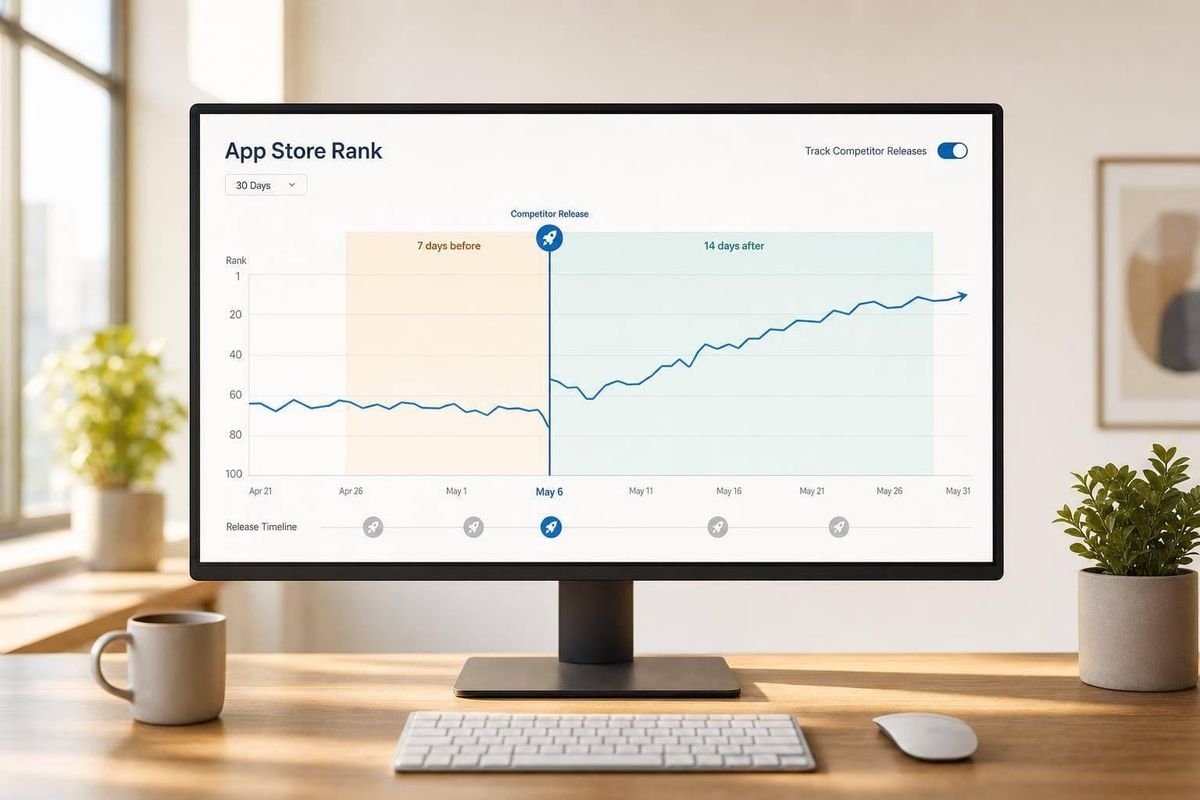
If I track rank without tracking competitor changes, I’m guessing. The fix is simple: I log competitor releases, title edits, pricing changes, screenshots, badges, reviews, and rank movement on the same timeline.
Here’s the whole workflow in plain English:
- I set a baseline for 5–10 competitors
- I group keywords by intent, like feature, problem, and branded
- I save daily rank, rating, review count, pricing, badges, and listing snapshots
- I log each competitor change with the date, local U.S. time, and exact change
- I check rank movement at Day 3, Day 7, and Day 14
- I look for moves of 3–5 positions or more across related keywords
- I ignore one-off noise and react only when the change holds
A few rules matter most. First, a one-day rank jump means little on its own. Second, title and description edits can shift keyword visibility fast. Third, review velocity and badge changes can line up with rank gains, so I check those too. And if several apps move around the same time - like during Black Friday - I treat that as category movement, not proof that one release caused the change.
Here’s the short version of what to watch:
| What I track | Why I track it |
|---|---|
| Releases and release notes | New features can line up with rank gains |
| Title and description edits | They can change keyword relevance fast |
| Screenshots and media | They can affect click-through and installs |
| Pricing and badges | They can shift buyer fit and conversion |
| Ratings and review velocity | New review activity can match visibility changes |
The main idea is simple: compare before and after, then ask one question - did this competitor change lead to a lasting rank move, or was it just noise?
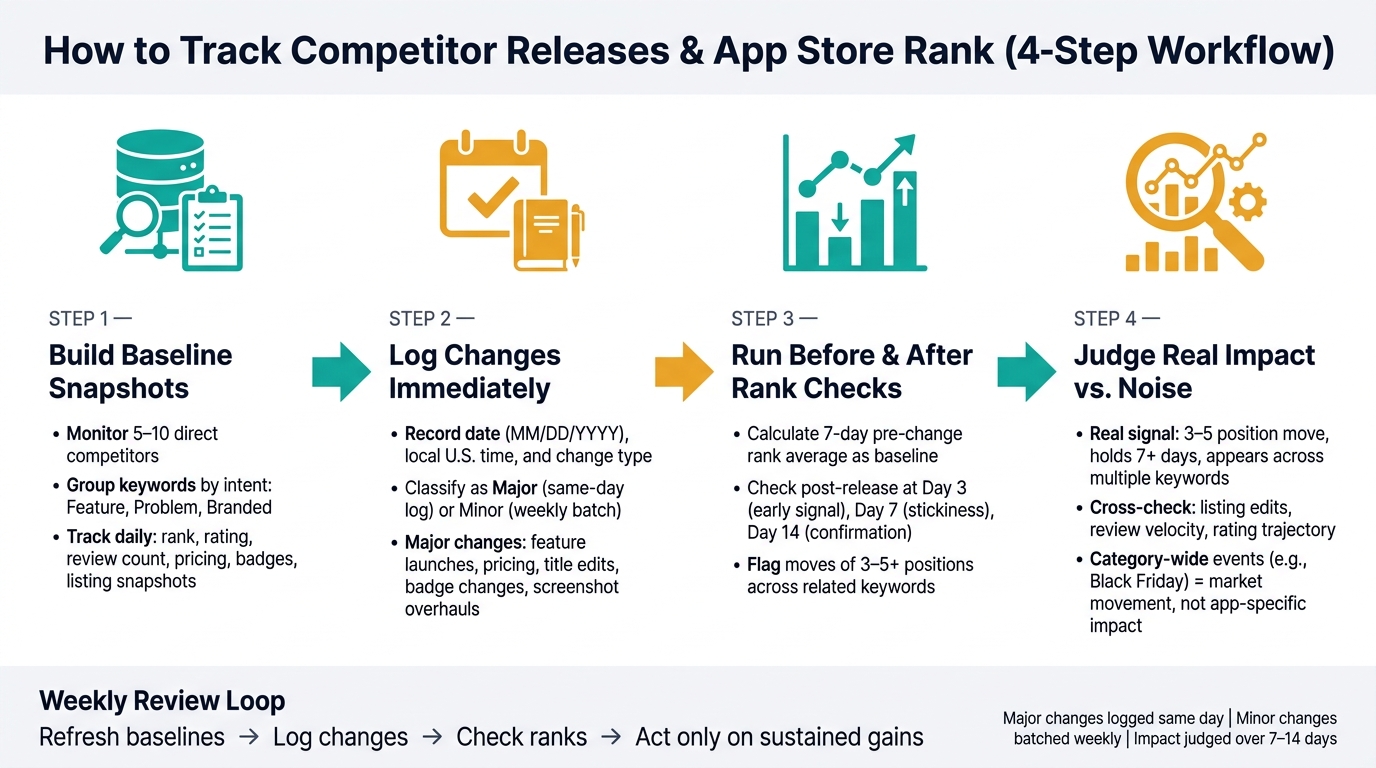
Shopify App Competitor Tracking Workflow: 4-Step ASO Process
1. Build baseline snapshots for competitors and target keywords
Baseline snapshots give you a starting line. Every later release note and rank check makes more sense when you can compare it to a fixed point.
That baseline is what you’ll use when you log competitor changes and check rankings again later.
Choose the competitors and keyword set to monitor
Start by searching your core keywords in the Shopify App Store. Pay attention to the apps that keep showing up near the top. If the same apps appear across several searches, those are likely your main competitors.
Build your shortlist from three groups:
- apps that rank above you for core feature keywords
- apps that show up again and again for problem-focused searches
- apps that share your category pages
A good target is 5 to 10 direct competitors.
For keywords, group the terms by intent:
- feature-based terms
- problem-based terms
- branded terms
This matters because each group can move in different ways after a competitor update. A pricing change, for example, may affect branded terms more than broad feature terms. A major listing rewrite can shift several intent groups at once. When your keywords are grouped, those patterns are much easier to spot.
If a competitor has the Built for Shopify badge and you don’t, include them in your baseline. They’re worth watching closely.
Capture the baseline fields that make comparisons possible
After you’ve picked your competitors and keywords, record the same fields for every app and keyword each day. That consistency is what makes before-and-after analysis hold up.
Here’s the simple version: if one snapshot logs a promo price and the next logs the standard price, your comparison falls apart. Same data points, same method, every day.
Shopify points to categories, pricing details, ratings, and reviews as core listing signals when looking at apps, so those are strong fields to track in your baseline. Shopify also says app ratings are weighted to favor recent, useful, and trustworthy reviews. That’s why it helps to record both average rating and review count - together, they show movement over time.
| Baseline Field | What to Record | Tracking Method |
|---|---|---|
| Keyword Rank | Absolute organic position (e.g., #3, #11) | Automatic (Daily) |
| Category Position | Rank within relevant Shopify category | Automatic (Daily) |
| App Title | Exact wording and keyword placement | Automatic (Snapshot) |
| Description Themes | Core messaging in short and long descriptions | Manual Analysis |
| Screenshots / Visual Assets | Screenshot count, themes, video presence | Manual / Automatic |
| Badges | "Built for Shopify" or "Staff Pick" status | Manual / Automatic |
| Pricing | Plan tiers, trial length, free status | Automatic (Snapshot) |
| Average Rating | Current star score (e.g., 4.7) | Automatic (Daily) |
| Review Count | Total reviews | Automatic (Daily) |
| Review Velocity | New reviews in the last 30 days | Automatic (Daily) |
Some fields are easy to automate, especially numeric ones like rank, rating, and review count. Others need a human look. Description themes and screenshot messaging usually need manual review if you want clean, accurate notes.
Set up AppJubilee to save daily baseline history
Once your competitor list and keyword list are set, AppJubilee can handle the daily capture for you. Add your app and each competitor, enter your keyword list, and turn on competitor mapping.
From there, the platform saves daily history for rankings and related visibility signals. So instead of a one-time spreadsheet, you can compare Shopify app optimization tools and maintain a running history you can check whenever a competitor ships an update or your rankings move.
Use the same capture rules every day so your later release logs and rank checks match up cleanly.
sbb-itb-ce93587
2. Log competitor releases and listing changes on the day they happen
Use your baseline snapshots to track every competitor change the same day it appears. That link only works if you log releases and listing edits right away. If you wait until later, the ranking context is already gone.
Record a release log with dates, timestamps, and change type
Once you have baseline history, log each competitor change as soon as you spot it. Each entry should include the app name and ID, the date in MM/DD/YYYY, the local U.S. timestamp, the change type, and a short note on what changed. Record the time in local U.S. time and include the time zone, like 2:37 PM PT or 5:37 PM ET. If you found the change later, write observed at instead of leaving the time blank.
It also helps to note how you found it, whether through a manual check, an AppJubilee alert, or a team member’s note. That makes it easier to judge how solid the record is later. Be specific about the change. Don’t write a vague label when you can write the exact update. For example: "Pro plan increased from $29.99/month to $39.99/month."
Track changes such as:
- Feature launches
- Pricing updates
- Title edits
- Description rewrites
- Screenshot swaps
- Badge additions or removals
- Review surges or rating changes
Separate major releases from minor listing edits
Not every change deserves the same level of attention. Mark a change as major when it can affect discovery, relevance, or installs. Mark it as minor when it mostly cleans up copy or layout. If you treat both the same, your log gets noisy fast, and the events that may have shifted rank get buried.
Use that split to decide what needs same-day logging and what can wait for a weekly review.
| Change Type | Classification | Data Points to Record | Logging Cadence |
|---|---|---|---|
| New feature launch | Major | Date (MM/DD/YYYY), U.S. timestamp, feature name, release notes link | Same day |
| Pricing change | Major | Old price (USD), new price (USD), plans affected, date/time | Same day |
| Full title or subtitle change | Major | Old title, new title, keyword additions/removals, date/time | Same day |
| Full description rewrite | Major | Key messaging changes, keyword notes, date/time | Same day |
| Badge addition or removal | Major | Badge type, date/time, screenshot reference | Same day |
| Screenshot set overhaul | Major | Number changed, themes highlighted, date/time | Same day |
| Minor copy tweak | Minor | Section edited, brief before/after text, date/time | Weekly batch |
| Single screenshot swap | Minor | Which screenshot changed, brief description, date/time | Weekly batch |
Use AppJubilee alerts to build a timestamped change log
One missed check can throw off the whole timeline. A competitor might push a pricing update or rewrite its full listing on Tuesday morning. If nobody looks until Thursday, you’ve lost two days of ranking context. That’s the kind of gap that makes later analysis fuzzy.
AppJubilee helps keep that timeline clean by storing timestamped before-and-after snapshots of competitor listings. When competitor alerts are turned on, changes to title, description, pricing, screenshots, or badges appear as timestamped events. The listing change tracker also keeps before-and-after snapshots, so you can compare the exact differences later.
When an alert comes in, link the event log entry to the matching AppJubilee snapshot. For example: "see AppJubilee snapshot for 08/20/2026". That way, anyone checking the log later can pull up the exact listing state from that moment.
This gives you a clean timeline between competitor moves and the rank data around them. Then you can compare rank movement before and after each event.
3. Run before-and-after rank checks around each competitor release
Once you’ve built your baseline history, tie each competitor release to its snapshot and look at rank movement around that date. The point is simple: figure out whether that release changed rankings for the keywords most connected to it.
Use 7-day and 14-day comparison windows
A single day of rank data doesn’t tell you much. Rankings bounce around all the time, so measure impact over 7 and 14 days instead of judging a release by one-day movement.
Start with a 7-day pre-change average. Pull the daily rank for each keyword across the 7 days before the release date, then calculate the mean. That average is your baseline. From there, check three post-release points:
- Day 3 for an early signal
- Day 7 to see if the move sticks
- Day 14 for confirmation
Flag changes that move at least 3 positions, remain in place through Day 14, and appear across related keywords.
Match each change to the keywords most likely to move
Don’t run rank checks across your entire keyword list after every competitor release. That’s a fast way to drown in noise.
Instead, map each release to the keyword cluster it’s most likely to affect first. For each release type, focus on 10 to 50 priority keywords rather than hundreds. This keeps the review tight and makes real patterns easier to spot when they show up.
Build a simple before-and-after rank table
After you’ve matched the release to a keyword cluster, log the before-and-after ranks in one place. Use MM/DD/YYYY for dates and standard U.S. number formatting throughout. Link every rank-check row back to the original release entry.
Use the logged release date and daily rank history to fill in the table.
| Change Date | Competitor | Keyword | Rank Before (7-day avg) | Rank After Day 7 | Rank After Day 14 | Net Position Change |
|---|---|---|---|---|---|---|
| 04/03/2026 | Omnisend | email marketing | 9 | 3 | 2 | +7 |
| 04/03/2026 | Omnisend | email automation | 16 | 6 | 5 | +11 |
| 05/12/2026 | Klaviyo | newsletter | 23 | 11 | 12 | +11 |
| 05/12/2026 | Klaviyo | drip campaigns | 31 | 18 | 15 | +16 |
Net Position Change = pre-change average minus Day 14 rank.
A positive number means the competitor moved up, which means better visibility. A negative number means they fell.
Use the release date and stored rank history to complete the table. Then use that table to decide which releases are worth a deeper impact check.
Treat any window still inside the 14-day period as preliminary. Rankings can keep shifting night by night, and a Day 7 gain doesn’t always last through Day 14. Mark those rows as open until Day 14 closes.
Use the completed table to score impact in the next step.
4. Judge which releases actually changed visibility
Use the release log and rank table side by side to figure out which changes actually moved visibility. The goal is simple: separate a real shift from normal day-to-day rank wobble.
A release matters when it does a few things at once:
- It moves target keywords by 3–5 positions
- It crosses a visibility threshold
- It sticks for 7+ days across related keywords
For size, look for a sustained move on mid- to high-volume keywords, or a clear jump into the top 10 for a strategic term. For duration, the stronger rank needs to last long enough to rule out a short spike. For coverage, the change should appear across several related keywords, not just one outlier.
Say a competitor launches a new feature and then climbs for "Shopify loyalty program" plus other loyalty- or retention-related terms at the same time. That’s a much stronger signal than one keyword drifting up for a few days.
Use reviews, ratings, and listing context to confirm the signal
If a rank shift looks real, check whether the timing lines up with a listing edit, feature launch, or review change. Look at three signals together: the release log and snapshot, recent review sentiment, and rating trajectory around the release date.
Here’s the idea: if a competitor adds a phrase like "Shopify subscription management" to their feature bullets and then starts climbing for a subscription-related keyword soon after, that timing match matters. The wording changed, the release happened, and the rank followed.
But if rankings move while the release log and snapshot, reviews, and ratings all stay flat, it’s more likely you’re seeing broader market movement or normal ranking fluctuation. AppJubilee's listing change tracking and review intelligence make that comparison faster.
When multiple apps in the same category move at the same time around a major U.S. event like Black Friday or the holiday season, treat that as market-wide movement, not app-specific impact.
A noticeable rating lift after a release can also back up a real visibility gain, especially on competitive queries.
Prioritize the release types that deserve a response
Not every confirmed visibility shift calls for the same reaction. Use the table below to match the release type with the right level of response.
| Release Type | Typical Visibility Impact | Usual Time to Effect | Data Needed to Evaluate |
|---|---|---|---|
| Major feature launch | High, across many high-intent keywords | 7–14 days | Rank changes, review volume and sentiment, install velocity |
| Listing copy refresh | Medium–high, focused on keyword relevance | 3–7 days | Rank changes for targeted keywords, listing change details |
| Pricing change | Low–medium, mostly via conversion and installs | 7–21 days | Install rate, conversion rate, rating trends |
| Screenshot update | Low–medium, mainly on click-through rate | 3–10 days | CTR, install rate from search |
Use that response level to decide what happens next. After major feature launches, revisit positioning. After a listing copy refresh, test headline or benefit copy. After pricing or screenshot changes, focus on conversion tests.
Conclusion: Turn competitor tracking into a weekly Shopify App ASO workflow
After you judge impact in the last step, turn those findings into a weekly review. Think of this workflow as a loop: refresh your baselines, log changes the day they show up, run rank checks before and after each release, and act only when you see moves that hold.
That weekly review helps you stay current on which competitors are picking up ground and which release types move rankings. AppJubilee supports this workflow with GA4 and Shopify Partners integrations that connect rank gains to installs or revenue.
Key points to carry into your next review cycle
Use this as your Friday checklist:
- Confirm your baseline before you react.
- Log each meaningful change with MM/DD/YYYY, local time, and change type.
- Judge impact over 7 to 14 days.
- Respond only to sustained gains on target keywords.
FAQs
How many competitors should I track?
Start by tracking 3–5 competitors, then add more as needed.
A simple way to choose them: look for apps that share the most of your keywords and show listing or release changes that move rankings.
On AppJubilee, you can track:
- 3 competitors on Free
- 10 competitors on Starter
- Unlimited competitors on higher tiers
What counts as a major ranking change?
In the Shopify App Store, small day-to-day moves of 1 to 2 positions are normal. On their own, they usually don’t mean much.
A ranking change starts to matter when it sticks for 7 to 14 days, not just for a single day. That’s why it makes more sense to watch sustained trends or check the 30-day change column instead of reacting to every small bump.
AppJubilee’s Change Impact Tracking can help you see whether a ranking shift lines up with listing edits, review spikes, or competitor activity.
How do I tell rank gains from seasonal noise?
Ignore single-day swings. Focus on 7-day change and, even more, 30-day position change.
Start with baseline snapshots. Then compare the current crawl with the crawl from 7 days earlier and keep an eye on the 30-day trend, not just the current rank.
If gains bunch up around a specific event, like a competitor listing update or a change to your own listing, treat that as a signal. If not, you may just be looking at normal day-to-day movement.