
7 Shopify App Listing Edits That Shift Rankings
Seven targeted listing edits that can lift Shopify app rankings and installs—test one field at a time and check results in 7–30 days.
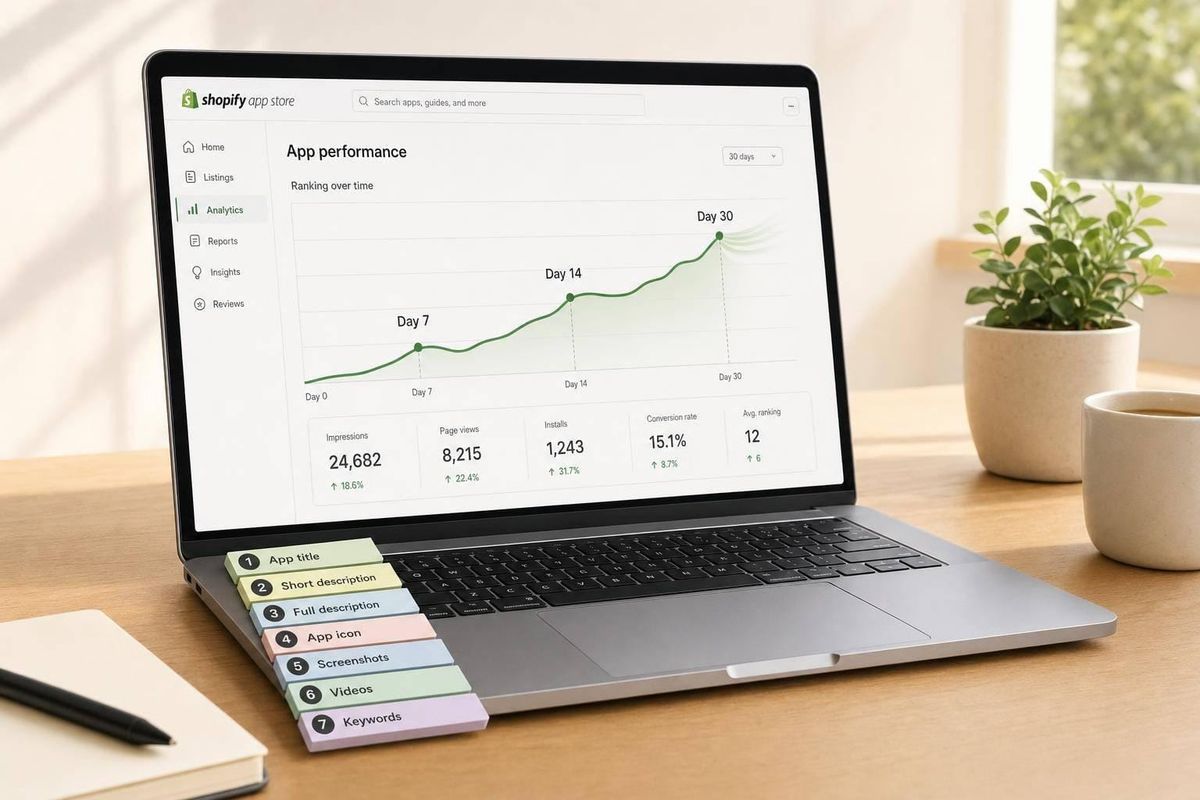
Your Shopify app ranking can move in about 7 days if you change the right listing field and track the right metric. From the article, the main pattern is simple: title, subtitle, category, and description affect search match, while icon, screenshots, and pricing affect clicks and installs. The average ranking lift cited is 8.3 positions, and that movement often shows up within 7 days.
If I had to sum it up in one line: make one listing change at a time, track it against a 7- to 30-day baseline, and judge it by the first KPI most tied to that edit.
Here’s the full set of edits covered:
- Title: strongest search signal
- Subtitle: supports search intent
- Icon: affects click-through rate
- Screenshots: affect install conversion
- Pricing: affects install rate and churn
- Category: changes browse traffic and search fit
- Description: supports search fit and install intent
How to Optimize your Shopify App Store Listing
Quick Comparison
| Edit | Main effect | First thing I’d watch | When I’d check first |
|---|---|---|---|
| Title | Search relevance | Keyword position | 7 days |
| Subtitle | Search relevance + clicks | Keyword position | 7 days |
| Icon | Click-through rate | CTR | 7 days |
| Screenshots | Install conversion | Conversion rate | 7 days |
| Pricing | Installs + churn | Conversion rate | 7 days |
| Category | Browse traffic + search fit | Browse traffic | 7 days |
| Description | Search fit + installs | Keyword position | 7 days |
A few points stand out. Title and description edits seem to have the clearest ranking effect. Icon and screenshot changes matter more for CTR and installs first. And pricing or category changes can help - or hurt - if they pull in the wrong merchants, which is why uninstall rate matters too.
That’s the whole playbook in simple terms: track your baseline, change one field, and measure the signal that field is most likely to move.
Why Listing Edits Can Change Your App's Visibility
Listing edits can shift your ranking in two main ways: relevance and performance.
Direct relevance signals - your title, subtitle, category, and description - tell Shopify what your app should rank for. If your title includes the right keywords, your app can start showing up in more search results.
Indirect performance signals - your icon, screenshots, and pricing - work a bit differently. They don't tell Shopify what your app is about. They influence whether people click and install. Shopify then uses those engagement signals, along with install velocity, to decide which apps get more visibility.
There's also a freshness factor. Regular listing updates can signal that an app is active, and apps that refresh their listing every 30–60 days tend to rank higher than static listings.
The smart move is simple: make one change at a time, then watch what happens over the next 7 days. Before your first edit, record your current ranking, clicks, and installs.
Set a Baseline Before You Change Anything
Before you touch the listing, write down your current rankings, impressions, clicks, CTR, visits, installs, conversion rate, and uninstalls. Use a 7- to 30-day baseline. A single day is too noisy.
Here’s the data to log:
| Metric Category | What to Record | Where to Find It |
|---|---|---|
| Visibility | Keyword rankings, impressions | AppJubilee, GA4 |
| Engagement | Clicks, CTR, listing visits | GA4 |
| Conversion | Install volume, conversion rate | GA4, Shopify Partners |
| Retention | Daily uninstalls | Shopify Partners |
| Listing State | Title, subtitle, icon, screenshots, pricing | AppJubilee snapshots |
Once you make a change, check rankings daily for the first 7 days. After that, compare the 30-day trend to see if the edit stuck or if the lift faded.
AppJubilee can help here by tracking daily keyword positions, listing snapshots, and both 7-day and 30-day ranking impact.
With that baseline set, you can move to the title edit.
1. Title Edit
Start with the title. It’s the strongest relevance signal your app has. Shopify treats the app title as one of its strongest relevance signals, so if your title doesn’t match search intent, your app may rank lower.
There’s a clear example from AppJubilee: when Klaviyo updated its title, the keyword "email marketing" moved from #9 to #3 in 7 days. That kind of jump is worth measuring against the keywords and metrics you logged before the edit.
A simple format works best: brand + keyword. For example, "Automated Email Marketing by [Brand]." Don’t cram in extra phrases just to chase rankings. Shopify penalizes keyword stuffing.
What to track after a title edit:
| Metric | Why It Matters | Check Window |
|---|---|---|
| Keyword rank change | Shows which keywords moved and by how much | Days 1–7 |
| Average rank change | Shows the overall shift across all tracked keywords | Days 7–30 |
| Impressions & CTR | Shows whether more merchants are seeing and clicking your listing | Days 7–30 |
| Installs | Shows whether rank gains are turning into installs | Day 30 |
Check the first impact after 7 days. Day-to-day movement of 1–2 positions is normal, so don’t treat a one-day jump or drop as a pattern.
Next, check the subtitle, which reinforces the same keyword signal.
2. Subtitle Edit
If the title handles the main keyword, the subtitle should back up the supporting query. This field matters for search, and changing it can link your app to more specific searches. That can affect which queries your listing shows up for.
The subtitle also shows in search results. So it does more than help with rankings. It helps merchants decide if your app is worth a click. That’s why plain language wins here. Say what the app does, keep it specific, and make it easy to read.
When you rewrite the subtitle, zero in on your core keywords. These are the terms that show up again and again across top-ranking competitors. But don’t cram them in. A subtitle packed with keywords is hard to read and easy to ignore.
For this test, change only the subtitle.
What to track after a subtitle edit:
| Metric | Why It Matters | Check Window |
|---|---|---|
| Keyword rank changes | Shows which search terms moved after the subtitle change | Days 1–7 |
| Impressions, clicks, and CTR | Shows whether the new subtitle is improving discovery in search results | Days 7–14 |
| Installs, clicks, and uninstall counts | Confirms the subtitle is attracting the right merchants | Days 14–30 |
Wait 7 days before you judge the result. Then look at the full 30-day trend.
Next: the icon.
3. Icon Change
After relevance signals, shift to the visual cue that can change clicks.
The icon doesn't change keyword relevance. But it can change CTR. When merchants scan a search results page, the icon is often one of the first things they notice. A weak icon gets passed over. A polished one gets the click.
And those clicks matter. Shopify uses engagement signals, so better click behavior can indirectly improve keyword rankings. Polished visuals can also have a clear effect on CTR.
For this test, change only the icon. Leave every other listing field the same so you can isolate the effect.
What to track after an icon change:
| Metric | Why It Matters | Check Window |
|---|---|---|
| CTR (Click-Through Rate) | Measures whether the new icon earns more clicks in search results | Days 1–7 |
| Keyword positions | Shows whether better engagement is turning into more visibility | Days 7–30 |
| Install velocity | Confirms whether more clicks are turning into more installs | Days 1–30 |
In GA4, watch impressions, clicks, and installs after the update. Give it at least 7 days before you make a call. The 30-day trend is the better read on whether the icon change actually moved rankings.
Next: screenshots.
sbb-itb-ce93587
4. Screenshot Update
Once the icon gets the click, screenshots do the heavy lifting on the install. They don't change keyword relevance, but they do shape conversion. In plain English: they help decide whether someone installs after landing on the page.
Better screenshots can improve install conversion. And when installs go up, install velocity can go up too, which may help rankings. That's why it's smart to change screenshots on their own. If you update too many things at once, you won't know what moved the needle.
When you redesign screenshots, center them on merchant pain points, not just product screens. Show the problem the app fixes, not only the interface. Klaviyo's screenshot update led to a small ranking bump within 7 days, with several top keywords moving up by one position.
Here's what to watch after a screenshot update:
| Metric | Why It Matters | Check Window |
|---|---|---|
| Install Conversion Rate | Shows whether the new screenshots convince more visitors to install | Days 1–7 |
| CTR | Shows whether the updated visuals are helping drive more clicks from search results | Days 1–7 |
| Install Velocity | More installs can lead to ranking gains | Days 1–30 |
| Rank change after 7 days | Shows whether the update led to early movement in search | Day 7 |
| Uninstall Rate | Warns you if the screenshots set the wrong expectation | Days 7–30 |
Look for early signals around day 7, but treat them as a first read. The 30-day trend is a steadier signal.
Next, pricing changes can affect both click-through and conversion.
5. Pricing Change
Once screenshots win the click, pricing often decides what happens next: does that click turn into an install, or not?
Pricing tends to affect rankings indirectly. It changes install rate and retention first, and those signals can then move rankings. A lower price, a 14-day free trial, or a cleaner tier setup can make the app feel easier to test and push more people to install. In fact, 14-day free trials convert better than limited free plans. If you change pricing, keep that test isolated so you can tie any rank movement back to the pricing update itself.
There’s also a short-term upside here. If install velocity jumps, rankings can move up before reviews start piling in.
But pricing cuts both ways. If you increase the price and users feel it no longer matches the app’s value, uninstall rates can climb. That can hurt long-term visibility. A good rule of thumb: check day 7 for early signals, then check day 30 for the trend that matters more.
| Metric | Why It Matters | Check Window |
|---|---|---|
| Install Conversion Rate | Shows whether the new pricing is persuading more visitors to install | Days 1–7 |
| Install Velocity | Rising install rates can lead to ranking boosts | Days 1–30 |
| Uninstall Rate | Spikes can point to merchant frustration and poor fit | Days 7–30 |
| Average rank change | Shows average rank movement across all tracked keywords | Day 7 and Day 30 |
| Search vs. browse traffic | Shows whether the update changed App Store search traffic or category browse traffic | Days 1–30 |
Use GA4 and Shopify Partners to split installs by search vs. browse. That makes it much easier to isolate the pricing effect.
Next, moving your app to a different category can open up new ranking opportunities.
6. Category Move
Pricing can change conversion. Category changes something else: how people find your app.
When you switch categories, you change both browse visibility and keyword relevance. That matters because category competition isn't equal across the Shopify App Store. Smaller, tighter categories are often easier to rank in than crowded ones. As AppJubilee puts it:
"Ranking #5 in a competitive category (email marketing) is harder than #5 in a niche category."
Shopify also uses category to connect your app with relevant searches. So a category move can either help or hurt your keyword relevance, depending on how closely the new category matches what your app actually does. That shift can affect both browse traffic and search visibility.
The best way to judge the move is simple: compare performance against your current baseline for the first 7 days and again at 30 days after the change.
| Metric | What It Tells You | Check Window |
|---|---|---|
| Browse Traffic | Whether the new category is driving more or fewer listing visits | Days 1–30 |
| Keyword Rank | Whether search relevance shifted in the new category | Day 7 and Day 30 |
| Conversion Rate | Whether the new audience is a better fit for your app | Days 7–30 |
| Uninstall Rate | Whether the new category is attracting the wrong merchants | Days 7–30 |
Taken together, browse traffic, rank, conversion, and uninstall rate show whether the category move helped or hurt. More traffic on its own isn't enough. If the new category sends more visitors but brings in the wrong merchants, your app listing has to work harder to explain the fit - especially the description.
7. Description Rewrite
After a category move, the description becomes your last big fit signal. It shapes both search relevance and installs. That’s why the copy needs to line up with search intent and the problems merchants care about, like theme compatibility, speed, and support. When the wording gets clearer, install velocity can improve.
Here’s a good example. In April 2026, Klaviyo updated its description and saw major rank movement: "newsletter" went from #18 to #7 in 7 days, "shopify email" climbed to #2, and "email marketing" reached #1.
Don’t treat a rewrite like a one-and-done task. Think of it as a periodic update. Make the change, wait 7 days, and then check the 30-day trend.
Track the impact with a close eye on these metrics:
| Metric | What to Watch | Observation Window |
|---|---|---|
| Keyword rank | Daily rank shifts for primary and secondary terms | 7–30 days |
| Conversion | Whether the new copy is driving more installs from listing visitors | 14–30 days |
| Install rate | Rate of new installs over time | 30 days |
| Uninstalls | Whether the rewrite is attracting the wrong merchants | 30 days |
Quick Reference Table: All 7 Edits at a Glance
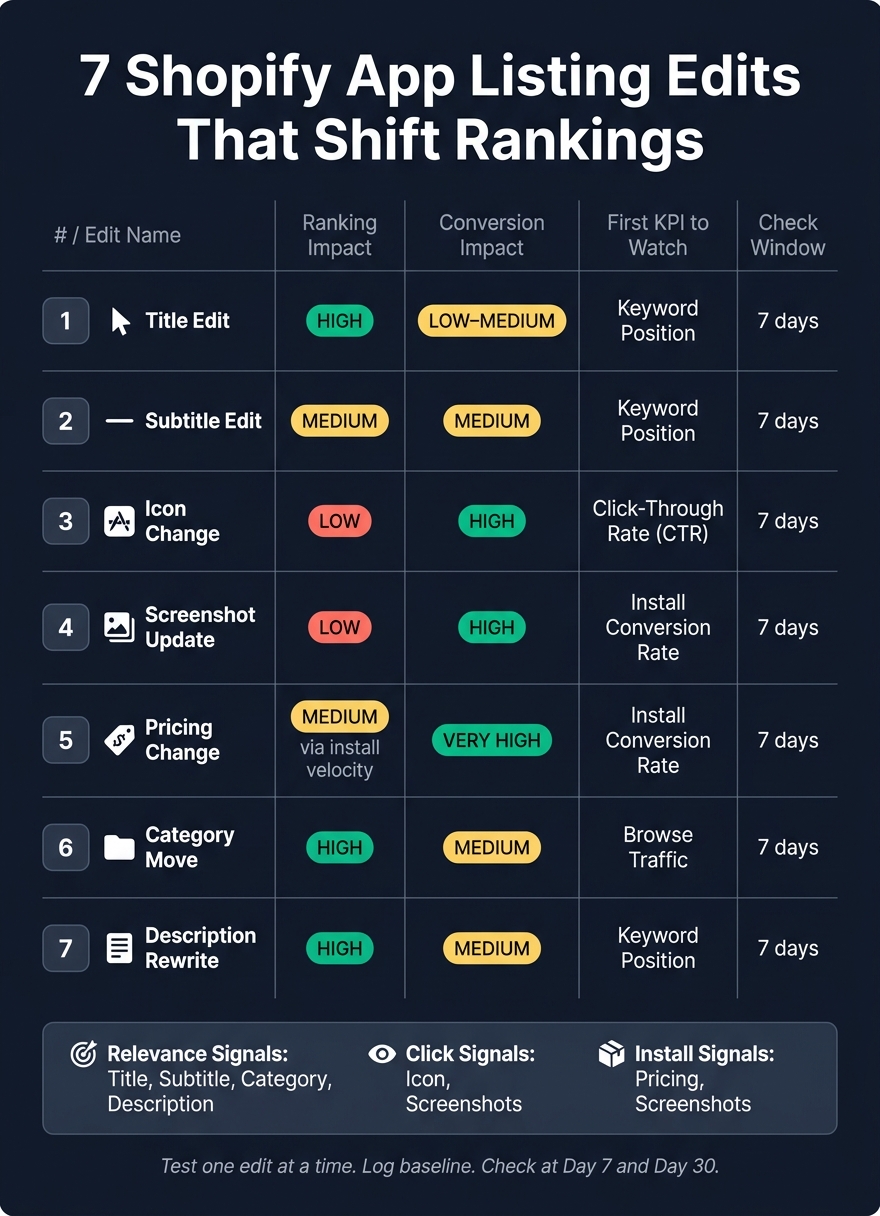
7 Shopify App Listing Edits: Impact, KPIs & Check Windows
Use this table to connect each edit with the first metric that should change.
| Edit | Ranking impact | Conversion impact | First KPI to Watch |
|---|---|---|---|
| 1. Title Edit | High | Low–Medium | Keyword position |
| 2. Subtitle Edit | Medium | Medium | Keyword position |
| 3. Icon Change | Low | High | Click-through rate (CTR) |
| 4. Screenshot Update | Low | High | Install conversion rate |
| 5. Pricing Change | Medium (via install velocity) | Very High | Install conversion rate |
| 6. Category Move | High | Medium | Browse traffic |
| 7. Description Rewrite | High | Medium | Keyword position |
Conclusion
These seven edits give you a repeatable way to improve visibility without guesswork. Each one affects one of three levers: relevance, clicks, or installs.
Test one edit at a time so you can tie any rank shift to a single change. Log the date, then check results after 7 days and again after 14 or 30 days. A one-day jump or drop is usually just noise.
After that, decide whether to keep the edit, tweak it, or roll it back. Track each change, compare the outcome, then keep, tweak, or roll it back. Use AppJubilee to match change dates with daily rank snapshots and see which edit changed performance.
FAQs
Which listing edit should I test first?
Start with your App Name and Search Terms. These fields matter most for keyword indexing, which usually happens within 1 to 7 days.
Use a brand + function format in your title, and include at least one functional keyword. Then fill all five Search Term slots with high-intent phrases that aren’t already in the title.
After that, track rankings in AppJubilee after 3, 7, and 14 days.
How do I know if a ranking change is real?
Don’t lean on a one-day snapshot. It can pick up short-term noise and send you in the wrong direction. Instead, watch 7-day or 30-day trends to see if the movement holds up.
It also helps to line up ranking shifts with your listing edits or changes from competitors. Then check positions again at 3, 7, and 14 days after an update. A steady multi-day trend is the clearest sign that the change is real.
What metrics matter most for each listing update?
Track daily keyword positions, install velocity, and conversion rate after any Shopify App Store listing update. That gives you a clear read on what changed and what happened next. AppJubilee can help tie listing edits to ranking shifts across 3-, 7-, and 14-day windows.
For title, subtitle, and description edits, keep an eye on keyword impressions and CTR. If you update icons or screenshots, focus on conversion rate. And when you change pricing, watch install velocity closely so you can spot any drop in acquisition volume fast.